Jordan Blake is a tech blogger and podcast host covering AI, consumer gadgets, and digital privacy. Through sharp commentary and conversations with founders and industry voices, Jordan helps readers and listeners stay ahead of what's next. He also hosts the podcast Tech, Simplified. In addition to his media work, Jordan serves as Senior Technical Evangelist at reaConverter, where he helps test the product and bring its coolest solutions to life.
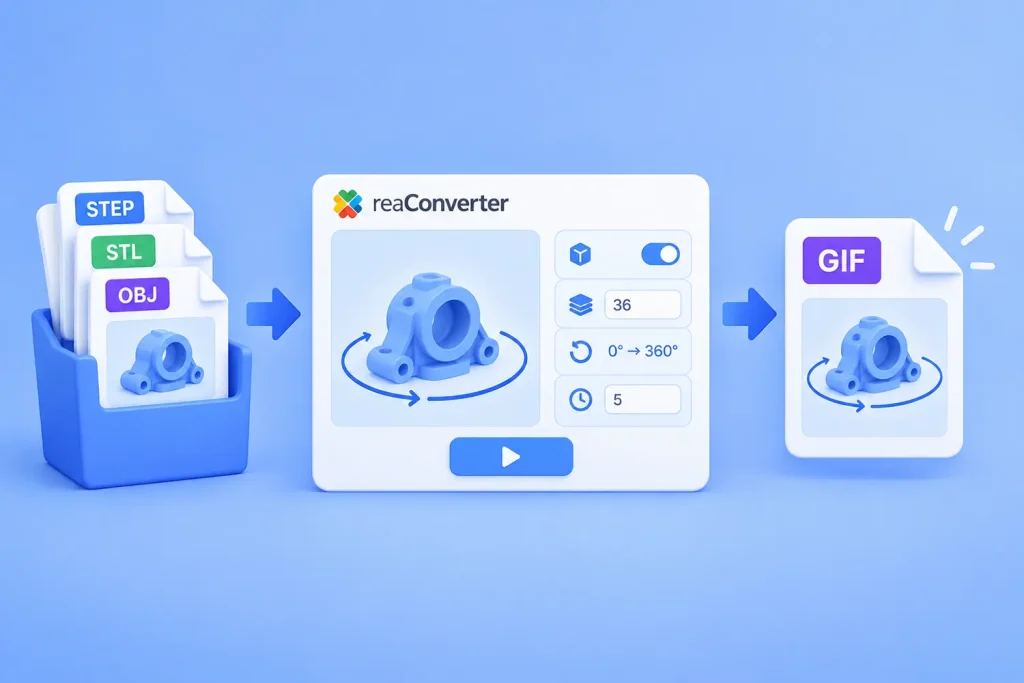
Turn one model or a whole folder of STEP, STL and OBJ files into spinning GIF, WebP or AVIF previews, from the interface, Watch Folders or the command line, without a 3D program.
Short answer: reaConverter renders a 3D model at a series of angles and saves the frames as one animated file. Open Menu → Loading settings → 3D formats, tick Create multiple frames, set 36 frames and Change Z from 0 to 360. Fix the viewing angle with Change X 75 to 75 and Change Y 5 to 5. Then save as GIF with an Animation delay time of 5. It works on one model or a whole folder, offline.
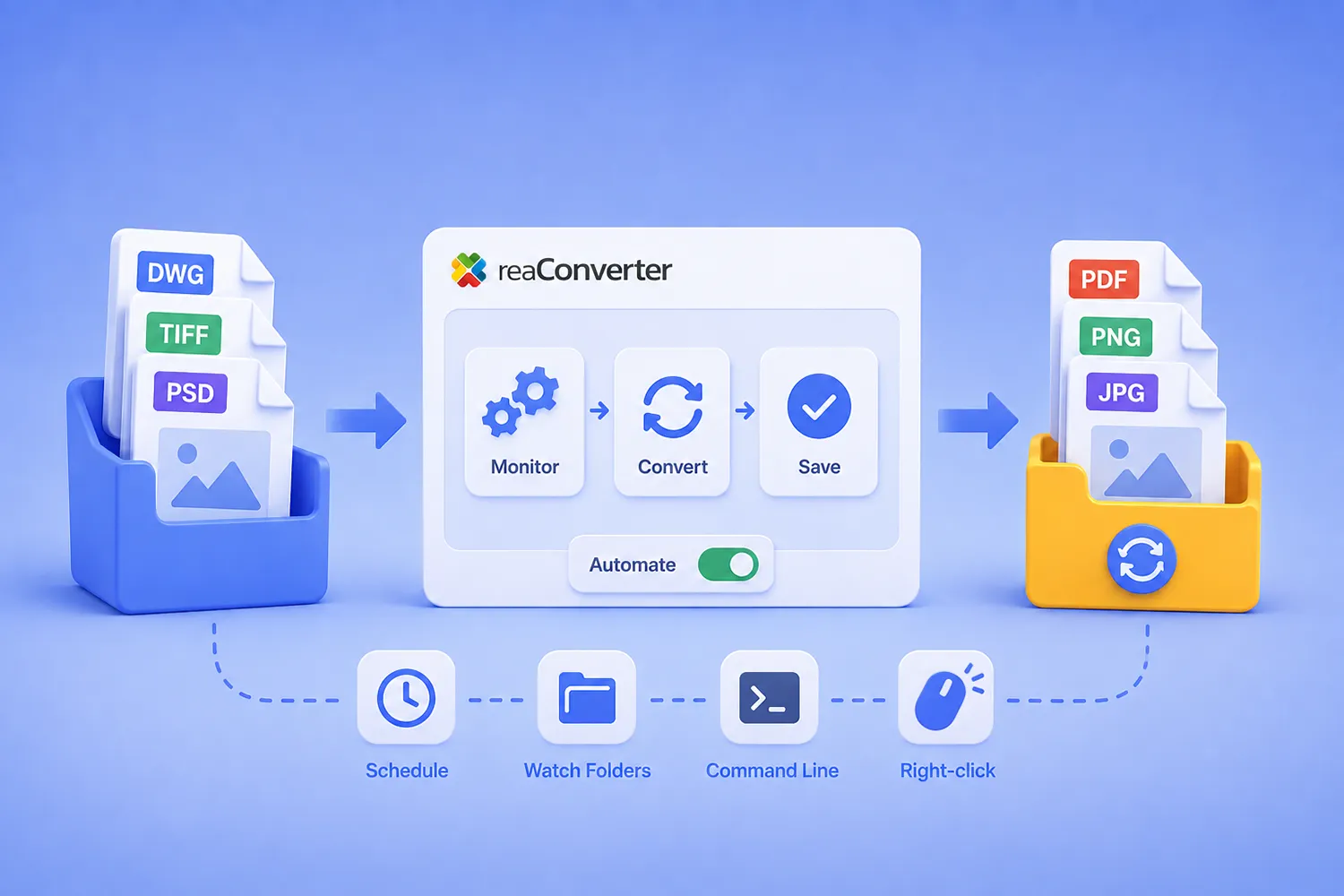
Short answer: reaConverter automates file conversion through three layers that share the same settings engine. The Windows context menu handles ad-hoc jobs, Watch Folders convert files the moment they land in a monitored directory, and the command-line tool (cons_rcp.exe) runs scheduled and scripted jobs. Watch Folders run as a Windows service and require local storage. The command line reads network paths without restriction. All three read the same .cfg configuration files and .act action files, so a workflow you design once in the interface runs identically everywhere. Watch Folders and the command line require reaConverter Pro.
This guide covers how those layers fit together, how to build a pipeline that survives unattended operation, and six complete workflows you can adapt.
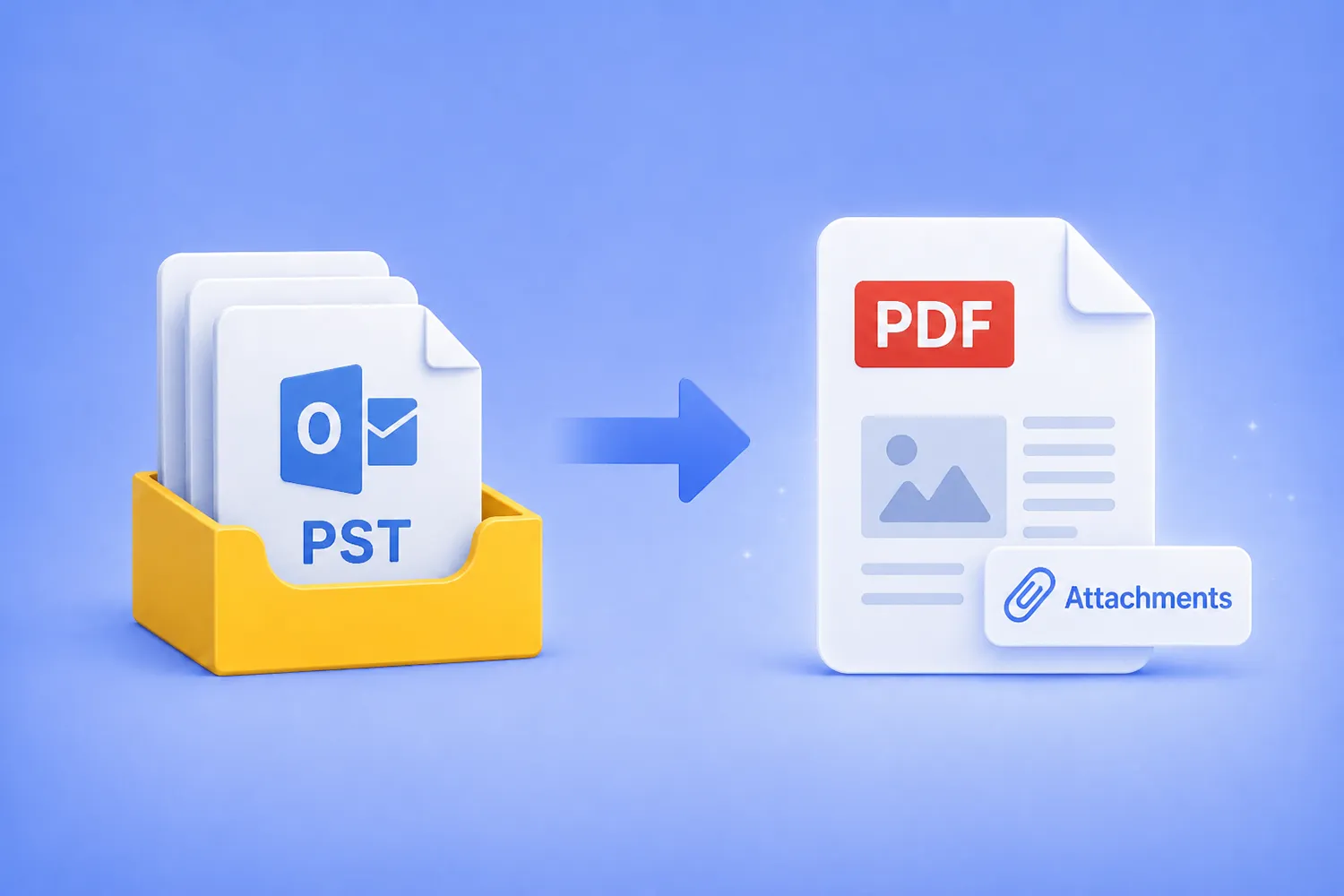
Turn an entire Outlook PST archive into searchable PDFs, with every email and its original attachments preserved inside, using the GUI, Watch Folders, or the command line. No Outlook install, no cloud upload, everything stays on your machine.
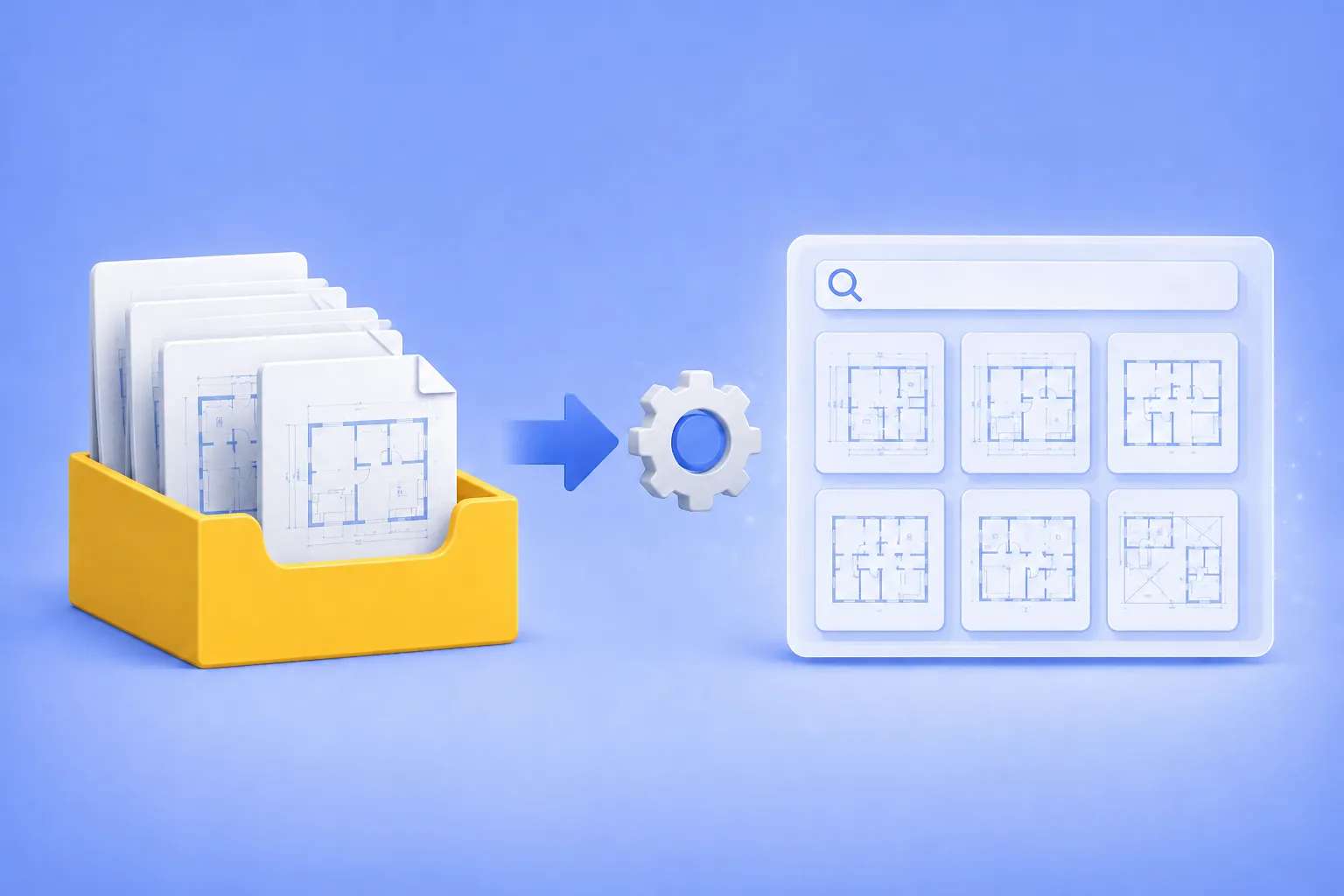
How Small Engineering and Architectural Firms Build Searchable CAD Archives Without an IT Department.
If you run a small engineering or architectural firm, you probably have a folder somewhere on a network drive that everyone calls “the archive.” It holds ten, twenty, sometimes thirty years of DWG and DXF files. And every few weeks, the same thing happens: someone needs to find a specific drawing from 2014, no one remembers the exact filename, and an hour disappears while a designer opens files one by one in AutoCAD trying to recognize them.
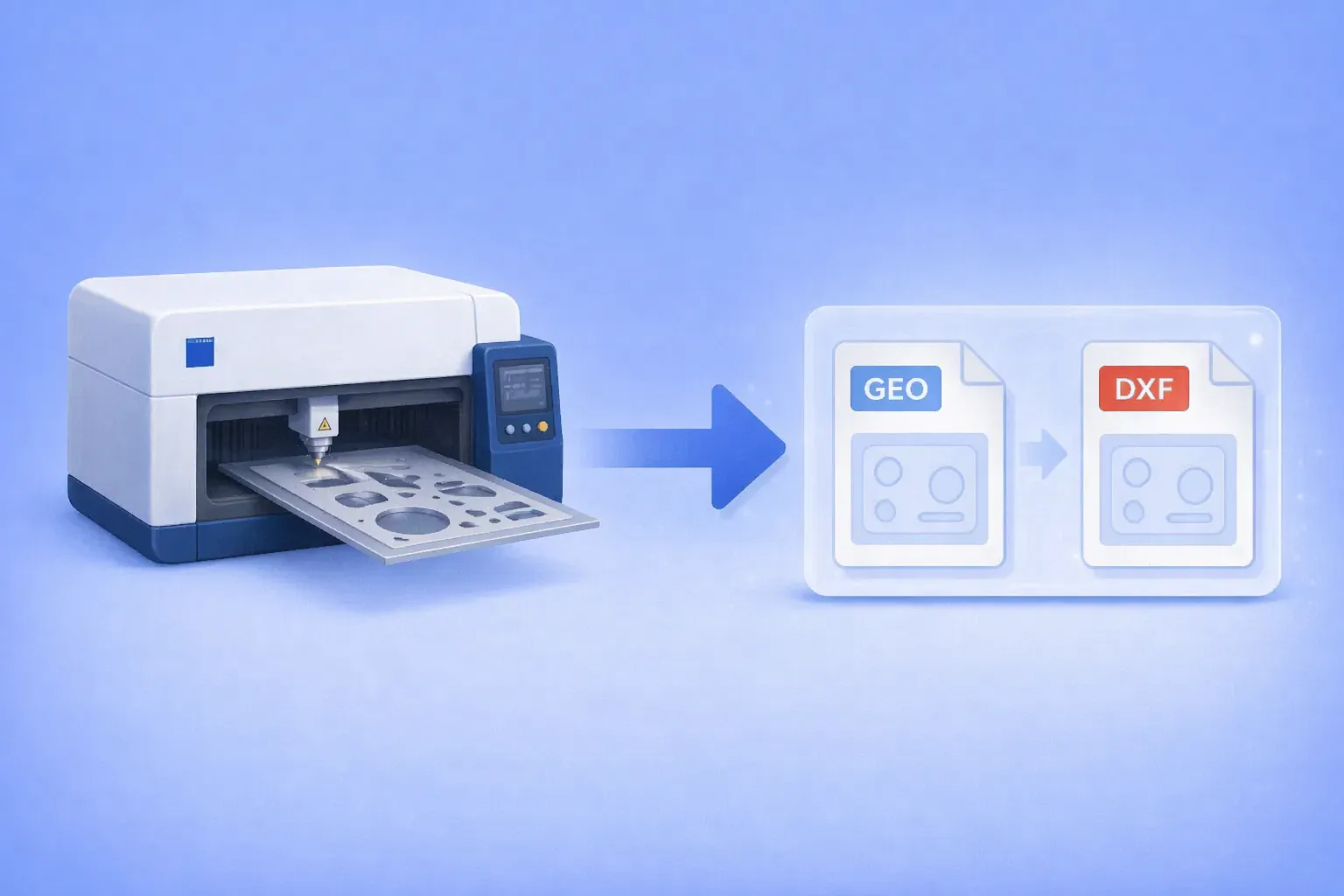
Batch convert Trumpf GEO files to DXF — using the GUI, Watch Folders, or command line. Works on any Windows PC.
The .geo file format belongs to Trumpf’s TruTops suite, the CAM software that drives TruLaser, TruPunch, and TruMatic sheet metal machines. It stores 2D part geometry for laser cutting and punching: outer and inner contours, bend data, material type, and thickness.
Outside the Trumpf ecosystem, almost nothing opens it. Generic CAD programs don’t recognize the format. Online converters either skip it or silently fail. Forum threads going back more than a decade end with the same two answers: go back to the shop that made the file, or license TruTops Convert from Trumpf.
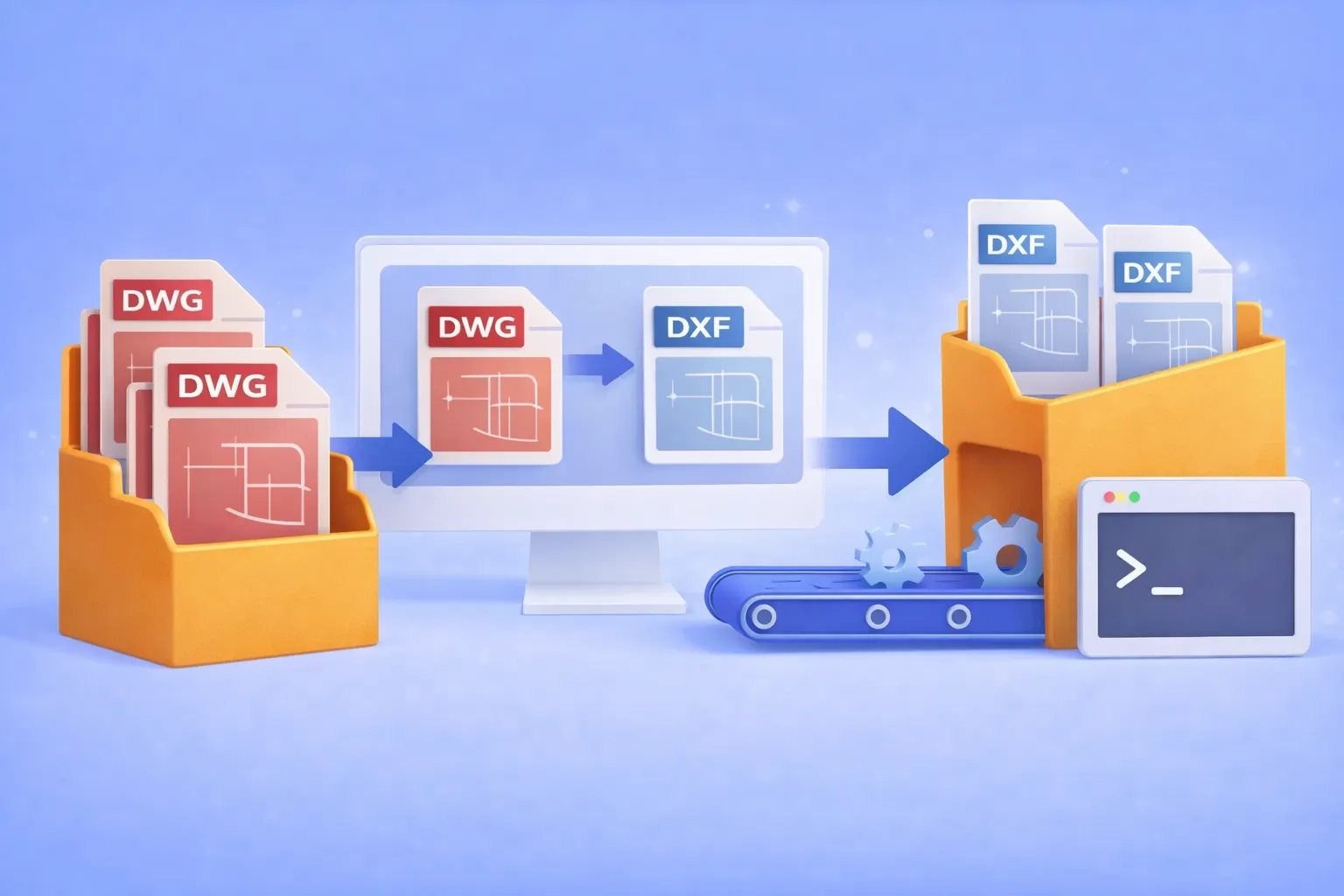
Batch convert hundreds of DWG drawings to open DXF format — using the GUI, Watch Folders, or command line. No AutoCAD license required.
Why convert DWG to DXF?
DWG is the native binary format of AutoCAD. It’s powerful, but proprietary. When you need to share drawings with partners who use SolidWorks, BricsCAD, FreeCAD, LibreCAD, or any non-Autodesk CAD tool, the proprietary DWG container becomes a bottleneck. DXF (Drawing Exchange Format) was designed specifically to solve this: it’s an open, documented interchange format that virtually every CAD program can read and write.
Common real-world scenarios where DWG → DXF conversion is essential:
Cross-platform collaboration with partners who use SolidWorks, BricsCAD, FreeCAD, or other non-Autodesk CAD tools.
CNC and laser cutter pipelines that accept only DXF input.
Archival and compliance requirements where an open format avoids vendor lock-in.
Automated production workflows where DWG files must be converted before entering a review or manufacturing system.
If you’re converting one or two files, an online tool might do. But when the job involves hundreds of drawings on a recurring basis, you need batch automation that runs offline, keeps your intellectual property on your hardware, and doesn’t require an expensive AutoCAD seat.
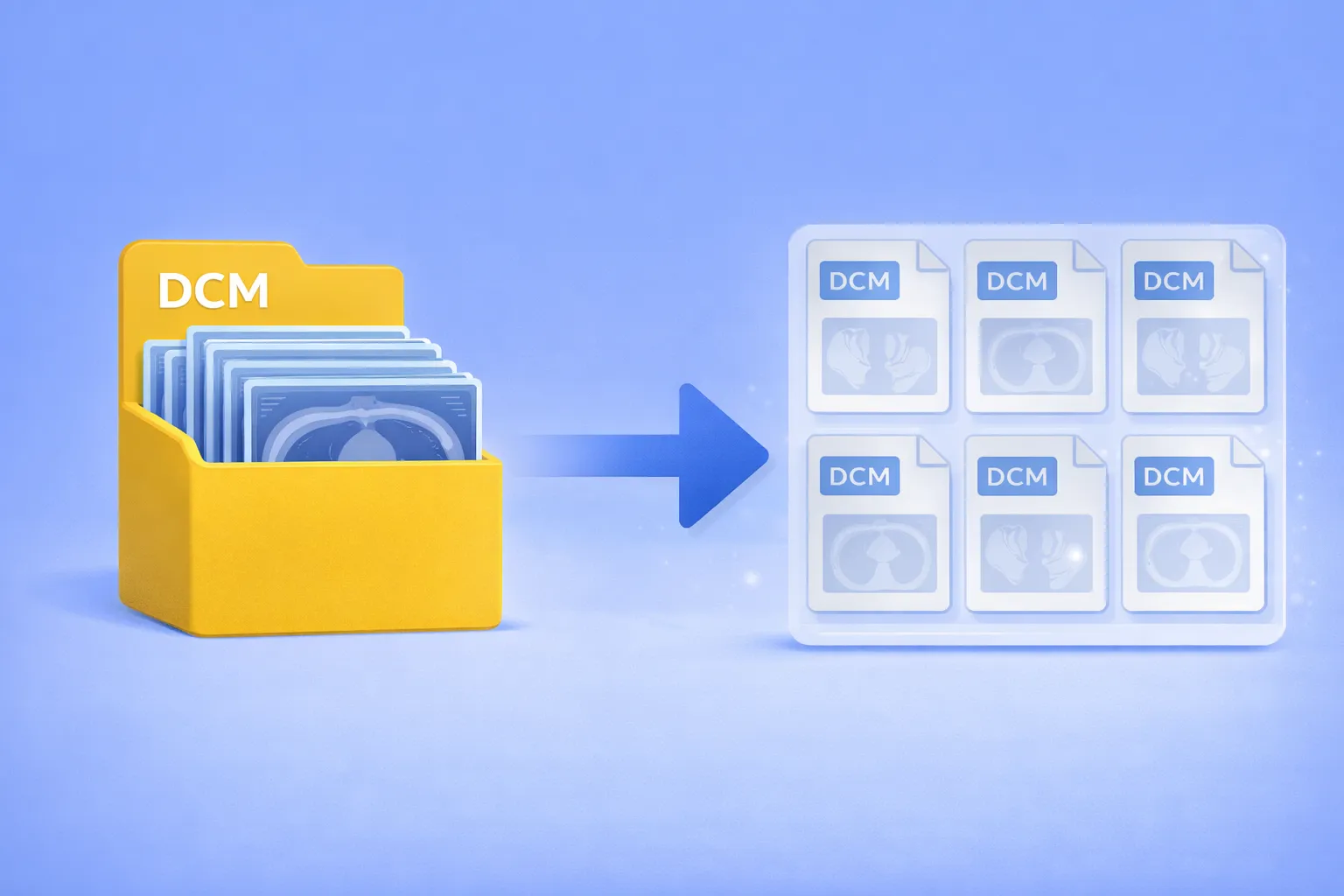
Extract individual frames from embedded multiframe DICOM — no scripting, no manual splitting
Multiframe DICOM files pack dozens or even hundreds of image frames into a single container. CT volumes, MRI sequences, ultrasound cine loops, and nuclear medicine studies are commonly stored this way. When a downstream system, analysis pipeline, or colleague expects one-image-per-file DICOM, you’re stuck — most conversion tools either ignore the extra frames or don’t offer DICOM as an output format at all. The usual alternatives are writing Python scripts with pydicom, wrestling with dcmtk command-line utilities, or paying for specialized medical imaging software.
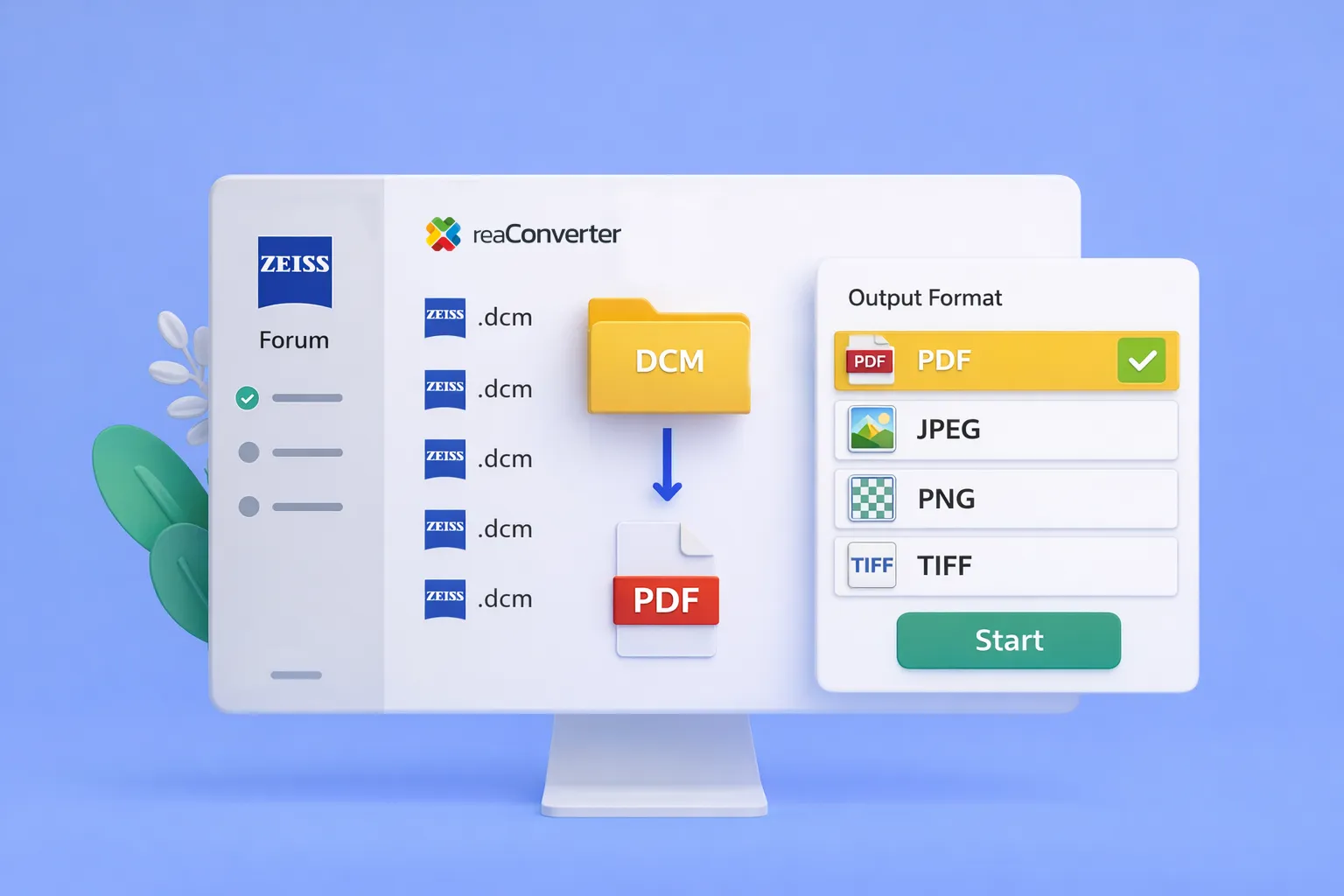
Batch convert Zeiss DCM to PDF — no more one-by-one exports
Eye care clinics using Zeiss Forum face a persistent workflow problem: when another provider requests patient data, the only export option is DICOM — a format most recipients can’t open. Staff end up downloading PDFs one at a time, sometimes 50 or more per patient.
reaConverter 8 now includes dedicated support for Zeiss Forum DICOM files, including the non-standard embedded PDFs that cause other converters to fail.
The 3MF (3D Manufacturing Format) has become one of the most modern and flexible formats in additive manufacturing. It can store not only the geometric mesh of your model, but also materials, textures, colors, print parameters, and metadata – all neatly packaged inside a compressed ZIP-based container.
However, despite its advantages, many 3D printers and slicing tools still rely on the STL format. STL remains the simplest and most widely supported geometry-only standard in 3D printing. For this reason, converting 3MF to STL is a frequent and necessary step in many production and prototyping workflows.
In this tutorial, we’ll look at how reaConverter processes 3MF files, how to control the conversion quality using Level of Detail, and how to export clean STL files ready for slicing.
Turn PDFs, TIFFs, CAD multi-page documents and other multipage files into a single, continuous image (vertically or horizontally) with reaConverter’s Merge to One Image option. This feature is particularly useful when converting to formats that don’t support multiple pages, or when you need scrollable visuals for easier viewing, sharing, or presentation purposes. Whether you’re handling scanned documents, technical drawings, or creating social media content, this tool streamlines your workflow by turning multiple pages into one cohesive file.