
Batch convert Trumpf GEO files to DXF — using the GUI, Watch Folders, or command line. Works on any Windows PC.
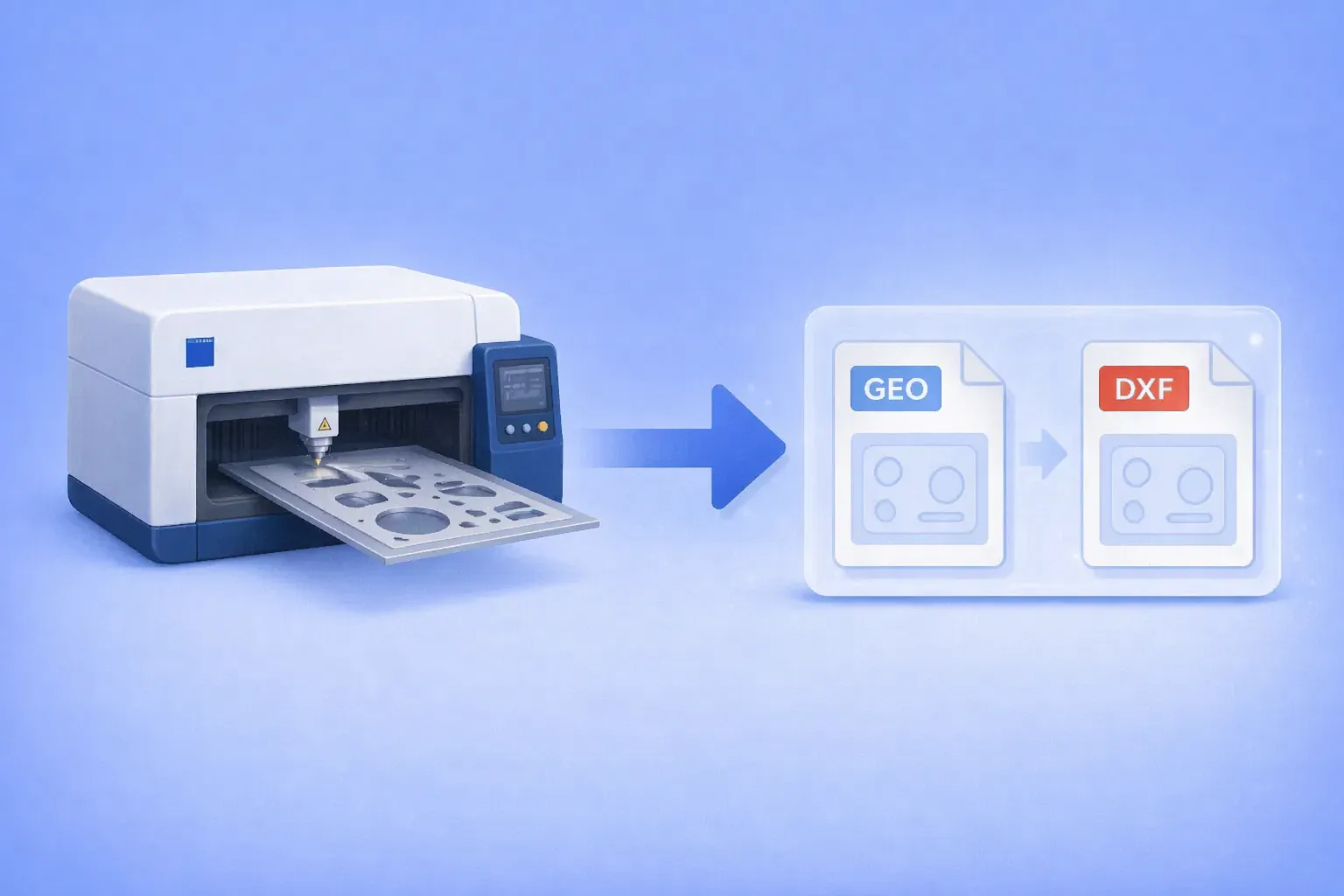
The .geo file format belongs to Trumpf’s TruTops suite, the CAM software that drives TruLaser, TruPunch, and TruMatic sheet metal machines. It stores 2D part geometry for laser cutting and punching: outer and inner contours, bend data, material type, and thickness.
Outside the Trumpf ecosystem, almost nothing opens it. Generic CAD programs don’t recognize the format. Online converters either skip it or silently fail. Forum threads going back more than a decade end with the same two answers: go back to the shop that made the file, or license TruTops Convert from Trumpf.
Starting with version 8.0.200, reaConverter reads Trumpf GEO files directly and exports them to DXF, ready for AutoCAD, SolidWorks, Fusion 360, Bystronic BySoft, Amada AP100, or any other CAD or CAM system that speaks DXF.
Step-by-Step: GEO to DXF Conversion
The manual workflow takes under a minute, regardless of how many files are in the batch.
1. Install or Update reaConverter 8
Download the latest version from reaConverter.com. GEO support requires version 8.0.200 or later.

2. Add Your GEO Files
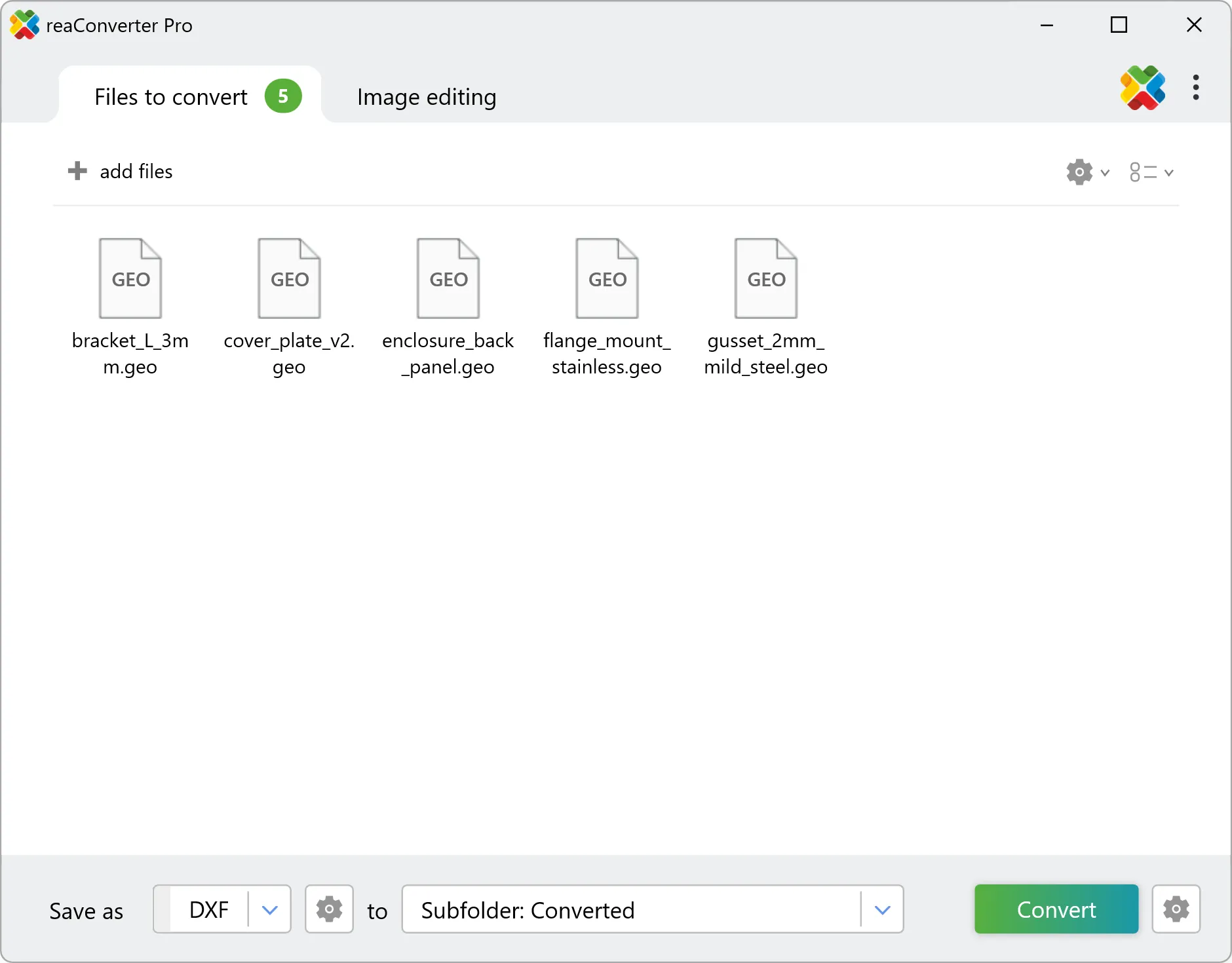
Drag your .geo files into the main window, or use Add Folder to load an entire parts directory at once. reaConverter processes large batches in a single pass with no file count limits.
3. Select DXF as the Output Format
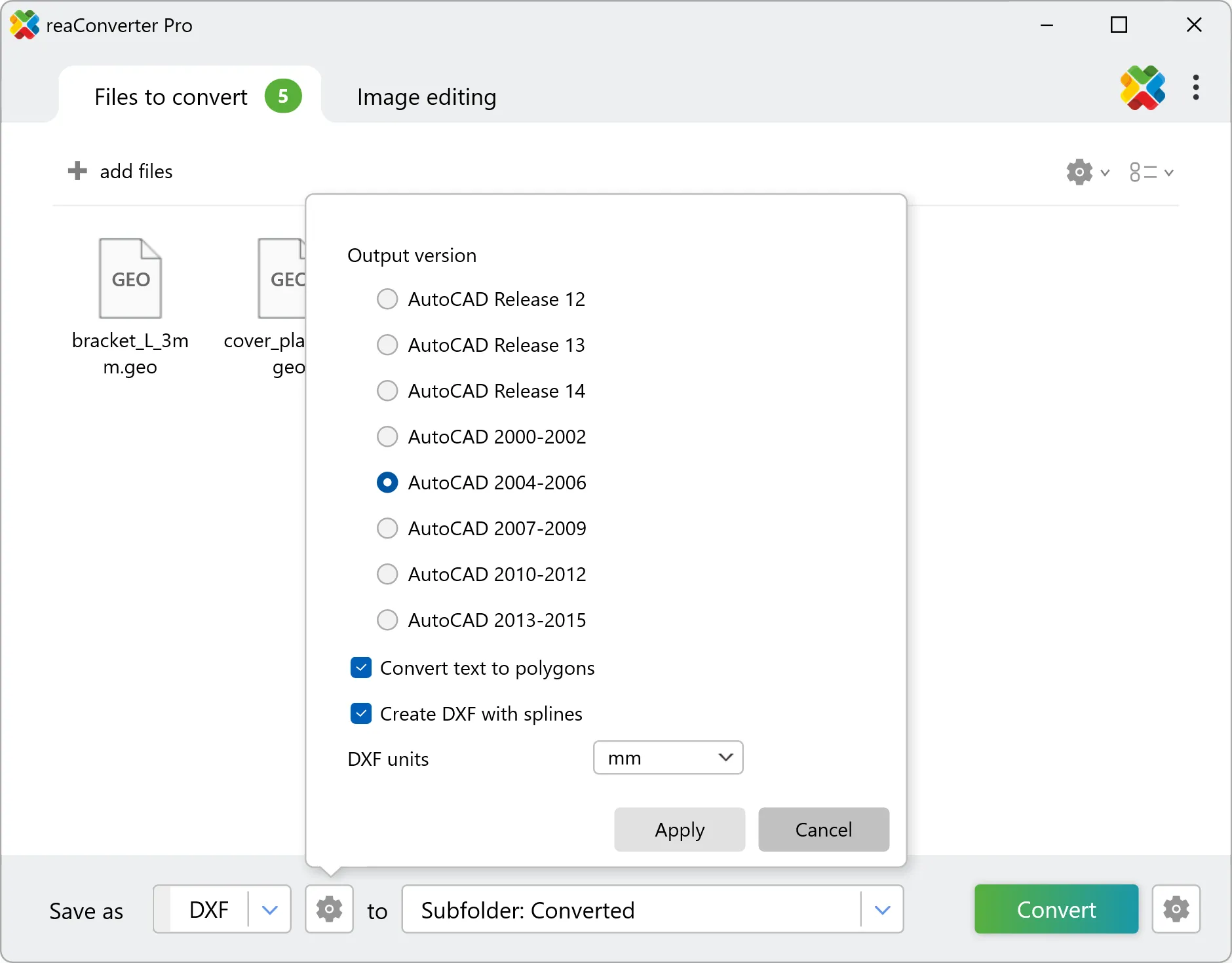
In the output panel, choose DXF. Set your destination folder and any file-naming convention you want to apply.
4. Start Conversion
Click Start. reaConverter reads each GEO file, extracts the geometry, and writes a standards-compliant DXF.
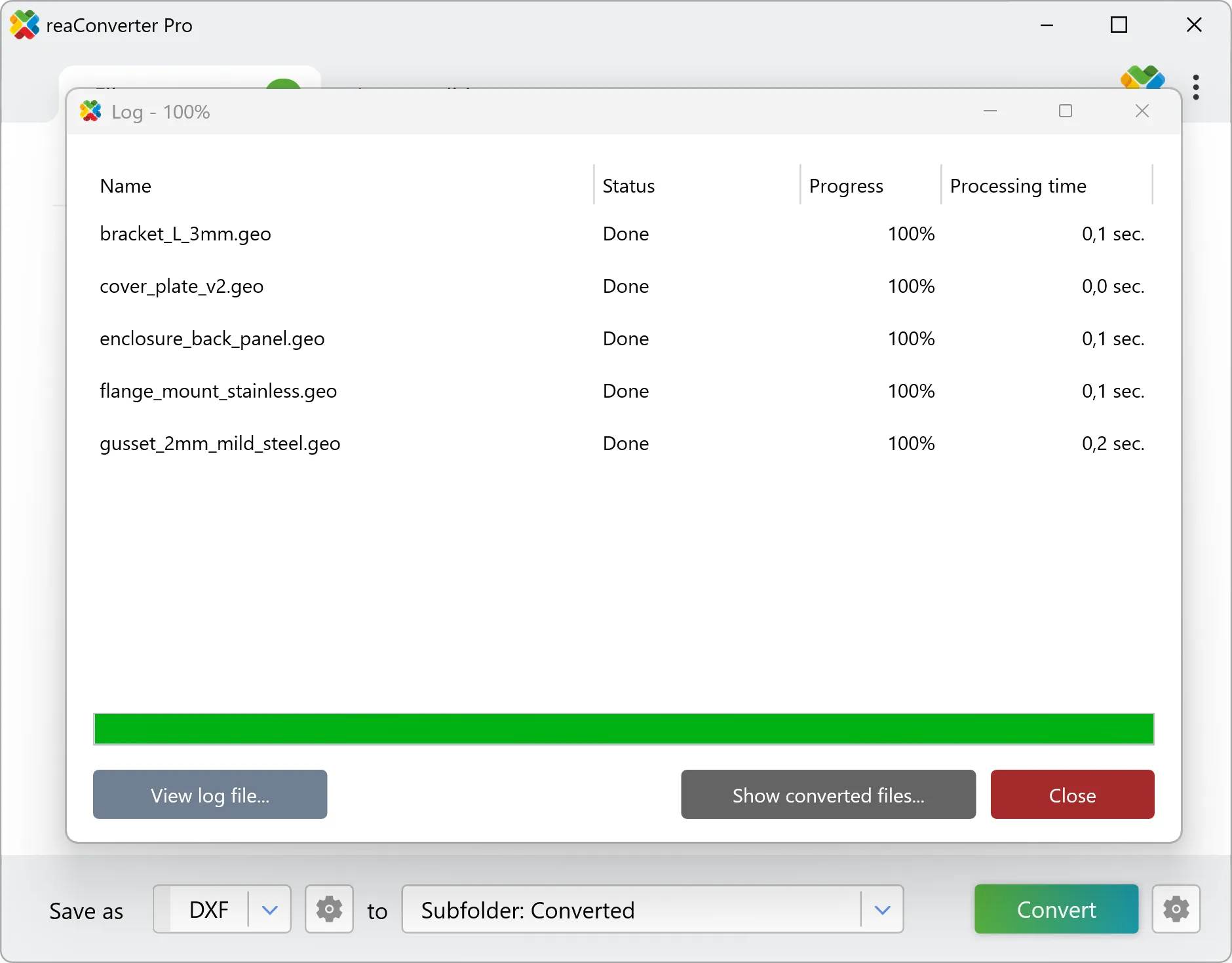
Open the results in AutoCAD, LibreCAD, SolidWorks, Fusion 360, BricsCAD, or feed them directly into your CAM system.
Who This Is For
Job shops with used or second-hand Trumpf equipment. You bought a TruLaser off the auction market and inherited hundreds of legacy GEO parts. The machine runs. The files are locked inside a format your current CAD system doesn’t open.
Subcontract fabricators. A customer sends you GEO files because that’s what their engineering department exports. You run a Bystronic or an Amada. You need DXF.
Engineers migrating between CAM platforms. Your shop is standardizing on a different system, but you have years of part geometry sitting in GEO. Rebuilding from scratch isn’t an option.
Anyone who received a GEO file and needs to open it. Sometimes a customer, a vendor, or a colleague sends a file in a format their software exports by default. You don’t need to match their software stack. You need to read the file.
Batch Conversion for Legacy Libraries
Inherited parts libraries often contain hundreds or thousands of files. Manual conversion isn’t viable at that scale. reaConverter processes the entire folder in one pass and preserves the original directory structure if you want it to.
For shops that receive GEO files on an ongoing basis, such as subcontractors working with Trumpf-equipped customers, Watch Folders automate the conversion entirely. Point reaConverter at a hdd folder, set DXF as the output, and any GEO file that lands there gets converted automatically. Nobody has to launch the application or click anything.
Command-line support is available for IT teams integrating GEO conversion into ERP workflows, scheduled parts-library migrations, or customer file intake pipelines. Both features are available in reaConverter Pro.

Why GEO Is Hard to Convert
TruTops GEO is a proprietary 2D geometry format. It stores outer and inner contours, bend lines, cut types, and material properties in a structure that only Trumpf’s own software documents fully. There’s no public specification. The format was designed for round-tripping inside the Trumpf ecosystem, not for interoperating with third-party CAD.
That’s why most conversion attempts fail. Generic DXF libraries don’t understand the structure. Even technically capable users reaching for open-source tools come up empty.
reaConverter parses the GEO contour and geometry data directly and writes a clean DXF with the outlines preserved, ready to import into any standard CAD or CAM workflow.
Alternatives and Where Each Fits
TruTops Convert is Trumpf’s own conversion utility. It’s the right choice for shops running Trumpf machines and already using the TruTops suite. For everyone else — shops on other CAM platforms, subcontractors processing occasional incoming GEO files, or teams migrating away from TruTops — it’s more software than the job requires.
Re-exporting from the source CAD. The standard forum advice is to ask whoever generated the GEO file to export DXF instead. Sometimes that works. Often the source isn’t reachable, the customer isn’t responsive, or the parts were generated years ago by a shop that no longer exists.
Manual redrawing. Feasible for a handful of simple parts. Not feasible for a library of hundreds.
reaConverter sits in the space these options leave open: direct GEO reading, batch processing, offline, on any Windows machine.
Background
This feature was built in response to a direct customer request. A shop running Trumpf equipment hit a conversion failure on a specific GEO file and asked whether we could handle the format. We obtained sample files, built the extraction logic, and shipped support in reaConverter 8.0.200. The customer’s response after testing:
“FROM TRUMPF TO DXF. IS GO WELL. MASSIVE THANKS.”
If your workflow involves Trumpf GEO files and you need them as DXF — reliably, in batch, on Windows — reaConverter handles it.
Get reaConverter and convert your first GEO file in seconds.