
Automating File Conversion Workflows with reaConverter

Automating File Conversion Workflows with reaConverter

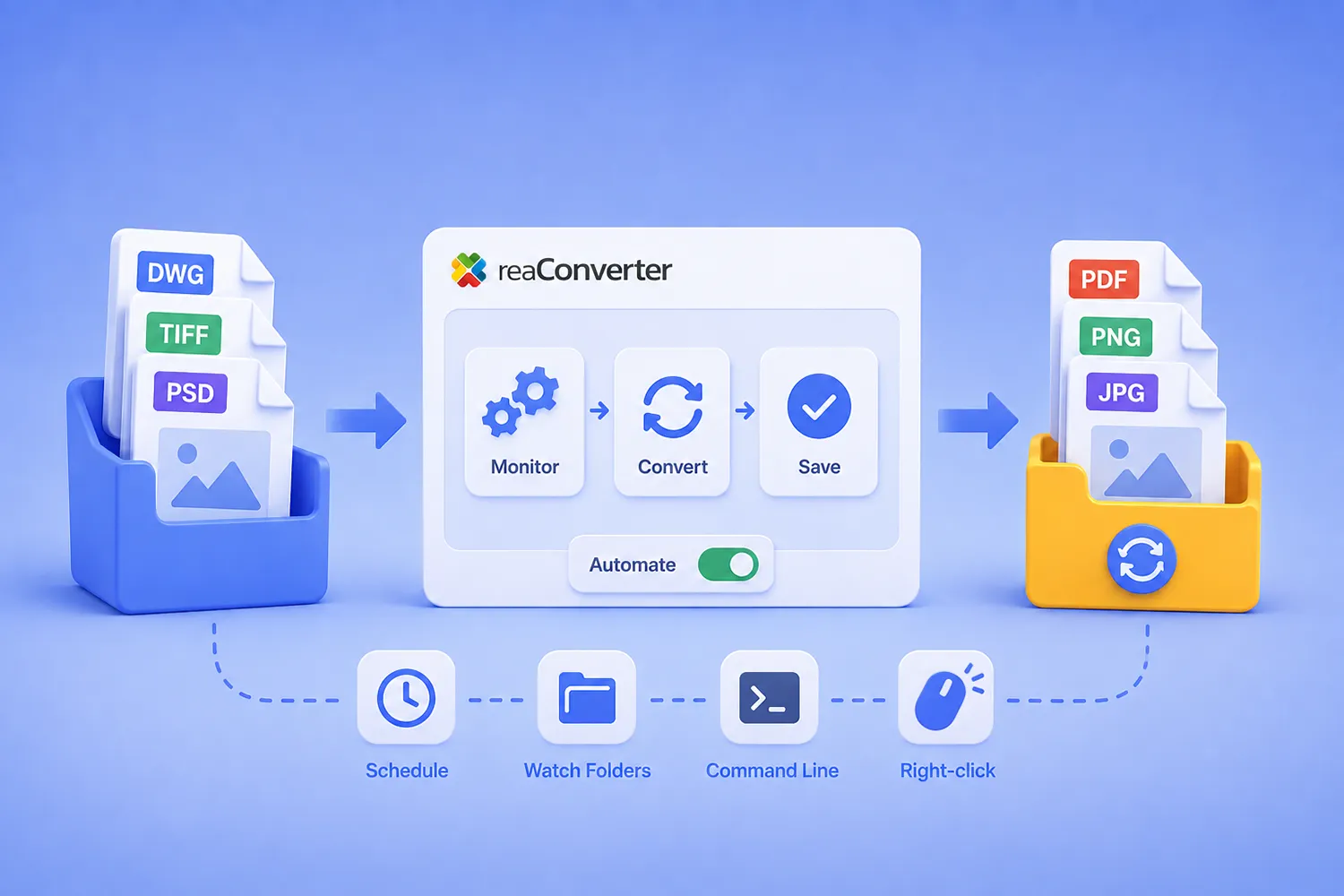
Short answer: reaConverter automates file conversion through three layers that share the same settings engine. The Windows context menu handles ad-hoc jobs, Watch Folders convert files the moment they land in a monitored directory, and the command-line tool (cons_rcp.exe) runs scheduled and scripted jobs. Watch Folders run as a Windows service and require local storage. The command line reads network paths without restriction. All three read the same .cfg configuration files and .act action files, so a workflow you design once in the interface runs identically everywhere. Watch Folders and the command line require reaConverter Pro.

This guide covers how those layers fit together, how to build a pipeline that survives unattended operation, and six complete workflows you can adapt.
Read more

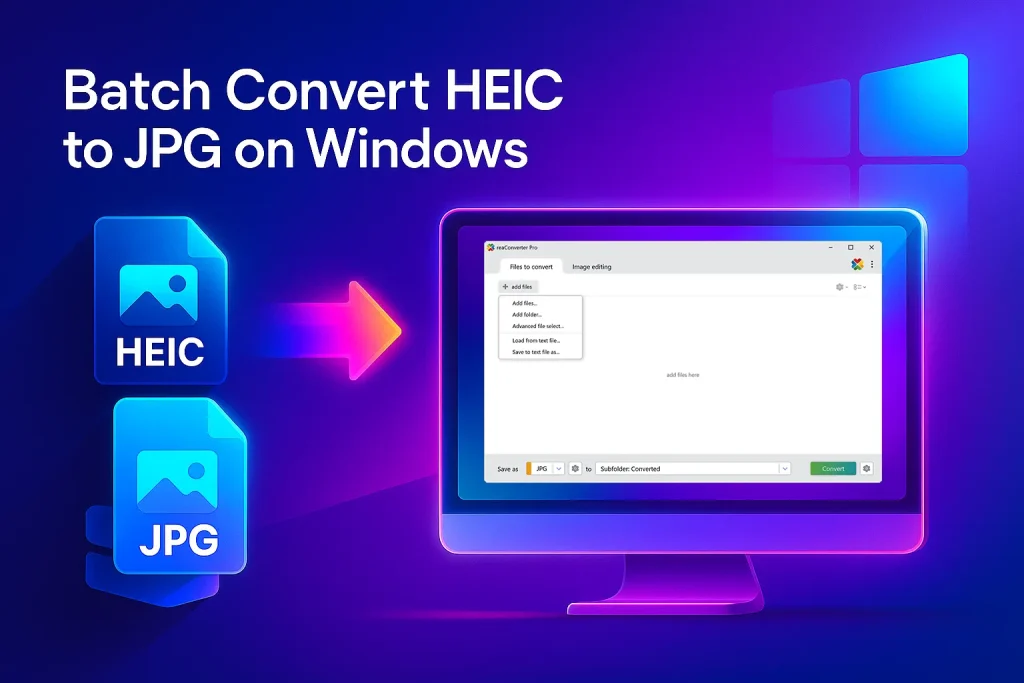
How to Batch-Convert HEIC (iPhone Photos) to JPG on Windows — Offline, Free & in Seconds

Convert HEIC to JPG

Batch-convert dozens of iPhone HEIC photos to JPG on Windows 10/11 with free reaConverter Lite. No internet, no ads — just fast, loss-free results.

Why This Guide Beats the Rest (Read This Before You Google Again)

Most “HEIC → JPG” articles push you toward:

  • Single-file online tools (slow uploads, privacy worries)
  • Microsoft’s Photos app (no batch save, quality loss)
  • Paid codecs (still manual, still clunky)

reaConverter, even the free Lite edition — lets you drag-in a whole folder of .HEIC images and spit out full-quality JPGs offline in one click. In this post you’ll learn exactly how, plus pro tips to hit perfect image quality and file naming every time.

Target reader: Anyone with a stack of iPhone photos on a Windows PC — photographers, real-estate agents, social-media managers, or parents off-loading holiday pics.

Read more

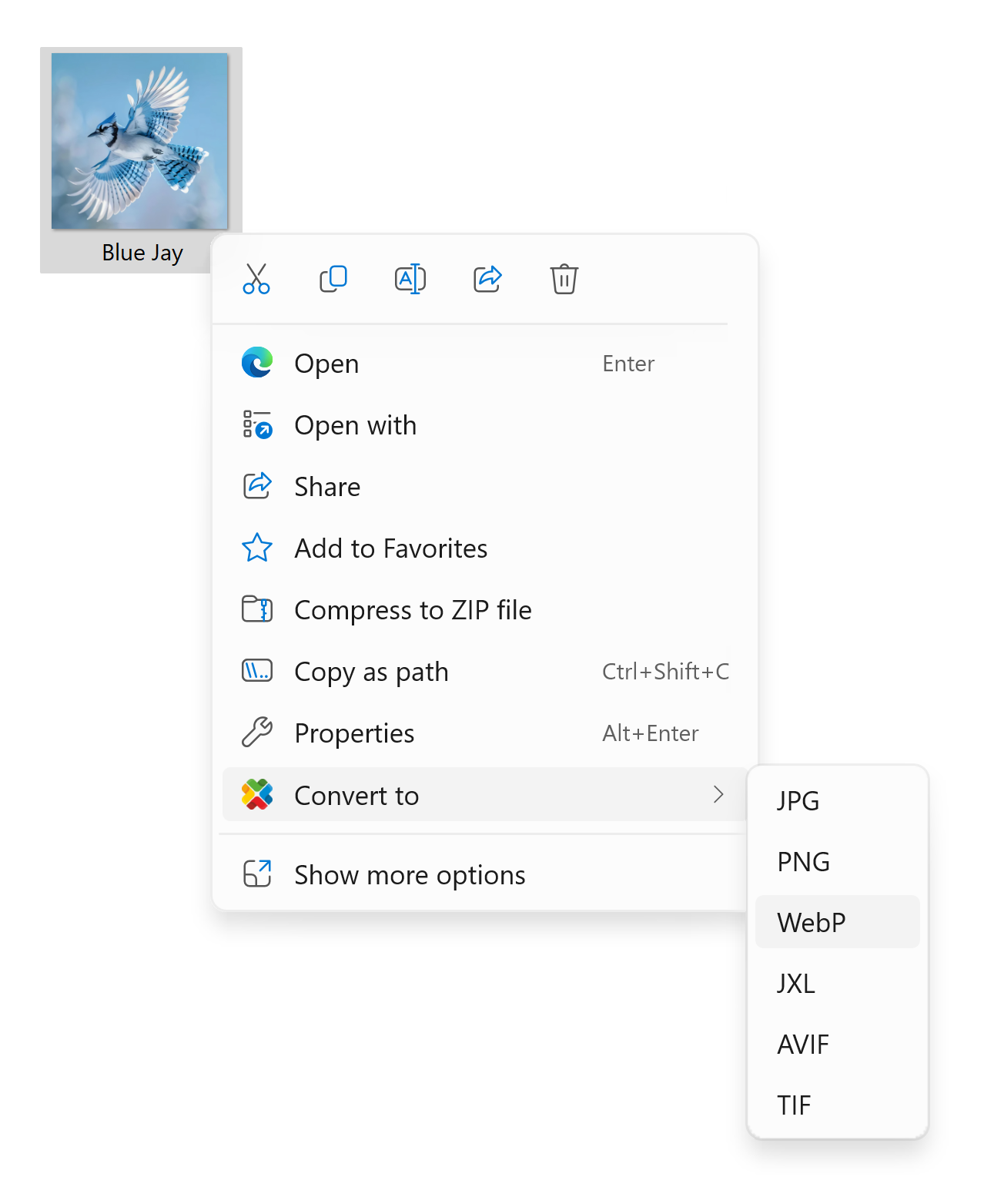
Right-Click Conversion with Windows 11 Context Menu Integration

A step-by-step guide to turning reaConverter Pro into your fastest “File-Conversion-On-Demand” button.

Right-click conversion

Why bother with the context menu?

Windows 11 slimmed its right-click (context) menu and hides many third-party options behind “Show more options.” That second click slows you down — especially when you’re batching dozens of images. reaConverter Pro 8 solves the problem by wiring itself directly into the modern Windows 11 menu, so one click launches an instant conversion using your favorite preset.

If you still see the older two-step experience, Microsoft’s design simply tucks extra items under the submenu; you can always click Show more options to reveal them.

Read more