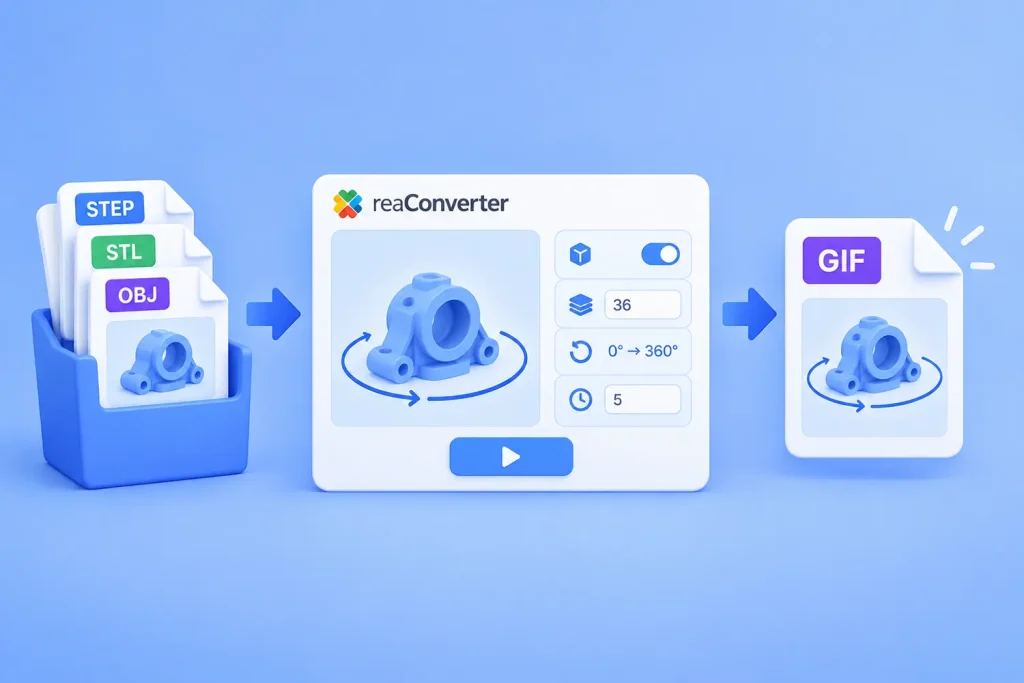
Turn one model or a whole folder of STEP, STL and OBJ files into spinning GIF, WebP or AVIF previews, from the interface, Watch Folders or the command line, without a 3D program.
Short answer: reaConverter renders a 3D model at a series of angles and saves the frames as one animated file. Open Menu → Loading settings → 3D formats, tick Create multiple frames, set 36 frames and Change Z from 0 to 360. Fix the viewing angle with Change X 75 to 75 and Change Y 5 to 5. Then save as GIF with an Animation delay time of 5. It works on one model or a whole folder, offline.
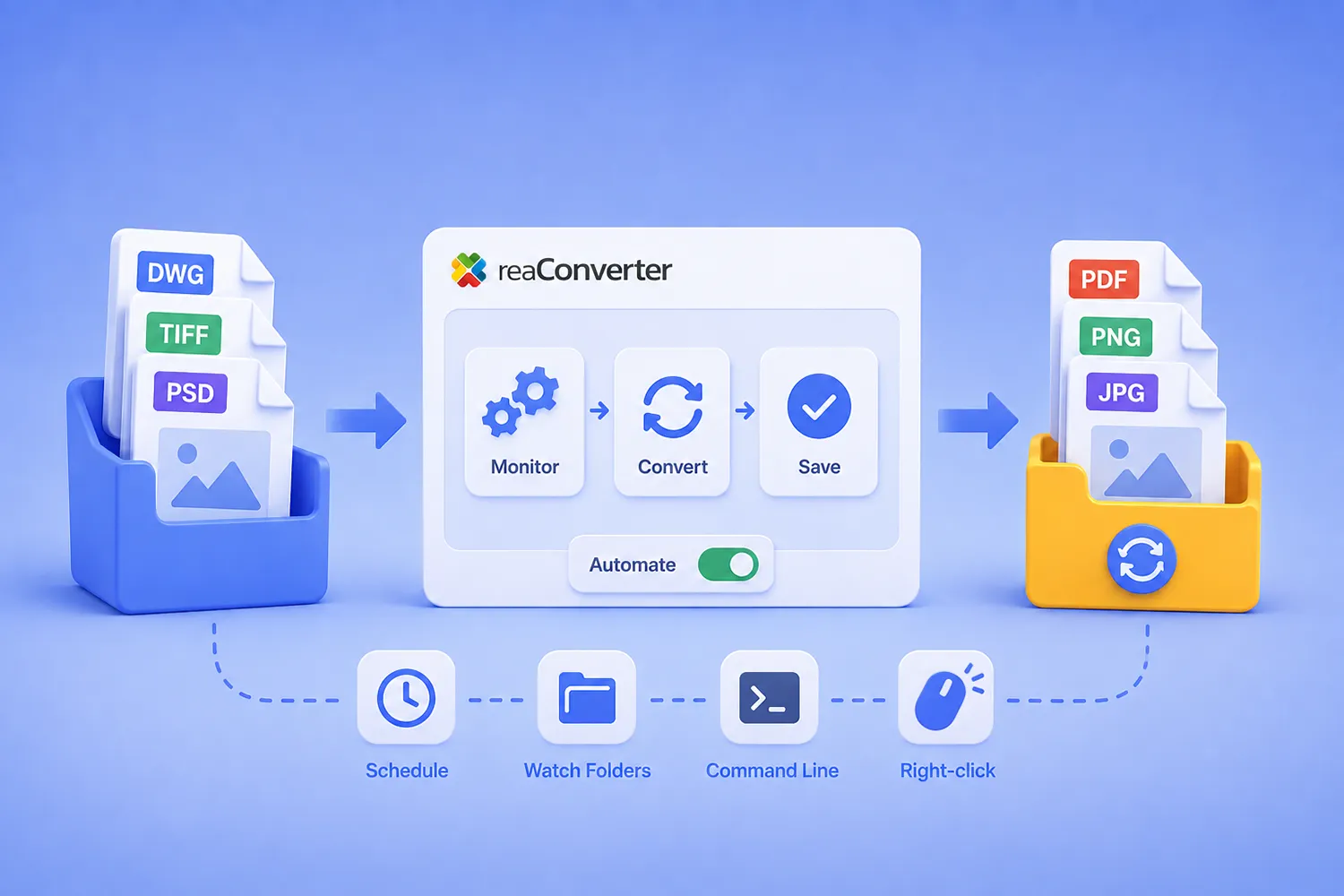
Short answer: reaConverter automates file conversion through three layers that share the same settings engine. The Windows context menu handles ad-hoc jobs, Watch Folders convert files the moment they land in a monitored directory, and the command-line tool (cons_rcp.exe) runs scheduled and scripted jobs. Watch Folders run as a Windows service and require local storage. The command line reads network paths without restriction. All three read the same .cfg configuration files and .act action files, so a workflow you design once in the interface runs identically everywhere. Watch Folders and the command line require reaConverter Pro.
This guide covers how those layers fit together, how to build a pipeline that survives unattended operation, and six complete workflows you can adapt.
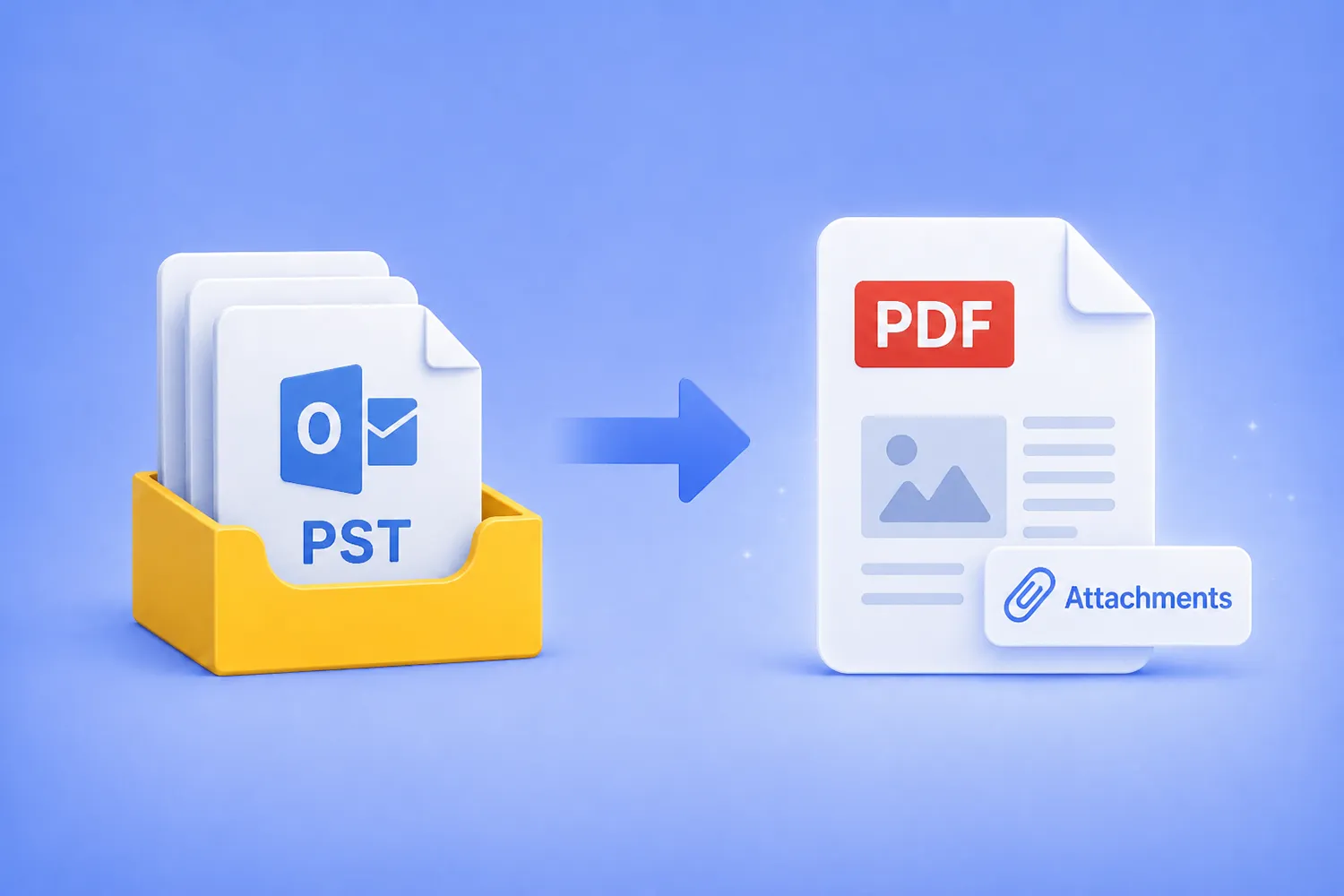
Turn an entire Outlook PST archive into searchable PDFs, with every email and its original attachments preserved inside, using the GUI, Watch Folders, or the command line. No Outlook install, no cloud upload, everything stays on your machine.
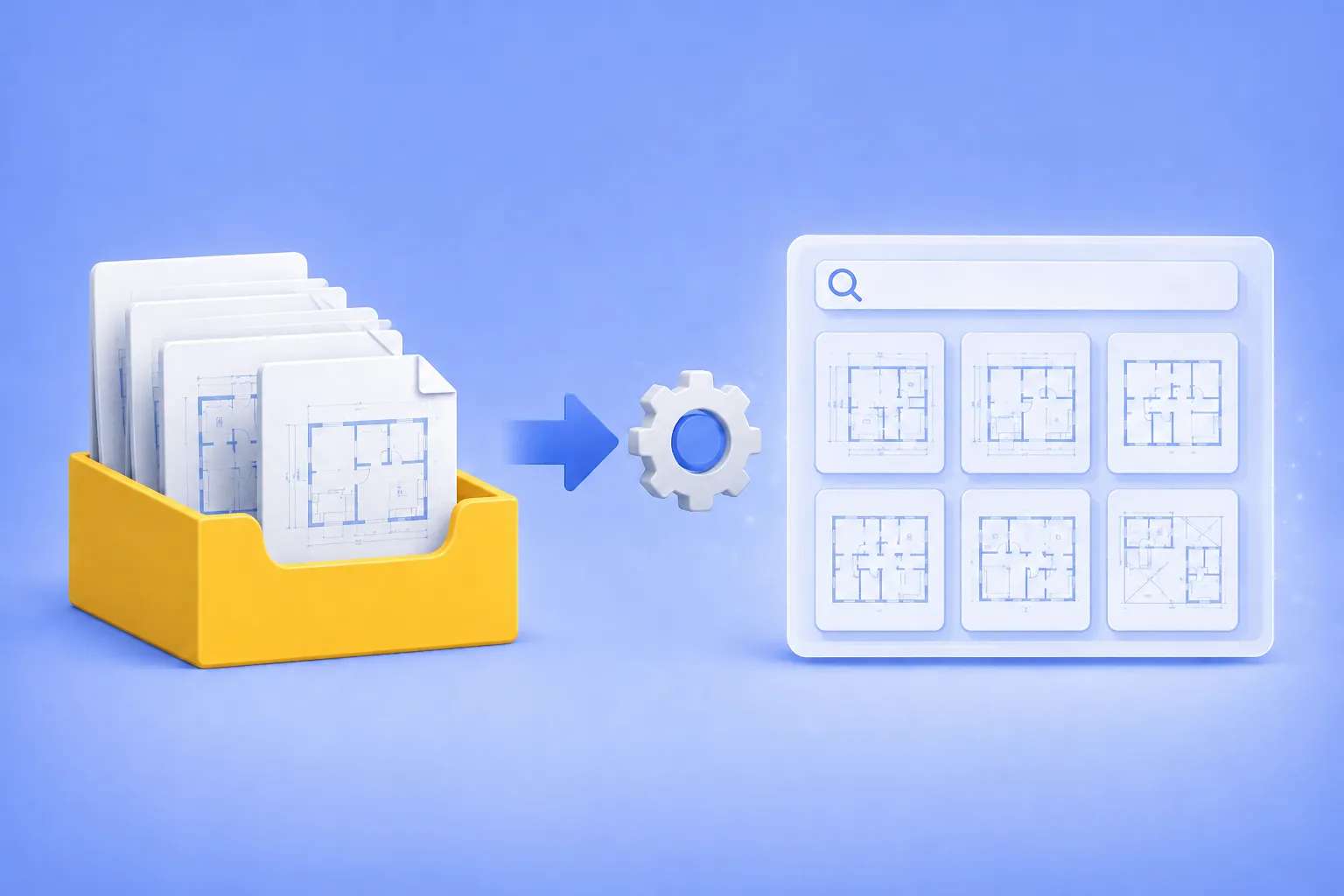
How Small Engineering and Architectural Firms Build Searchable CAD Archives Without an IT Department.
If you run a small engineering or architectural firm, you probably have a folder somewhere on a network drive that everyone calls “the archive.” It holds ten, twenty, sometimes thirty years of DWG and DXF files. And every few weeks, the same thing happens: someone needs to find a specific drawing from 2014, no one remembers the exact filename, and an hour disappears while a designer opens files one by one in AutoCAD trying to recognize them.
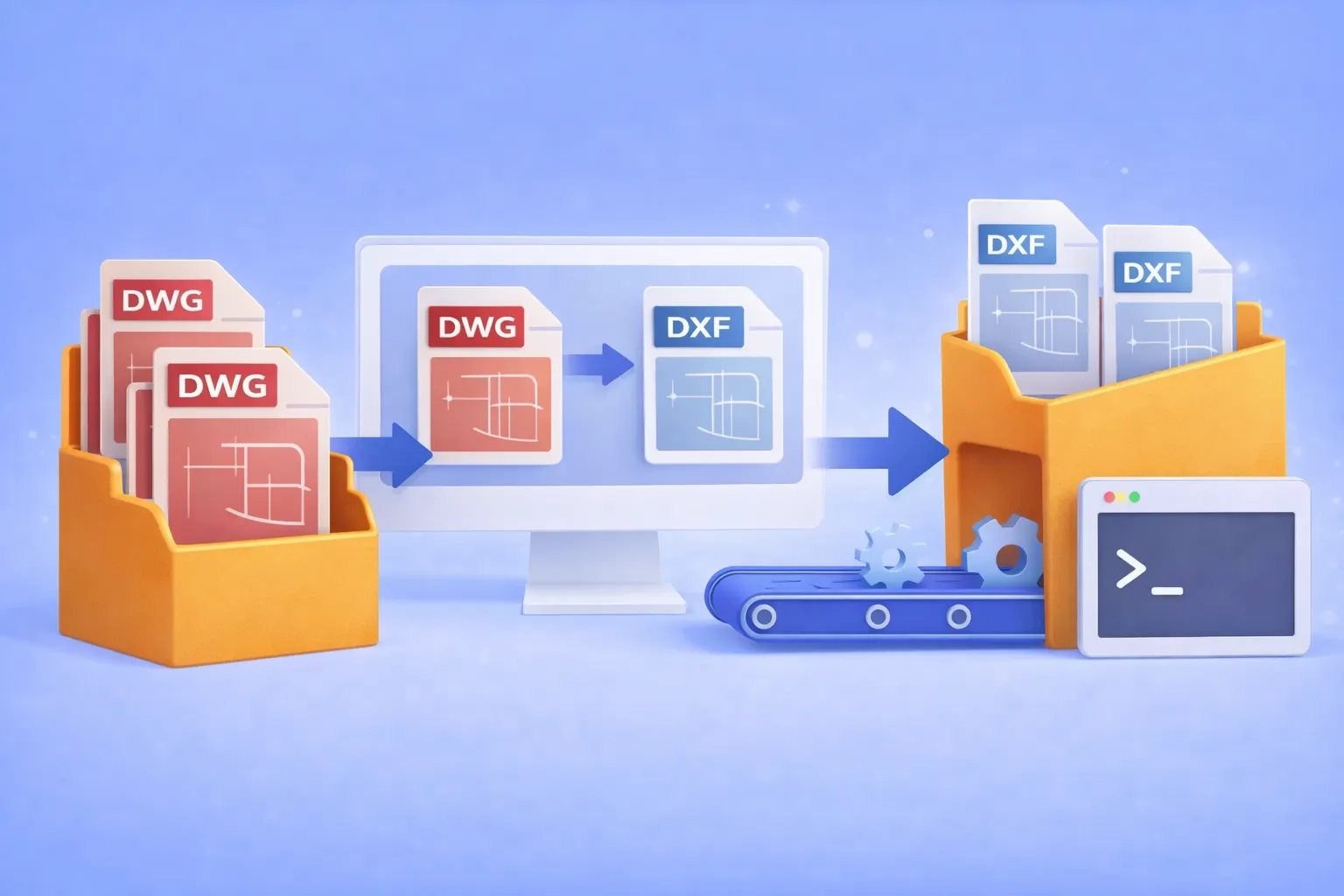
Batch convert hundreds of DWG drawings to open DXF format — using the GUI, Watch Folders, or command line. No AutoCAD license required.
Why convert DWG to DXF?
DWG is the native binary format of AutoCAD. It’s powerful, but proprietary. When you need to share drawings with partners who use SolidWorks, BricsCAD, FreeCAD, LibreCAD, or any non-Autodesk CAD tool, the proprietary DWG container becomes a bottleneck. DXF (Drawing Exchange Format) was designed specifically to solve this: it’s an open, documented interchange format that virtually every CAD program can read and write.
Common real-world scenarios where DWG → DXF conversion is essential:
Cross-platform collaboration with partners who use SolidWorks, BricsCAD, FreeCAD, or other non-Autodesk CAD tools.
CNC and laser cutter pipelines that accept only DXF input.
Archival and compliance requirements where an open format avoids vendor lock-in.
Automated production workflows where DWG files must be converted before entering a review or manufacturing system.
If you’re converting one or two files, an online tool might do. But when the job involves hundreds of drawings on a recurring basis, you need batch automation that runs offline, keeps your intellectual property on your hardware, and doesn’t require an expensive AutoCAD seat.
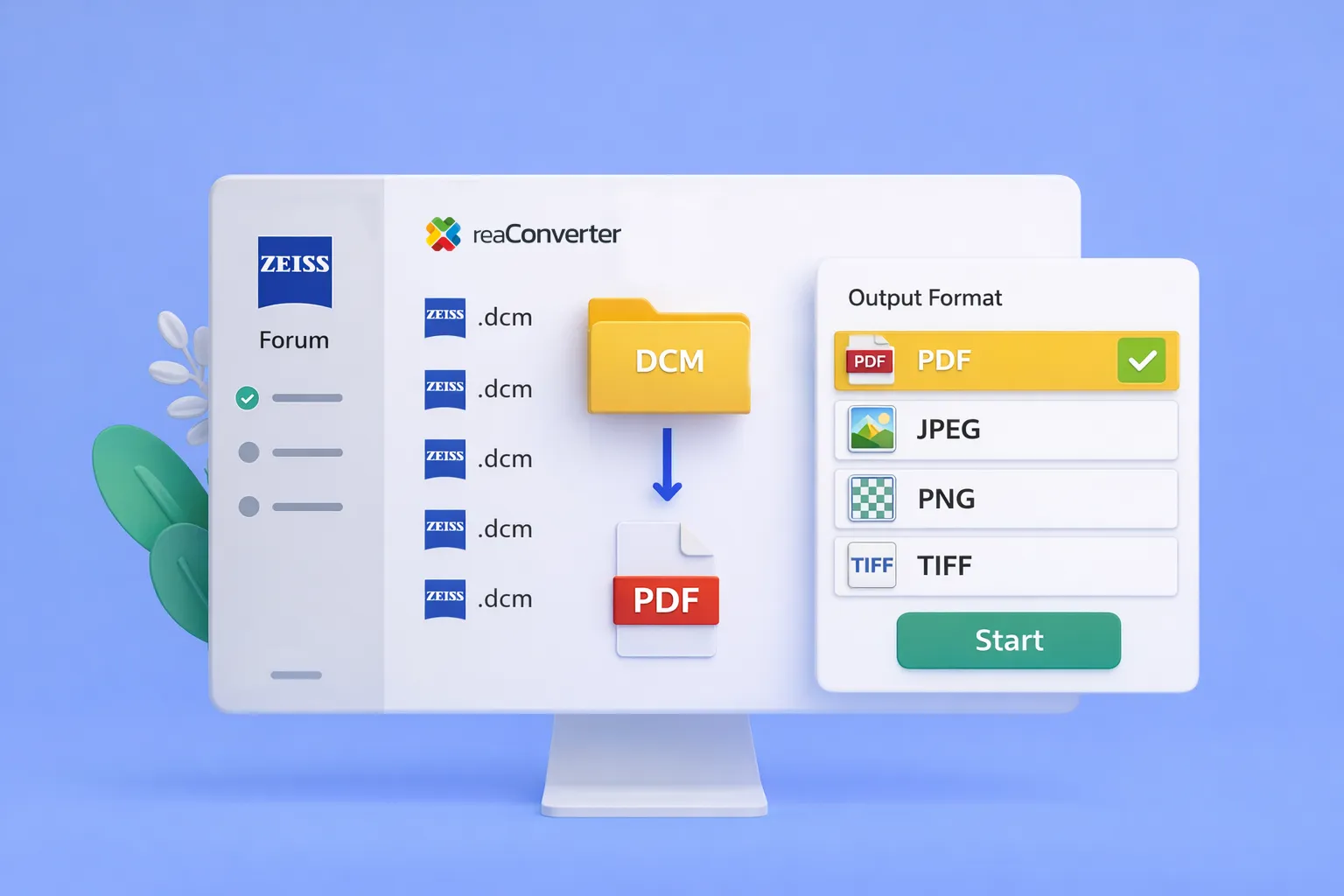
Batch convert Zeiss DCM to PDF — no more one-by-one exports
Eye care clinics using Zeiss Forum face a persistent workflow problem: when another provider requests patient data, the only export option is DICOM — a format most recipients can’t open. Staff end up downloading PDFs one at a time, sometimes 50 or more per patient.
reaConverter 8 now includes dedicated support for Zeiss Forum DICOM files, including the non-standard embedded PDFs that cause other converters to fail.
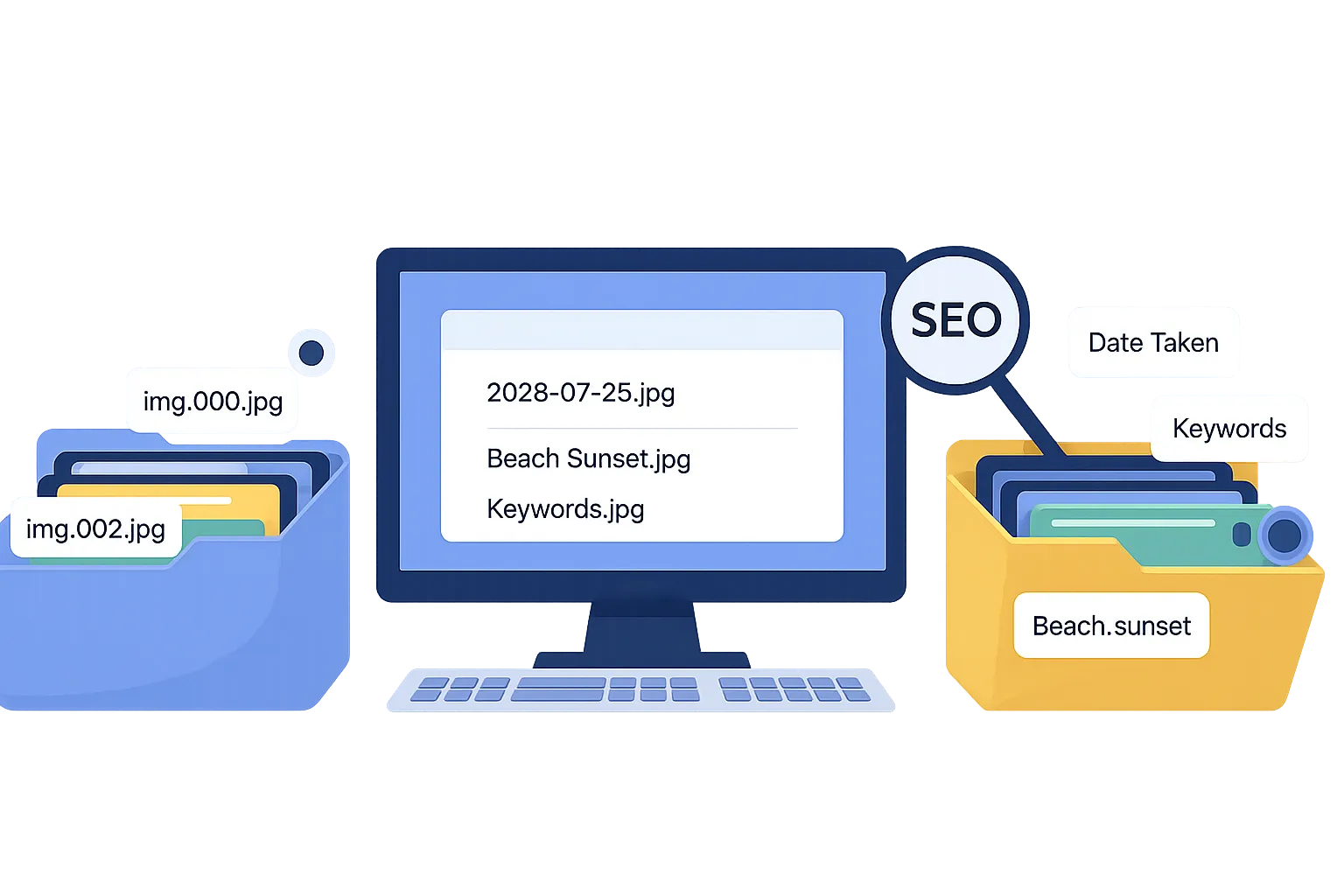
Managing large numbers of files can be a daunting task, especially when generic filenames like “IMG_0001.jpg” make it hard to find what you need. By using metadata, hidden information embedded in files, you can automate file renaming to improve organization and search engine optimization (SEO). In this guide, we’ll show you how to use reaConverter to batch rename files with metadata like EXIF, IPTC, and XMP.
Drag, drop, done — turn any folder into an instant file converter.
What is a “Watch Folder”?
A Watch Folder is simply a normal Windows folder that reaConverter silently “watches.” Whenever you drop or copy a file into that folder, the program automatically converts (and optionally edits) the file and saves the result wherever you tell it — without you having to press a single button. It’s a built-in automation tool designed for non-technical users who regularly handle dozens or thousands of images, or documents.
A step-by-step guide to turning reaConverter Pro into your fastest “File-Conversion-On-Demand” button.
Why bother with the context menu?
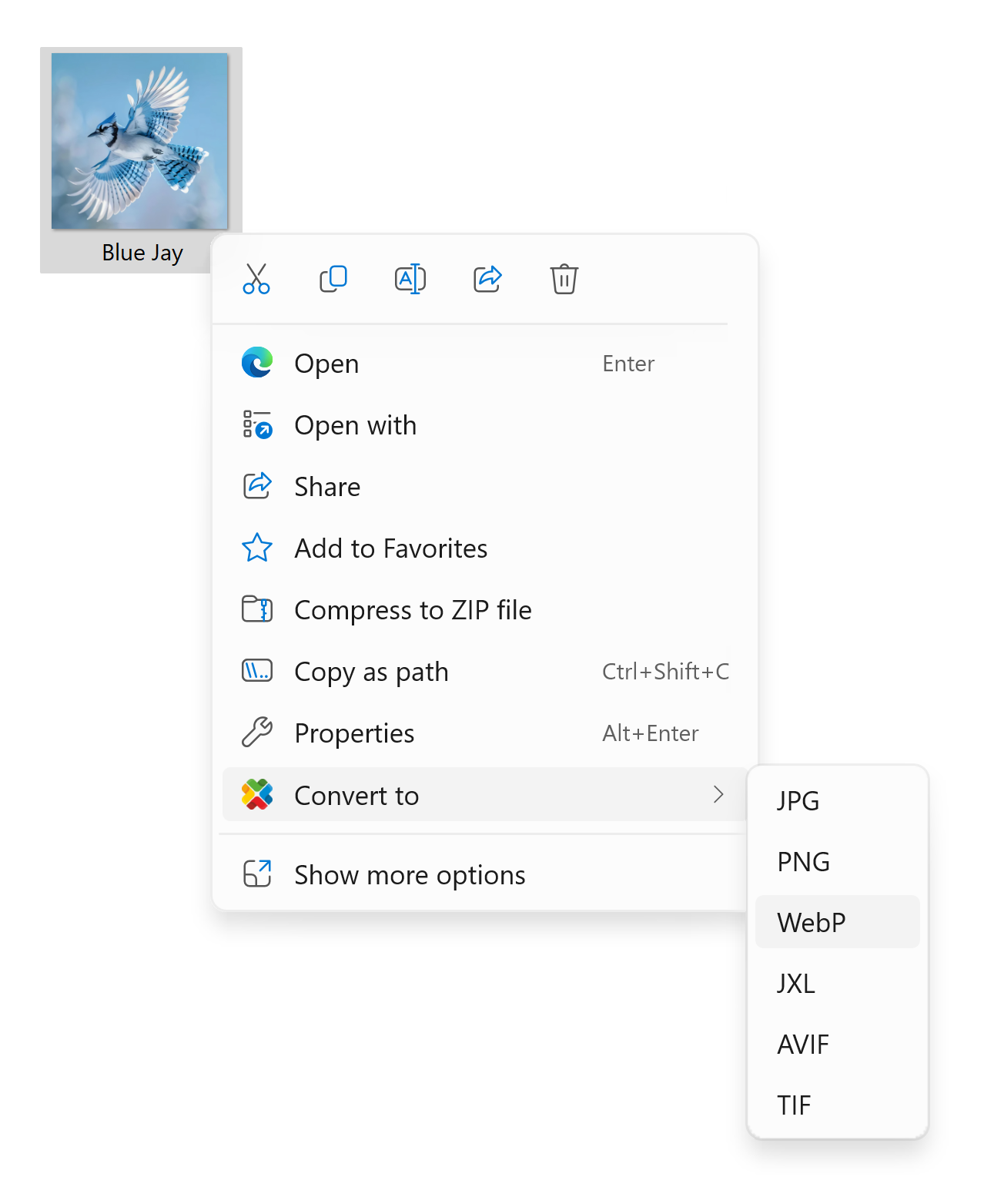
Windows 11 slimmed its right-click (context) menu and hides many third-party options behind “Show more options.” That second click slows you down — especially when you’re batching dozens of images. reaConverter Pro 8 solves the problem by wiring itself directly into the modern Windows 11 menu, so one click launches an instant conversion using your favorite preset.
If you still see the older two-step experience, Microsoft’s design simply tucks extra items under the submenu; you can always click Show more options to reveal them.