
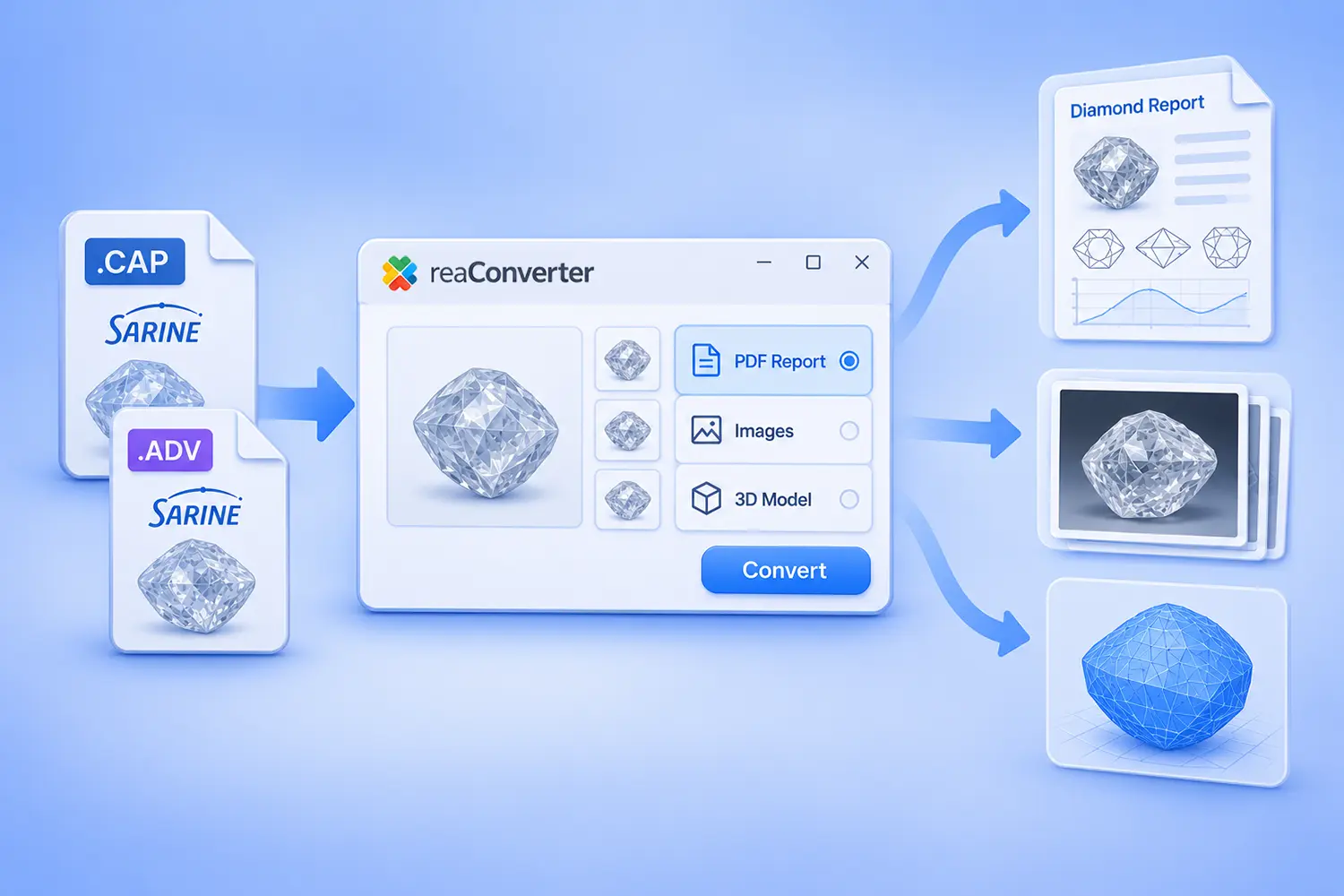
Turn rough diamond scans into PDF stone reports, scanner images, and 3D models
Sarine Galaxy and Advisor files are the working documents of the rough diamond trade. A Galaxy inclusion-mapping system scans the stone, Advisor plans the cut, and the resulting files travel from mines and tender houses to buyers, brokers, planners, and cutting factories.
The problem starts when one of those files lands on a computer without Sarine software. Anyone who has asked how to open one has heard the same answer.
“Cap file from Galaxy you can open just with Advisor software.”
Advisor is professional planning software built around Sarine scanners. A buyer who only needs to see the stone, a broker preparing a lot for a client, or an office archiving last year’s tender files has no practical way in.
reaConverter now reads both formats: Sarine Galaxy (.cap) and Sarine Advisor (.adv). Depending on the output format you choose, it produces a ready-to-send PDF report on the stone, the full set of scanner images, or a 3D model of the rough. It works in batch, so a whole folder of scans is processed in one run.
What Is Inside a Galaxy or Advisor File
A Galaxy scan is much more than a picture. The scanner rotates the stone in front of a camera, records hundreds of frames, and builds a precise model of its outer shape. All of it is stored in one file, often tens of megabytes in size.
A typical file contains:
- Stone data. Stone ID, rough weight in carats, scan mode, scan date and time, and the scanner software version.
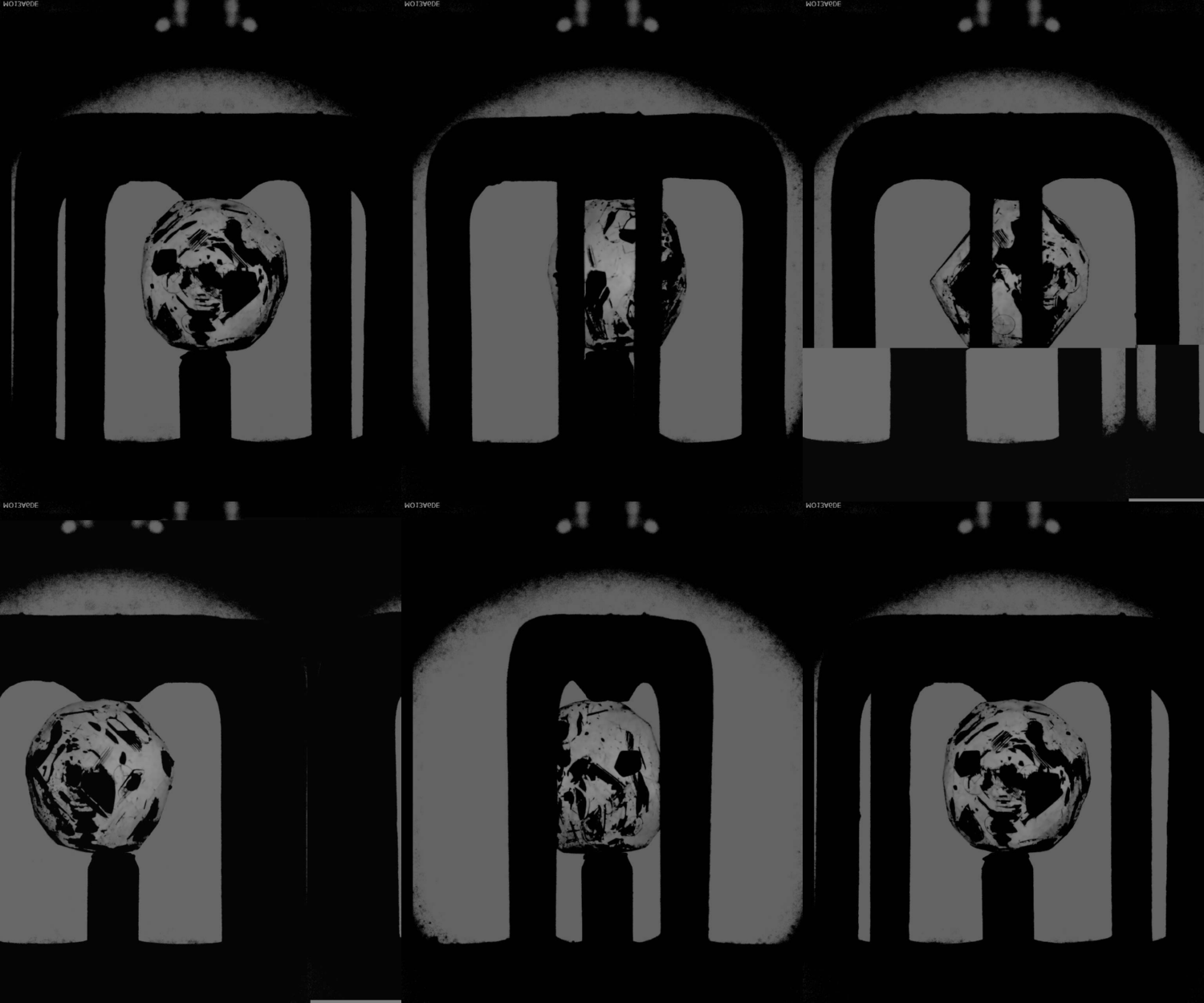
- Scanner images. A full rotation of the stone, usually hundreds of greyscale frames. In our sample file there are 300 frames at 1280 × 1024 px. Inclusions show up as dark areas inside the stone.
- 3D geometry. A model of the stone’s outer surface in millimetres, plus a stack of horizontal cross-sections. Our sample stores 255 of them, one every 0.024 mm of height.
reaConverter reads all three and decides what to extract based on the format you save to.
Three Results From One File
The output format you pick decides what you get:
| Save as | What you get | Typical use |
|---|---|---|
| PDF and other document formats | A multi-page report on the stone | Send to a buyer or client, attach to a lot, archive |
| JPG, PNG, TIFF and other image formats | Every scanner frame as a separate image (GIF: an animation of the scan) | Catalog photos, visual inspection, listings |
| STL, OBJ, GLB and other 3D formats | A 3D model of the rough stone | 3D printing, rendering, web and AR viewers |
PDF stone report
This is the result most people will want. reaConverter turns each scan into a clean, three-page A4 report that anyone can open without special software:
- Summary panel. Rough weight, scan mode, scan date, model volume, and the number of scanner images.
- Stone details. Stone ID, scan date and time, scanner software version, and the model’s dimensions in millimetres.
- Weight check. reaConverter calculates the weight from the model volume at diamond density (3.52 g/cm³) and compares it with the recorded weight. In our sample the two differ by about 0.3%.
- Convex hull. The volume of the stone’s convex hull and how much larger it is than the stone itself. Planners use this to judge how irregular the rough is.
- Stone shape. Rendered top, front, and side views, with the exact size along each axis.
- Cross-sections. Outlines of the stone at different heights and a graph of cross-section area along the height, with the largest section marked.
- Scanner images. Twelve frames picked evenly from the full rotation, so the reader sees the stone from every side.
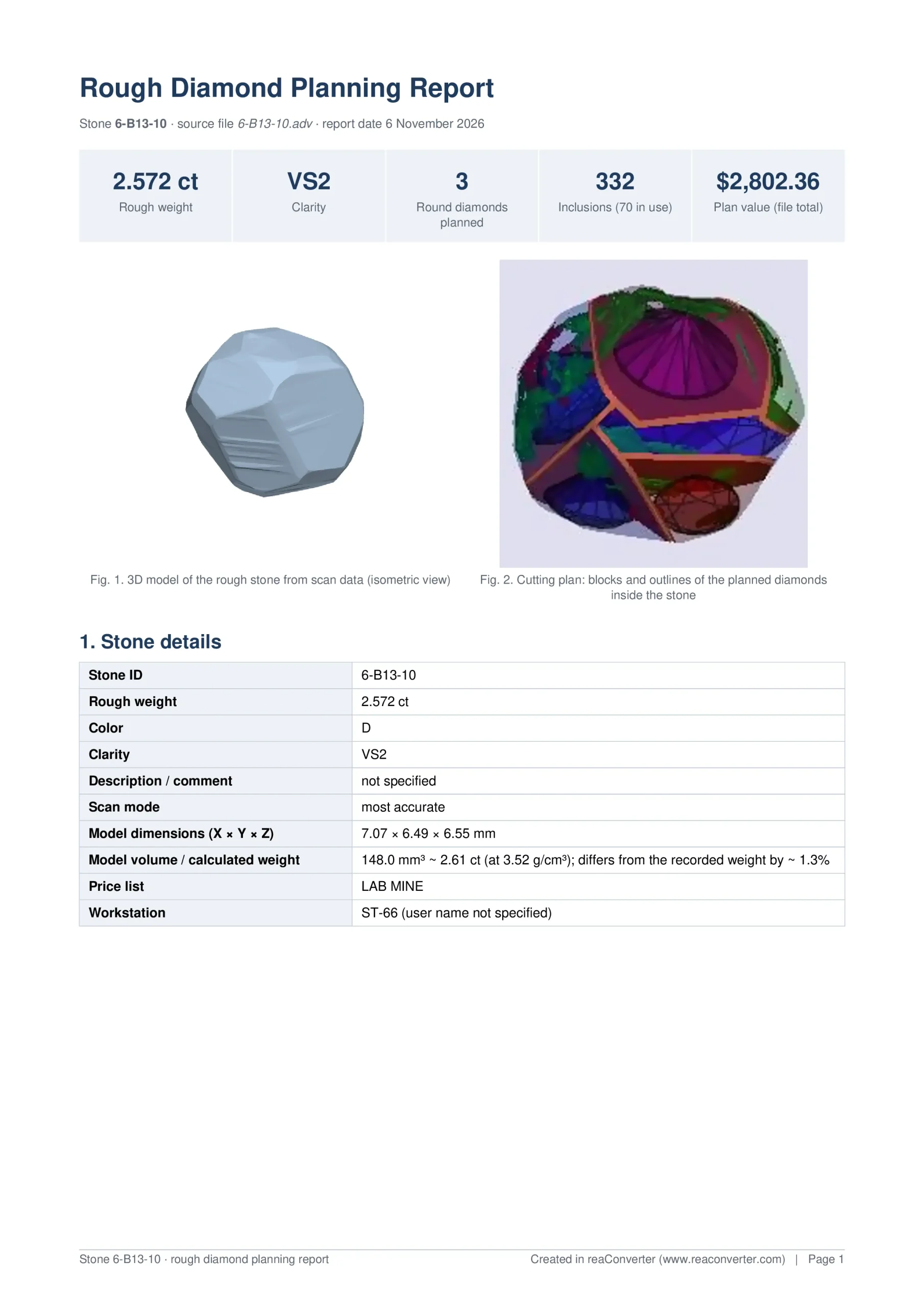
The report turns a closed planning file into something a buyer can read in two minutes and forward to a colleague.
Scanner images
Save to JPG, PNG, TIFF, or any other image format, and reaConverter extracts every frame recorded by the scanner. A 300-frame scan becomes 300 images. Use them as product photos, compare stones side by side, or pick the frames that show inclusions best.
The images can be edited in the same run. For example, crop them, resize them for a website, or add a watermark with your company name.
GIF is the exception. Save to GIF, and reaConverter assembles all scanner frames into one animation of the scan. These are the raw frames exactly as the camera recorded them, with reflections and the stone holder in view. It is not a polished product shot, but it is a unique one: the viewer sees the stone turn in front of the scanner and can spot inclusions as they pass through the light. No other image converter produces this from a Sarine file.
A scan animation made from hundreds of full-size frames can run to hundreds of megabytes. To make it fit a web page, add a Resize action in Image editing. For the illustrations in this article, we scaled the frames to 500 px wide. The palette reduction and inter-frame compression options in the GIF saving settings shrink the file further, roughly by half in our tests.
3D model
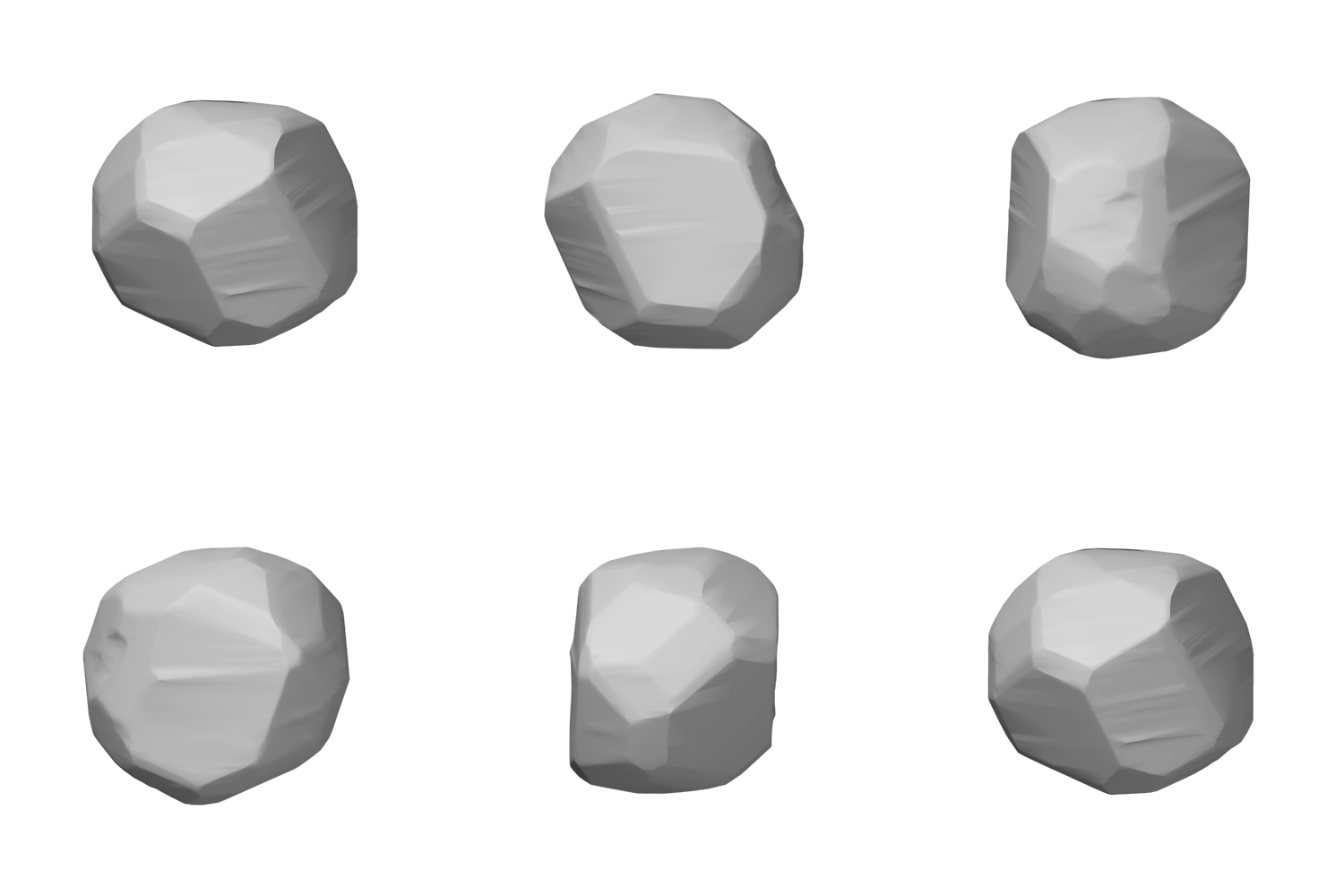
Save to a 3D format, and reaConverter exports the stone’s surface as a mesh in millimetres. The model is closed and watertight, with no holes in the surface. In our sample, its volume matches the recorded weight to within 0.3%.
Which 3D format to choose depends on where the model goes next:
- STL for 3D printing. A printed replica of a rough stone is a common way to discuss cutting plans with a buyer or a planning team.
- OBJ for rendering and CAD. KeyShot, Blender, and Rhino all open it.
- GLB for the web. A GLB model can be shown in an interactive 3D viewer on a website or an online tender page, and viewed in AR on a phone.
Any other 3D format that reaConverter writes works too.
Need a clean rotating animation? Convert the scan to STL first, then turn the model into a rotating GIF, WebP, or AVIF. Unlike the scan animation, this shows a smooth rendered stone on a clean background. See How to Make a Rotating GIF from a 3D Model (STEP, STL, OBJ) for the steps.
How to Convert ADV and CAP Files
The steps are the same for one file and for a whole tender folder.
- Download and install reaConverter. It runs on Windows and works fully offline, so scan files never leave your computer.
- Load the files. Click Add Files and select your .cap or .adv files, or drag them into the window. To process a whole archive, click Add Folder and include subfolders.
- Choose where to save. In Saving options, pick an output folder. You can also save next to the source files.
- Choose the output format. Pick PDF for stone reports, JPG or PNG for scanner images, GIF for a scan animation, or STL, OBJ, or GLB for 3D models.
- Click Convert.
Each scan produces its own result: one PDF report per stone, a full set of frame images, or one 3D model. Need more than one result? Run the same files again with a different output format. For example, make PDF reports for buyers and GLB models for your website from the same batch.
Automate Scan Processing
Tender houses and trading offices receive scans in batches, often hundreds of stones per tender. reaConverter can process them without anyone clicking through the interface.
Watch Folders
A Watch Folder converts every new file that appears in a chosen folder. Set it up once, and each scan copied into the folder turns into a PDF report automatically.
- In the main window, choose PDF as the output format and set the output folder.
- Open Menu → Watch folders → Add new folder…
- In the wizard, load the current settings with the button in the lower left corner.
- Select the folder to watch. Use the file mask
*.cap; *.advto skip other files. - Click Create Watch folder.
Watch Folders works with local folders. To process scans on a network share, use the command line with Windows Task Scheduler instead. For details, see A Beginner-Friendly Guide to reaConverter’s Watch Folders.
Command line
reaConverter Pro includes cons_rcp.exe, a command-line tool for scripts and scheduled jobs.
Make a PDF report from one Galaxy scan:
cons_rcp.exe -s "C:\Scans\stone_001.cap" -o "C:\Reports\stone_001.pdf"Make PDF reports for every Advisor file in a folder:
cons_rcp.exe -source_folder "C:\Tender\" -source_ext adv -dest_path "C:\Reports\" -dest_ext pdfExport 3D models for a web viewer:
cons_rcp.exe -source_folder "C:\Tender\" -source_ext cap -dest_path "C:\Models\" -dest_ext glbWhat reaConverter Does Not Do
reaConverter reads Sarine files and presents what they contain. It is not a planning tool, and it does not replace Advisor:
- No cutting plans. It does not calculate polished yield, suggest cutting plans, or estimate value.
- Inclusions stay in the images. Inclusions are visible on the scanner frames. The 3D model describes only the outer shape of the stone.
- The report is the same for ADV and CAP. Both formats currently produce the report described above. If your work needs other data from Advisor files, contact us, and we will look at your files.
- Reading only. reaConverter opens ADV and CAP files but does not write them. Files you convert stay unchanged.
FAQ
Can I open a Sarine Galaxy .cap file without Advisor? Yes. reaConverter reads Galaxy .cap files directly and converts them to a PDF report, image files, or a 3D model. No Sarine software is needed.
What is the difference between ADV and CAP files? CAP files come from Galaxy inclusion-mapping systems. ADV files are Sarine Advisor planning files. reaConverter reads both and produces the same set of results.
Is the .cap extension used by other programs? Yes. The same extension is used by network packet captures, Capella music scores, and some BIOS updates. This guide covers only .cap files produced by Sarine Galaxy systems.
How accurate is the 3D model? The model is built from the scanner’s own geometry in millimetres. It is a closed mesh, and its volume converts to a weight that matches the recorded rough weight closely. In our sample the difference was about 0.3%.
Can I convert hundreds of scans at once? Yes. Add a whole folder in the main window, set up a Watch Folder, or use the command line. Each scan gets its own report or model.
Are my files uploaded anywhere? No. reaConverter is a desktop application for Windows, and all processing happens on your computer.
Open Your Sarine Scans Today
Galaxy and Advisor scans no longer need Advisor to be useful. With reaConverter, every scan becomes a report your buyers can read, images you can publish, and a 3D model you can print or show online.