How to Merge Multiple Pages into One Image with reaConverter

How to merge multiple files into one image

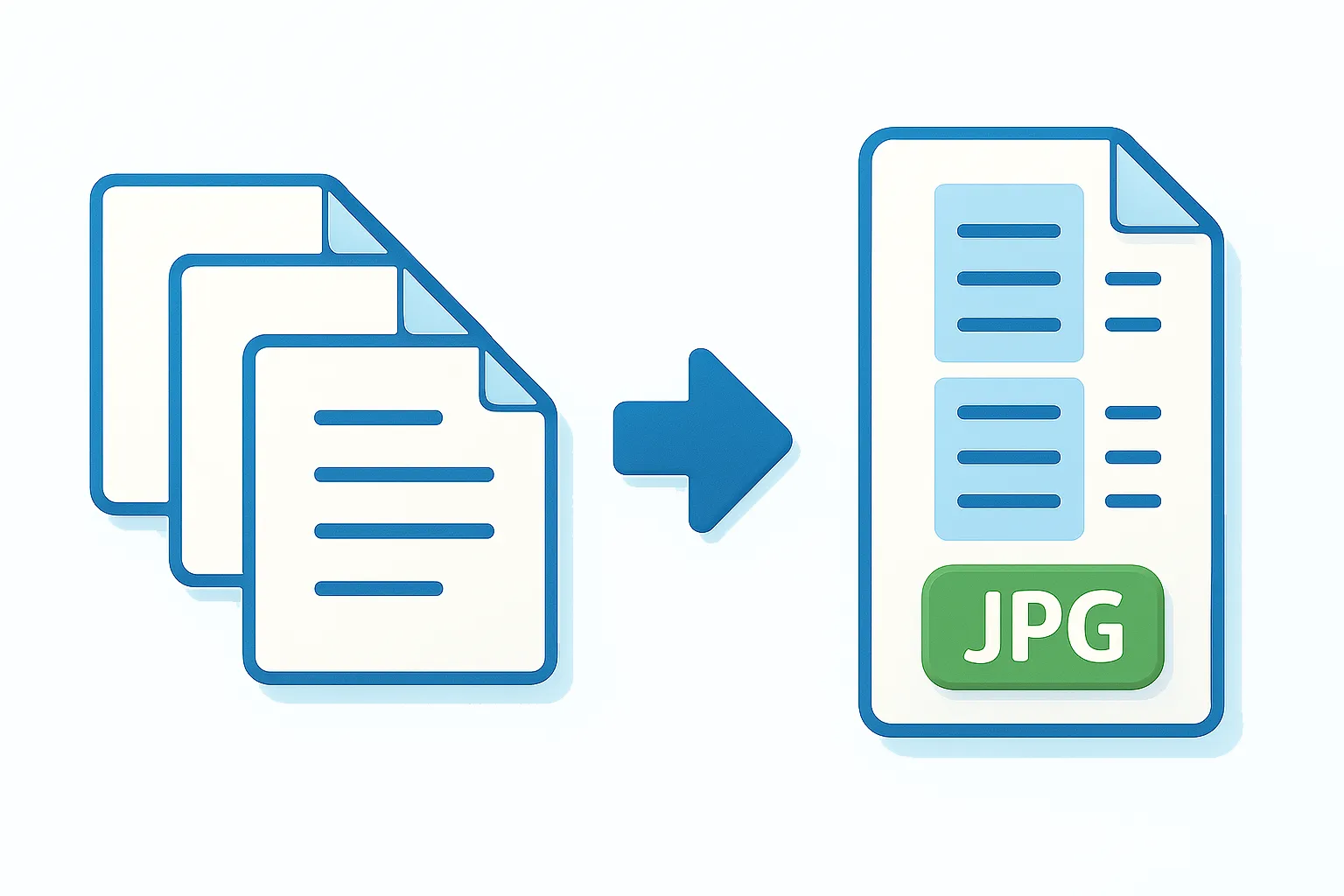
Turn PDFs, TIFFs, CAD multi-page documents and other multipage files into a single, continuous image (vertically or horizontally) with reaConverter’s Merge to One Image option. This feature is particularly useful when converting to formats that don’t support multiple pages, or when you need scrollable visuals for easier viewing, sharing, or presentation purposes. Whether you’re handling scanned documents, technical drawings, or creating social media content, this tool streamlines your workflow by turning multiple pages into one cohesive file.

Read more

How to Convert CDR to CMYK PDF Without CorelDRAW

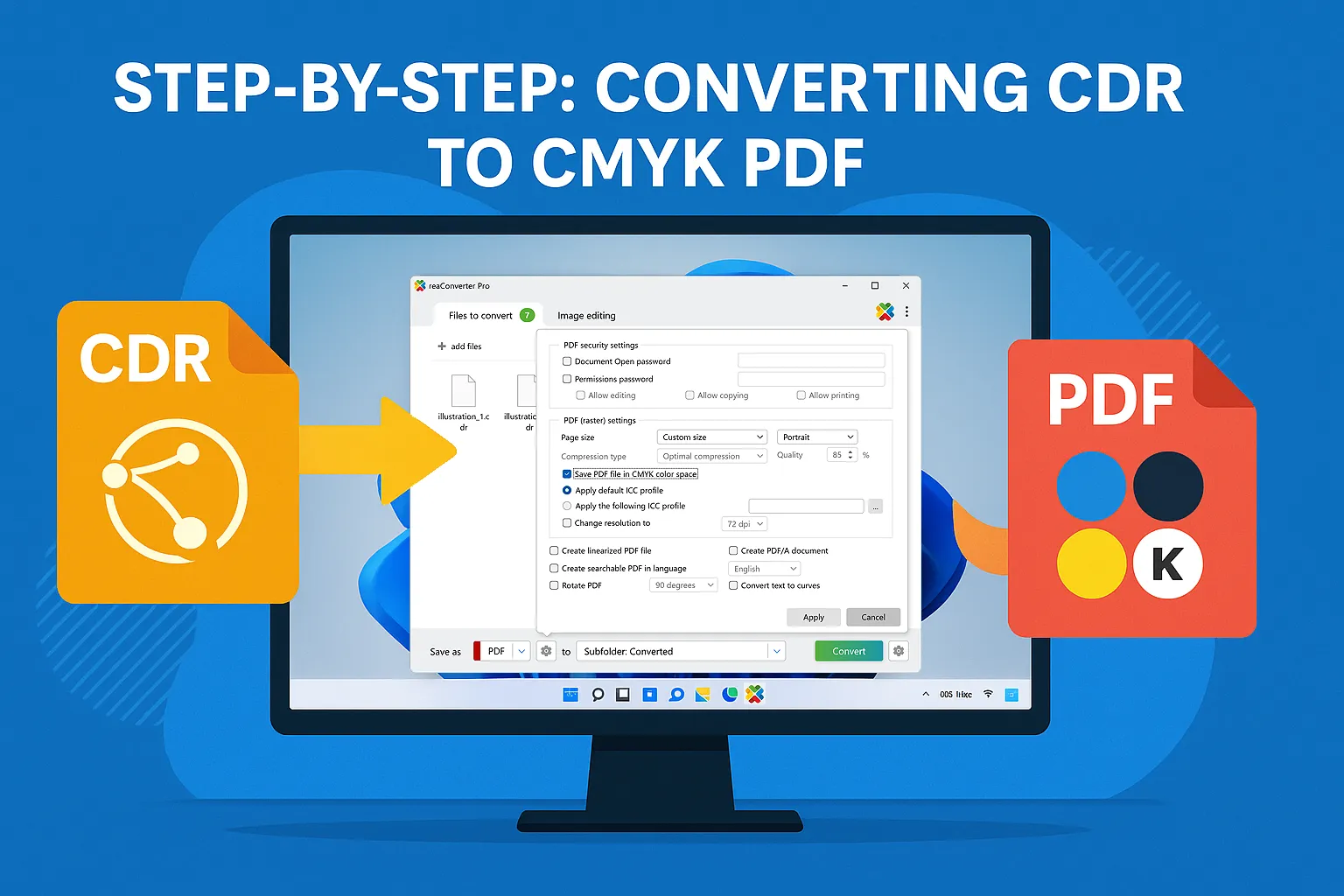
Convert CorelDRAW CDR files to press-ready CMYK PDFs in seconds, no CorelDRAW required. Step-by-step GUI, CLI, and Watch-Folder workflows in reaConverter 8.

Convert CDR to PDF (no CorelDRAW)

Need your CDR artwork in CMYK-ready PDF but can’t find the switch?

reaConverter hides the option in the format-specific dialog — one click unlocks a print-perfect, press-ready file. The guide below shows exactly where that setting lives, why CMYK matters, and how to batch or automate the workflow.

Read more

How to Batch-Convert HEIC (iPhone Photos) to JPG on Windows — Offline, Free & in Seconds

Convert HEIC to JPG

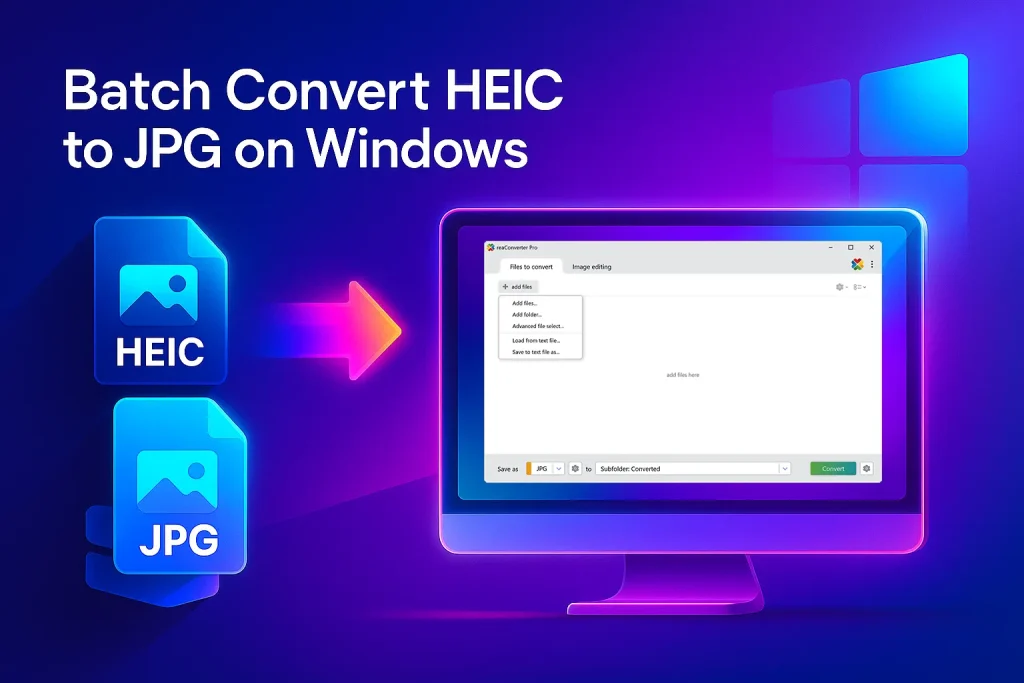
Batch-convert dozens of iPhone HEIC photos to JPG on Windows 10/11 with free reaConverter Lite. No internet, no ads — just fast, loss-free results.

Why This Guide Beats the Rest (Read This Before You Google Again)

Most “HEIC → JPG” articles push you toward:

  • Single-file online tools (slow uploads, privacy worries)
  • Microsoft’s Photos app (no batch save, quality loss)
  • Paid codecs (still manual, still clunky)

reaConverter, even the free Lite edition — lets you drag-in a whole folder of .HEIC images and spit out full-quality JPGs offline in one click. In this post you’ll learn exactly how, plus pro tips to hit perfect image quality and file naming every time.

Target reader: Anyone with a stack of iPhone photos on a Windows PC — photographers, real-estate agents, social-media managers, or parents off-loading holiday pics.

Read more

Set-and-Forget Image Conversion: A Beginner-Friendly Guide to reaConverter’s Watch Folders

Drag, drop, done — turn any folder into an instant file converter.

reaConverter’s Watch Folders

What is a “Watch Folder”?

A Watch Folder is simply a normal Windows folder that reaConverter silently “watches.” Whenever you drop or copy a file into that folder, the program automatically converts (and optionally edits) the file and saves the result wherever you tell it — without you having to press a single button. It’s a built-in automation tool designed for non-technical users who regularly handle dozens or thousands of images, or documents.

Read more

Right-Click Conversion with Windows 11 Context Menu Integration

A step-by-step guide to turning reaConverter Pro into your fastest “File-Conversion-On-Demand” button.

Right-click conversion

Why bother with the context menu?

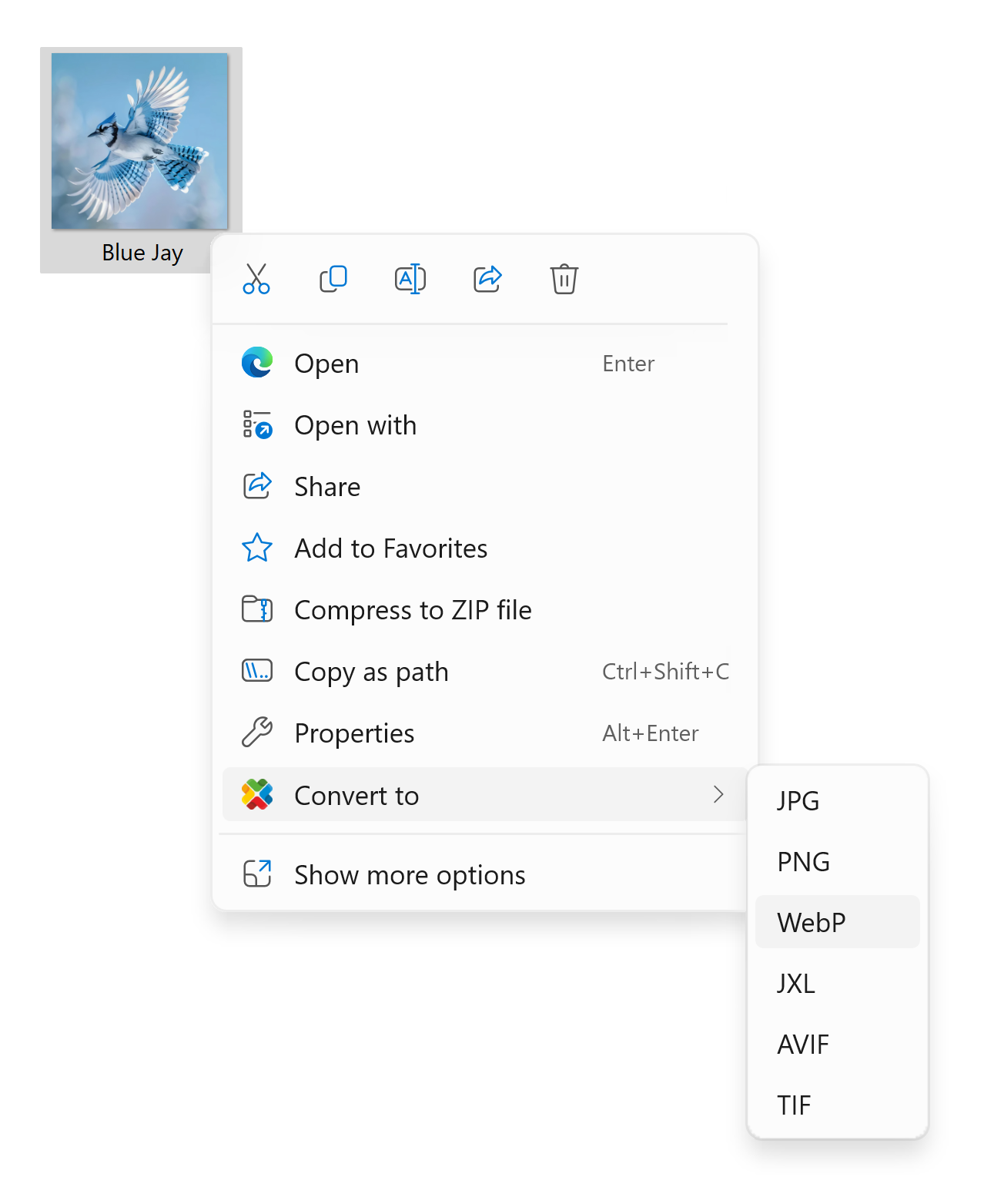
Windows 11 slimmed its right-click (context) menu and hides many third-party options behind “Show more options.” That second click slows you down — especially when you’re batching dozens of images. reaConverter Pro 8 solves the problem by wiring itself directly into the modern Windows 11 menu, so one click launches an instant conversion using your favorite preset.

If you still see the older two-step experience, Microsoft’s design simply tucks extra items under the submenu; you can always click Show more options to reveal them.

Read more

How to Rotate PLT Files During Conversion

If you are planning to print a graphics file on a plotting device, then converting it to PLT is the best option. Whether you are using a cutting plotter, a pen plotter or some other similar machine, the PLT format will ensure what you create on screen will match what you see in print.

PLTs are vector files that use the HPGL language and can be sent directly to print on a plotter. Such devices are often used for large-scale graphics such as maps, detailed plans or diagrams, posters and many more. The PLT format was originally created for Hewlett-Packard printers only, but in time became an actual standard in the industry. PLTs are currently compatible with most brands of plotting machines.

Read more

How to Create EPS Files with Preview

EPS (Encapsulated PostScript) is a vector format used for storing images and drawings. Such files can contain maps, logos or detailed layouts and can include both vector and bitmap data. Compared to the similar PS format, EPS not only uses the PostScript language to describe graphics, but also stores an “encapsulated” preview of low-resolution, that can be displayed by some programs.

Read more

How to Assign a New ICC Profile during Batch Image Conversion

Using ICC profiles is an absolute must when you want to do effective color management. The reason is simple: they contain all essential data needed for the correct rendering of colors.

ICC stands for International Color Consortium — an independent organization launched in 1993 by eight vendors with the aim of promoting color management systems across different platforms. The ICC profile of an image contains detailed descriptions of how its colors should be rendered, including color space and distribution, how the lightest and darkest tones are dispersed and combined throughout the image pixels etc.

Read more

Use Page Size or Object Size during SVG Conversion

SVG (Scalable Vector Graphics) is a versatile format based on the XML markup language, supporting a variety of static and moving images — drawings, animations, interactive graphics and more. Launched as an open standard at the end of the 1990s, the SVG format is currently compatible with most web browsers and can be edited using any text editor or graphics program. This is great news for developers, as they can use SVG to create various types of graphical applications.

Read more