
Turn one model or a whole folder of STEP, STL and OBJ files into spinning GIF, WebP or AVIF previews, from the interface, Watch Folders or the command line, without a 3D program.
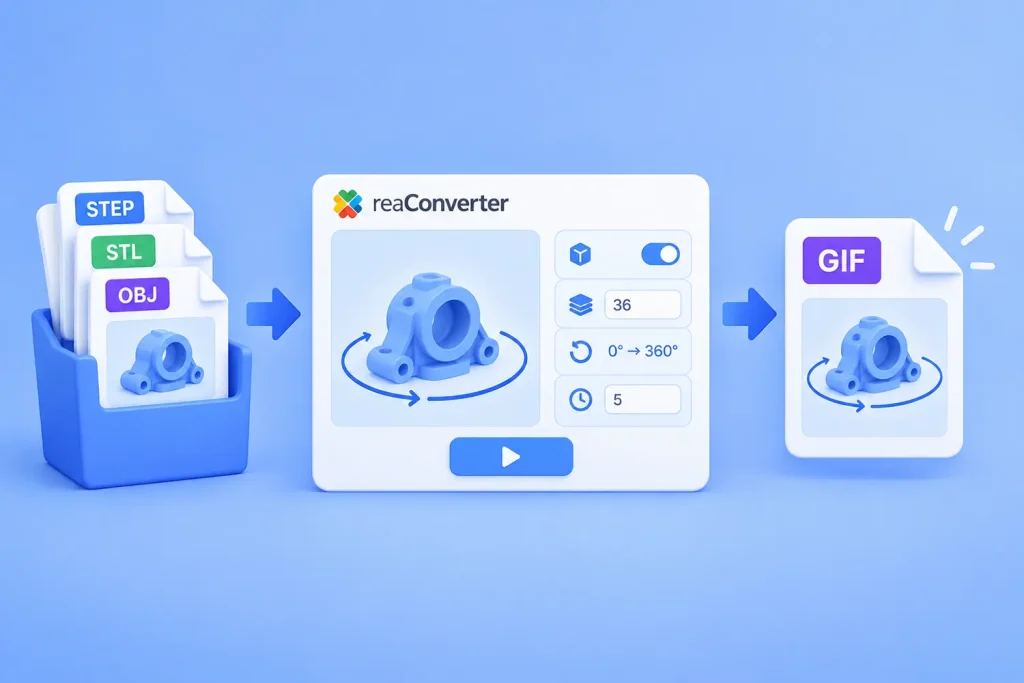
Short answer: reaConverter renders a 3D model at a series of angles and saves the frames as one animated file. Open Menu → Loading settings → 3D formats, tick Create multiple frames, set 36 frames and Change Y from 0 to 360. Then save as GIF with an Animation delay time of 5. It works on one model or a whole folder, offline.
A 3D file needs a viewer. A GIF does not: the recipient opens it in an email, a chat, a ticket or a slide and sees the part from every side.
reaConverter reads STEP, IGES, STL, OBJ, 3MF, glTF/GLB, FBX and other 3D formats, and writes the spin as GIF, animated WebP or animated AVIF.
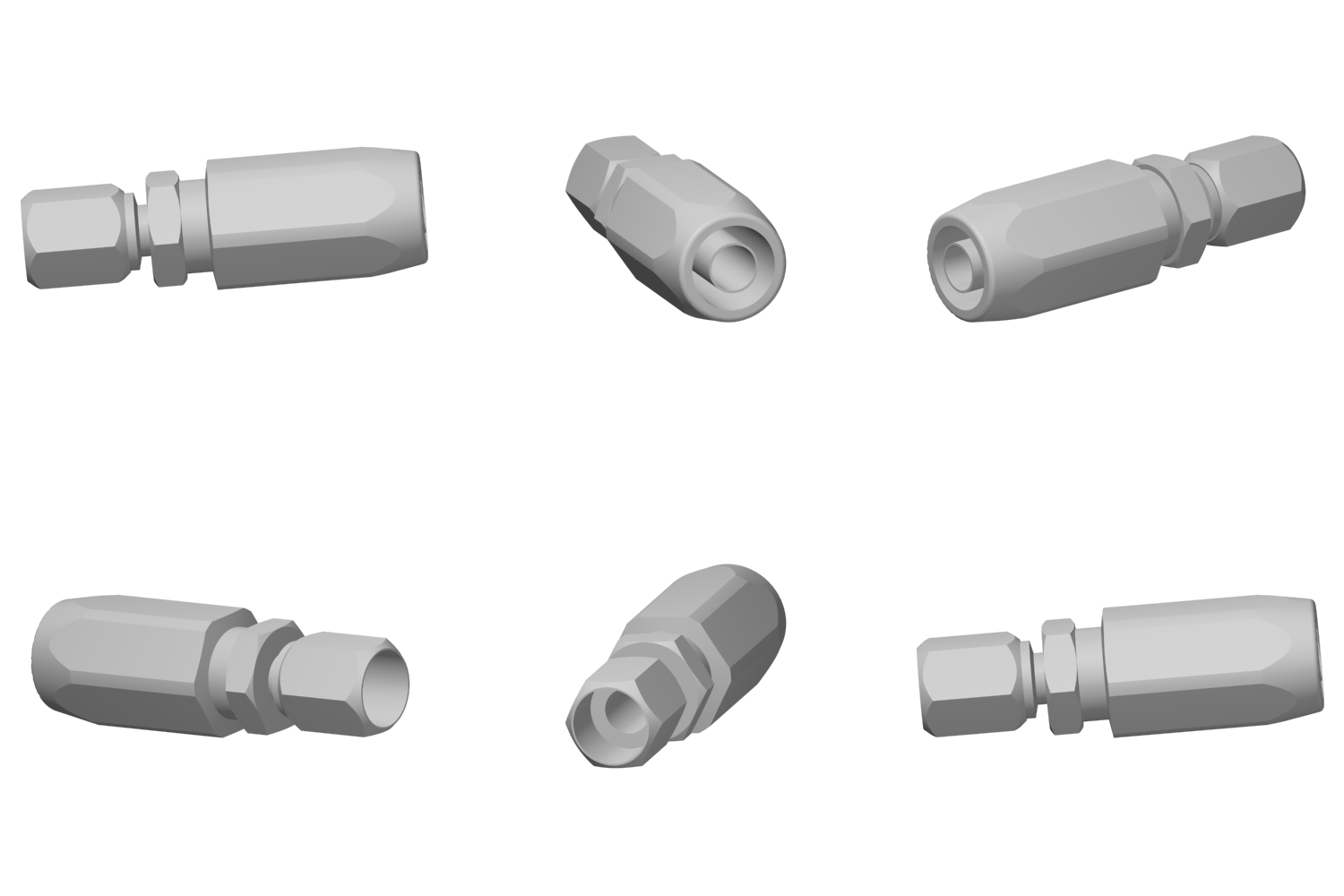
How to make a rotating GIF from a 3D model
1. Add your models
Drag STEP, STL, OBJ or other 3D files into reaConverter, or click add files. You can add a whole folder at once.
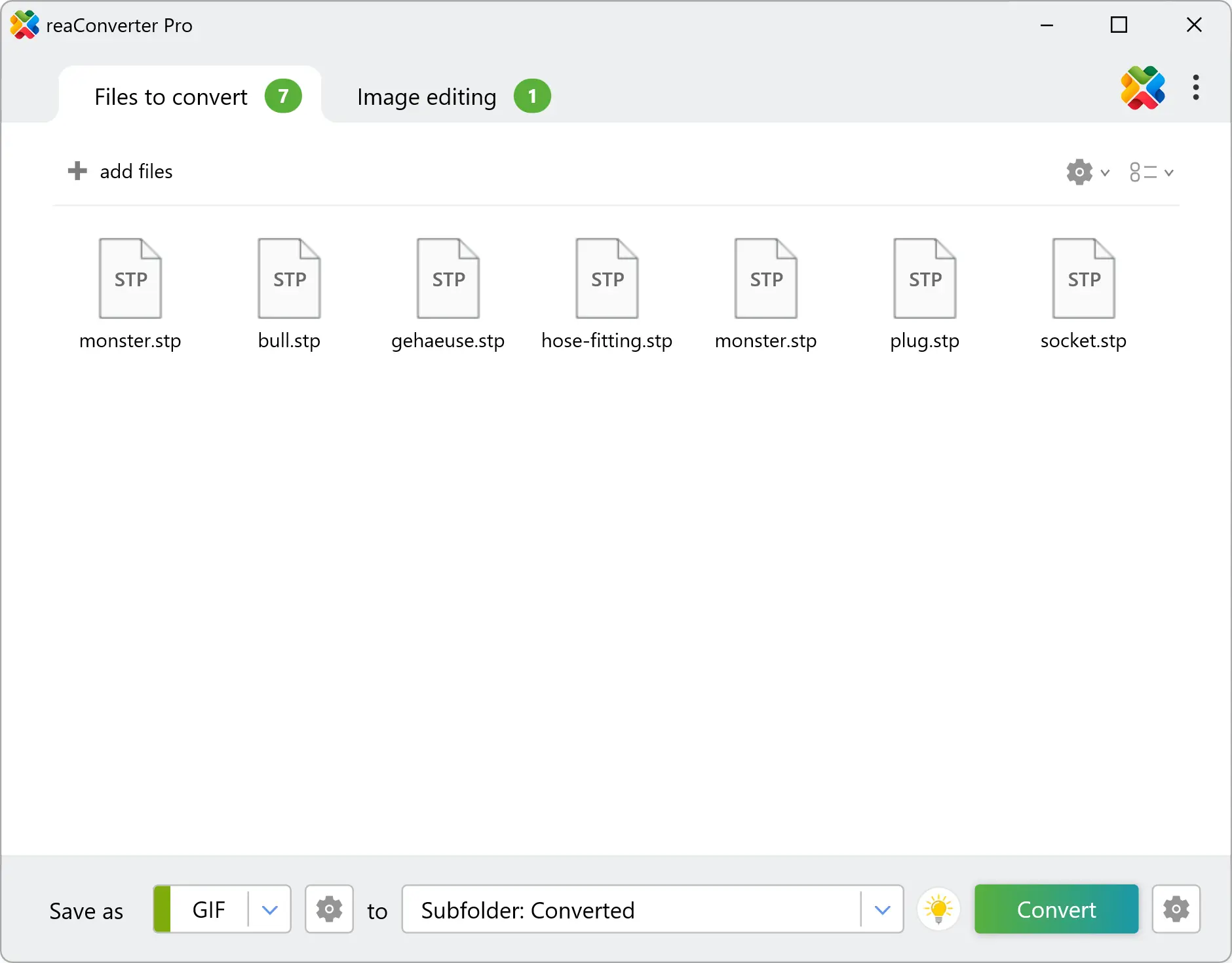
2. Open the 3D loading settings
Open the 3D loading settings. Go to Menu → Loading settings and pick 3D formats in the list on the left.
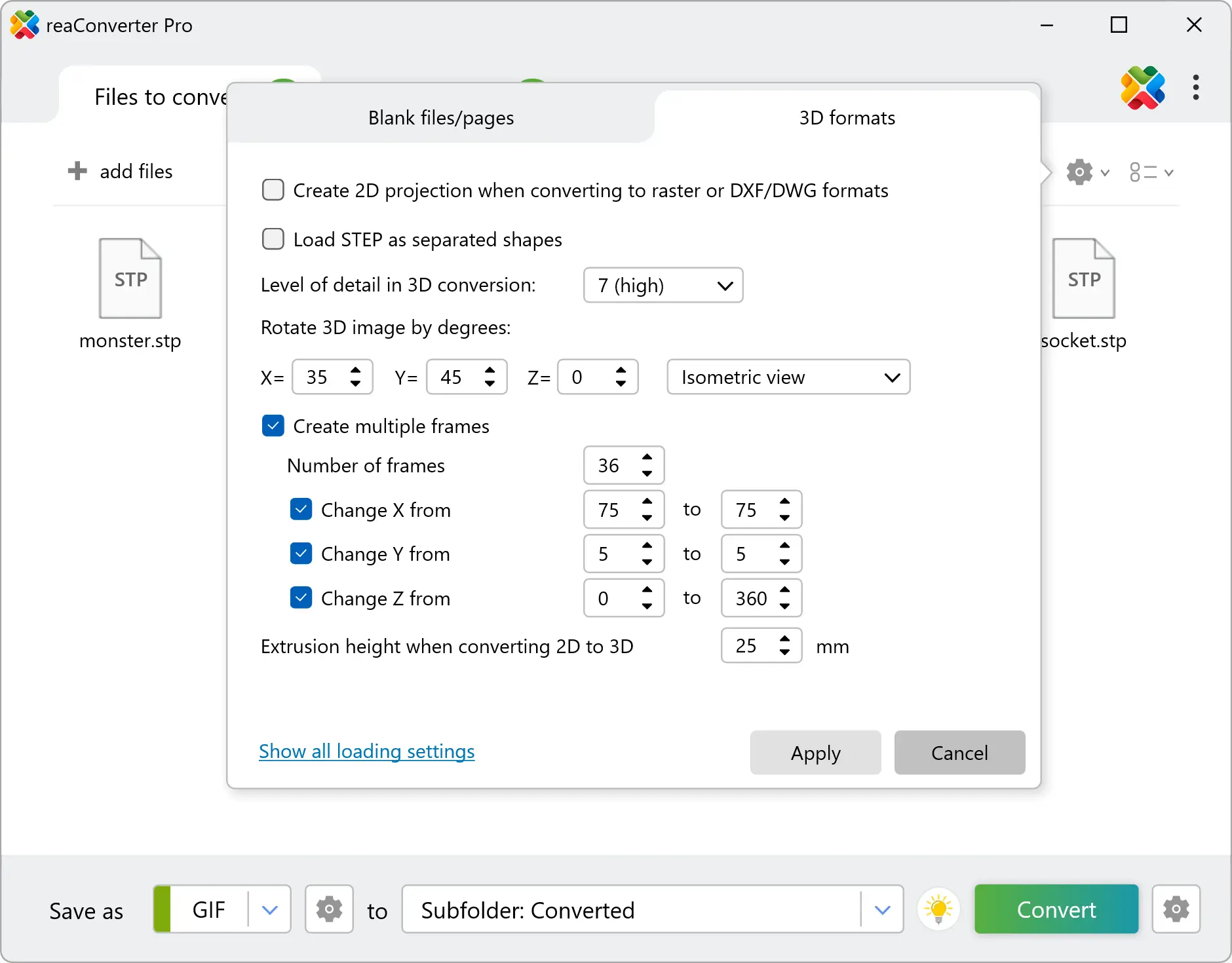
Set the starting view. Choose Isometric view in the drop-down next to the X, Y and Z angles. It sets X to 35 and Y to 45, the classic three-quarter view.
Turn on the spin. Tick Create multiple frames and set Number of frames to 36. Tick Change Y from, enter 0 and 360, and leave Change X and Change Z unticked.
Smooth the curves of CAD files. For STEP, IGES and 3MF, set Level of detail in 3D conversion to 4 or higher. The scale runs from 1 (low) to 7 (high); STL and OBJ are already triangle meshes, so it matters most for CAD files.
Leave the other options off. Keep Create 2D projection and Load STEP as separated shapes unticked for a normal spin.
3. Choose the output
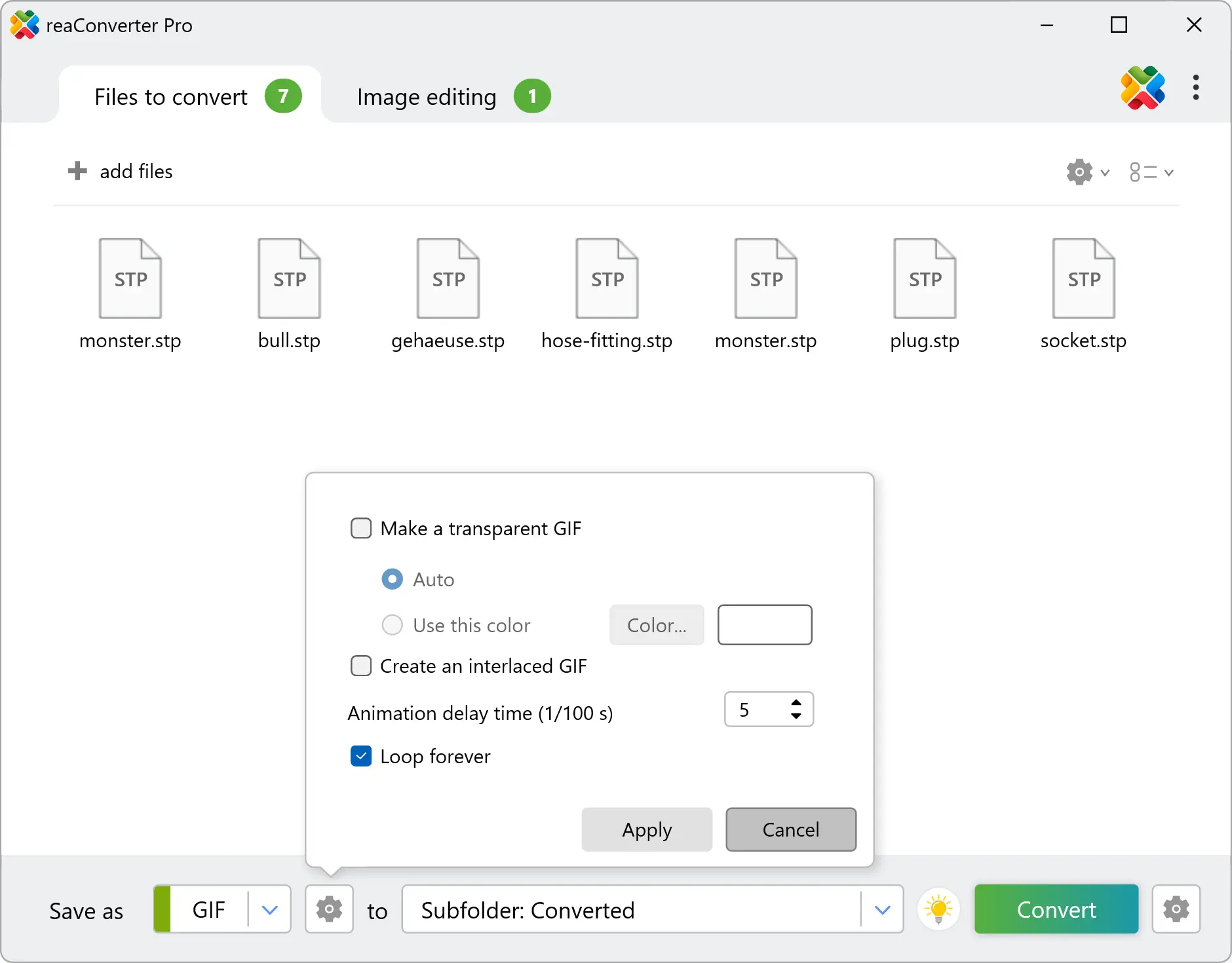
In Save as, pick GIF and click the gear button next to it. Set Animation delay time (1/100 s) to 5, keep Loop forever ticked, leave Create an interlaced GIF off, and click Apply.
4. Convert
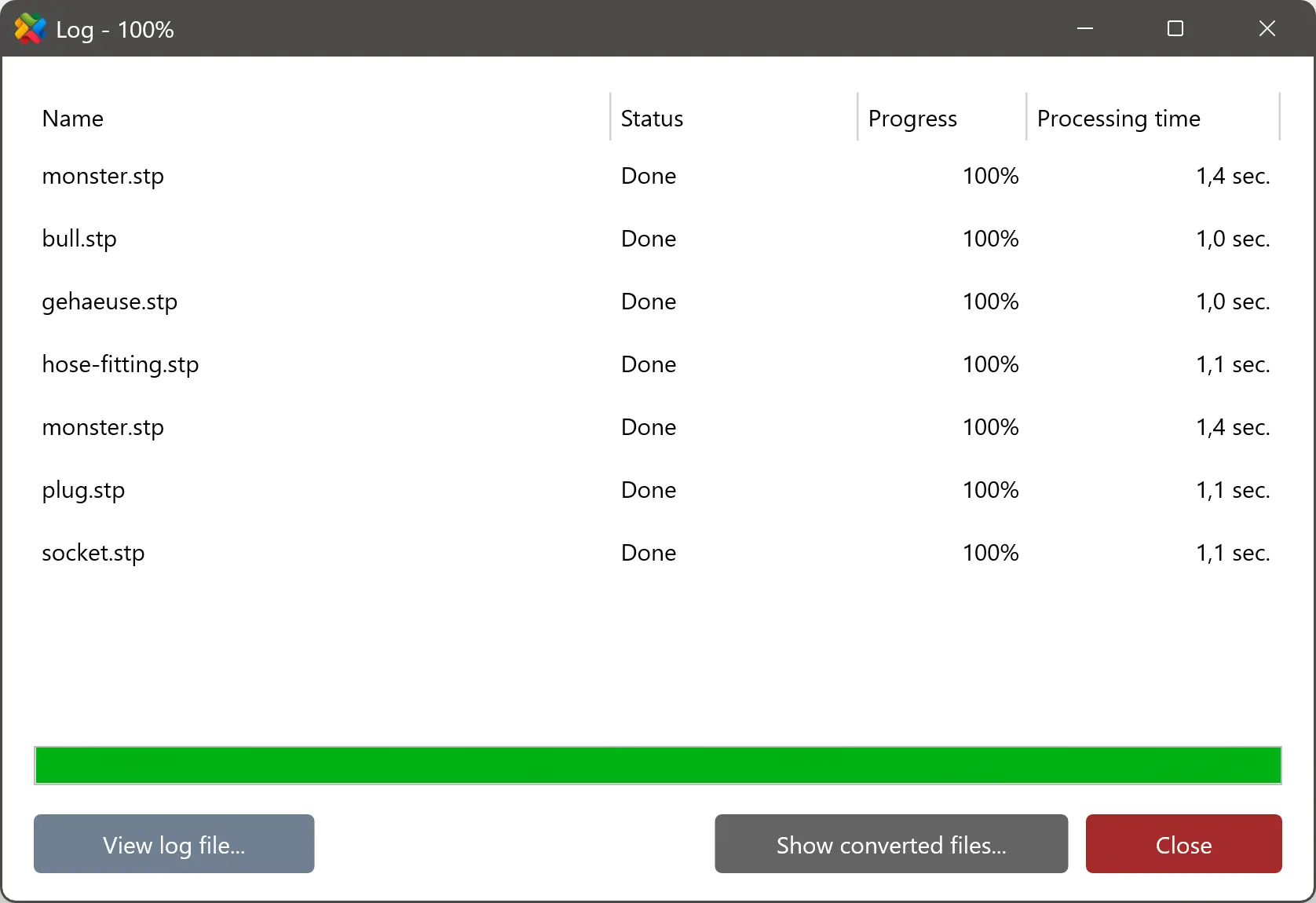
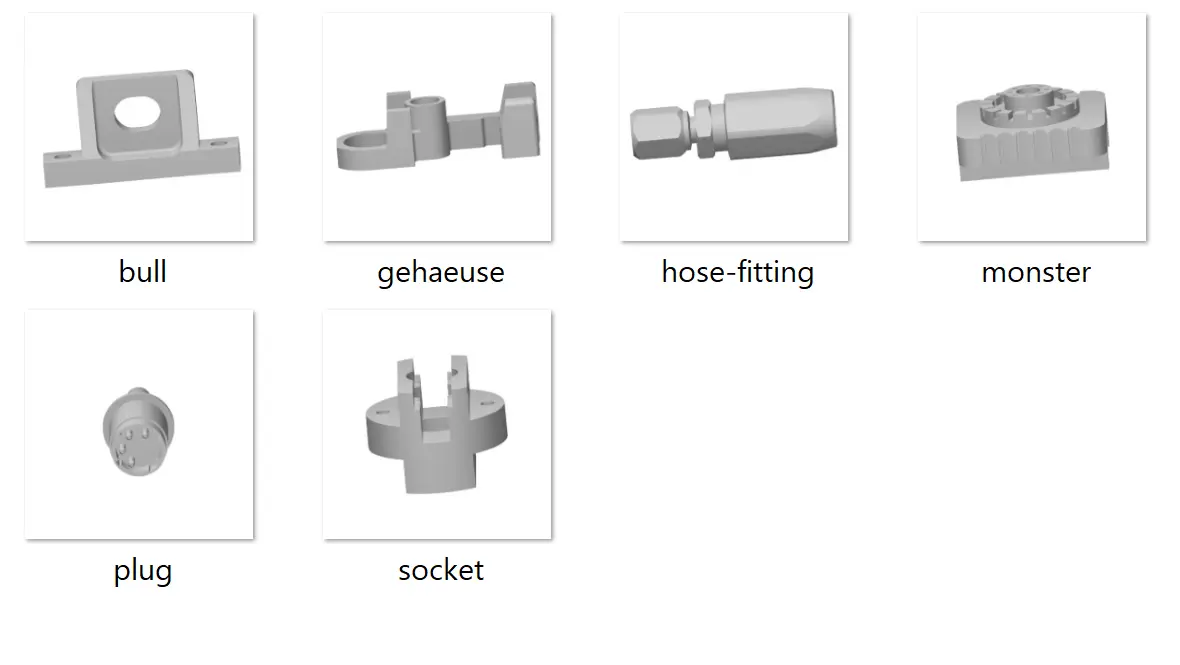
Pick the destination folder and click Convert. Each 3D model becomes one animated GIF file.
Before a large batch, run a single model with 8 frames. It takes seconds and shows whether the model spins the way you expect (see Common problems).
Choosing frames and speed
One turn lasts frames × delay ÷ 100 seconds, so 36 frames at a delay of 5 make a full turn every 1.8 seconds.
| Frames | Turn per frame | Delay (1/100 s) | One full turn | Good for |
|---|---|---|---|---|
| 12 | 30° | 10 | 1.2 s | Small previews in email and chat |
| 24 | 15° | 8 | 1.9 s | Catalog thumbnails |
| 36 | 10° | 5 | 1.8 s | Product pages, the default choice |
| 72 | 5° | 3 | 2.2 s | Large hero images where smoothness matters |
- The default delay of 50 is too slow for a spin. It shows each frame for half a second, which suits a slide show of a few views.
- Do not go below 2. Most browsers treat a delay of 0 or 1 as 10, so the animation plays slower, not faster.
- File size grows with frames and pixels. To make a file smaller, cut the frame count first, then add a Resize action on the Image editing tab.
- Check the first frame. Outlook for Windows shows only the first frame of a GIF, so that frame should be a view people recognize.
- Resize the animation in the same run. Actions on the Image editing tab apply to the rendered frames, so you can set the final size without a second tool. For example, add a Resize action with a width of 250 px and proportions kept: every model in the batch comes out as a 250 px wide spin, ready for an email or a catalog thumbnail. A smaller frame also makes the file much lighter. On the command line, the same step is
-resize 250x0px qh, where 0 keeps the proportions.
GIF, animated WebP or AVIF
Use GIF when the preview goes into email, chat or a document, and animated WebP when it goes on a web page.
| Format | Colors per frame | Transparency | Plays reliably in | Pick it for |
|---|---|---|---|---|
| GIF | 256 | On or off per pixel | Browsers, most email clients, chat apps, slides | Email, tickets, presentations |
| Animated WebP | Full color | Smooth edges | All modern browsers | Websites, online catalogs, README pages |
| Animated AVIF | Full color | Smooth edges | Current Chrome, Edge, Firefox and Safari | Web pages where file size matters most |
- Banding. GIF keeps 256 colors per frame, so smooth shading on a curved part can show steps. WebP and AVIF do not have this limit.
- Transparent backgrounds. Make a transparent GIF turns one color fully transparent: Auto picks it, Use this color lets you set it. Soft edges can leave a light fringe on a dark page, so for a transparent preview choose WebP or AVIF.
- Email. Gmail may turn an animated WebP into a still image, and Outlook for Windows does not show WebP at all. For email, GIF is the safe choice.
- AVIF trade-off. It gives the smallest files, but encoding takes longer and image viewers and chat apps support it unevenly.
- Settings. WebP and AVIF have the same delay and loop options as GIF, plus a quality setting. WebP at 100% quality is lossless.
Converting a whole model library
Add a folder instead of single files, and every model in it becomes its own animated file with the same angle, speed and size. For jobs that repeat, reaConverter Pro offers two hands-off routes.
Watch Folders. New models dropped into a watched folder are converted automatically with your saved settings. Watch Folders works with local folders on the PC. See Watch Folders.
Command line. cons_rcp.exe runs the same conversion from a script or Windows Task Scheduler. This command turns every STEP file in a folder into a 36-frame GIF:
cons_rcp.exe -source_folder "C:\Models\" -source_ext step -dest_path "C:\Previews\" -dest_ext gif -3d_x 35 -3d_y 45 -3d_multi_frames 1 -3d_frames 36 -3d_y_from 0 -3d_y_to 360 -3d_lod 4 -gif_delay_time 5 -gif_loop 1 /hide-source_ext takes one extension, so run the command again for stp, stl or obj files. /hide runs it without a window.
For WebP and AVIF, set the job up in the interface and save it with Menu → Save configuration as. Then pass the .cfg file to the command line and test it on one model first:
cons_rcp.exe "C:\Jobs\spin-webp.cfg" -f "C:\Models\bracket.step" "C:\Models\housing.step"The full list of switches is on the command-line page. For scheduling, logging and unattended runs, see Automating File Conversion Workflows with reaConverter.
Where rotating previews help
- Sharing a part with someone who has no CAD. A client, buyer or manager opens the GIF in email or chat and sees every side.
- Product pages and catalogs. One spin per part number, with the same angle and speed across the range. Use WebP on the site.
- Listings of 3D-printable models. A spin shows the whole model on a shop or model-sharing page before anyone downloads it.
- Documentation and README files. A short loop next to the text explains a part faster than three static views.
- Model libraries. Spinning thumbnails make a folder of STEP files recognizable at a glance. For 2D drawings, see Batch DWG Preview Generation for Small Engineering Firms.
- Designs under NDA. reaConverter processes files on your PC and uploads nothing, so unreleased parts stay in-house.
Common problems and fixes
Most problems show up in the first test run and take one setting to fix.
| Problem | Why it happens | Fix |
|---|---|---|
| The model tumbles end over end instead of spinning in place | The file was saved with a different axis pointing up. CAD and 3D-printing files often use Z as up, glTF uses Y | Run a test with 8 frames. If Change Y tumbles the model, try Change X or Change Z and keep the one that spins it in place |
| The spin pauses briefly at the end of each loop | The last frame shows the same angle as the first | Stop one step short of 360. With 36 frames, use 0 to 350 |
| Curved surfaces look faceted | The level of detail is low | Raise Level of detail in 3D conversion for STEP, IGES and 3MF files |
| A light fringe around a transparent GIF | GIF transparency is on or off for each pixel | Use a solid background, or save as WebP or AVIF |
| The spin is far too slow | The delay is still at the default of 50 | Set Animation delay time to between 4 and 8 |
| The file is too large | Too many frames or pixels | Use fewer frames, add a Resize action, or save as WebP or AVIF |
Limitations and other ways to do it
reaConverter makes consistent technical previews of many models at once. It is not a studio renderer.
- The 3D loading settings have no lighting, material or camera-distance controls. For photoreal marketing shots, a renderer such as Blender or KeyShot gives that control.
- Every model in a run gets the same angles, frame count and speed. A model that needs a different view goes in a separate run.
- Colors depend on what the source format stores. A standard STL file carries no color, so check one file before a batch.
- Watch Folders and the command line need reaConverter Pro.
| Method | Many models at once | Files stay on your PC | Look of the result | Effort |
|---|---|---|---|---|
| reaConverter | Yes: folders, Watch Folders, command line | Yes | Clean technical preview | Low: one settings dialog |
| Online STL to GIF converters | Varies by service | No, files are uploaded | Clean preview | Low |
| Turntable render in a CAD program | Usually one model at a time | Depends on the program | Rendered with materials | Medium: needs the CAD program |
| Blender turntable | Scriptable | Yes | Photoreal, full control | High: lighting and scene setup |
| Scripts (OpenSCAD or Python with ffmpeg) | Yes | Yes | Basic | High: coding and upkeep |
FAQ
Can I make a rotating GIF from a STEP file without CAD software? Yes. reaConverter reads STEP and IGES files directly and renders the frames itself, so no CAD program is needed on the computer.
How many frames should a 360° spin have? 24 to 36 frames give a smooth spin. 12 is enough for a small preview, and more than 72 rarely looks better but makes the file much larger.
How do I make the animation faster or slower? Change Animation delay time in the output settings. It is measured in hundredths of a second per frame, so 5 means 20 frames per second. Keep it at 2 or above.
Can I convert a whole folder of models at once? Yes. Add the folder, set up the spin once and click Convert. For jobs that repeat, use Watch Folders or the command line in reaConverter Pro.
Should I use GIF or WebP? GIF for email, chat and documents, because it plays almost everywhere. Animated WebP for web pages, because it keeps full color and makes smaller files.
Are my models uploaded anywhere? No. reaConverter converts files on your computer and works offline.