
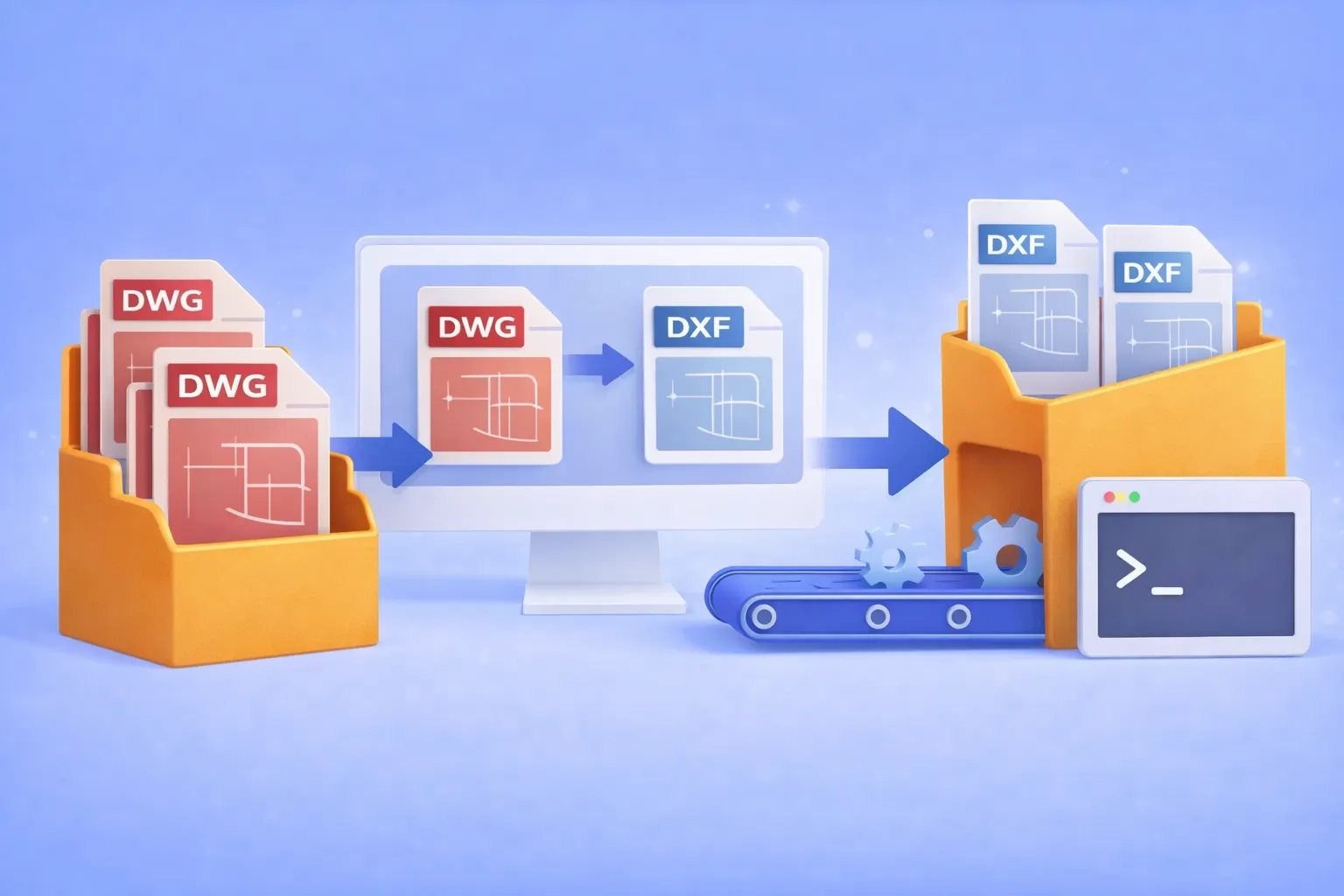
Batch convert hundreds of DWG drawings to open DXF format — using the GUI, Watch Folders, or command line. No AutoCAD license required.
Why convert DWG to DXF?
DWG is the native binary format of AutoCAD. It’s powerful, but proprietary. When you need to share drawings with partners who use SolidWorks, BricsCAD, FreeCAD, LibreCAD, or any non-Autodesk CAD tool, the proprietary DWG container becomes a bottleneck. DXF (Drawing Exchange Format) was designed specifically to solve this: it’s an open, documented interchange format that virtually every CAD program can read and write.
Common real-world scenarios where DWG → DXF conversion is essential:
- Cross-platform collaboration with partners who use SolidWorks, BricsCAD, FreeCAD, or other non-Autodesk CAD tools.
- CNC and laser cutter pipelines that accept only DXF input.
- Archival and compliance requirements where an open format avoids vendor lock-in.
- Automated production workflows where DWG files must be converted before entering a review or manufacturing system.
If you’re converting one or two files, an online tool might do. But when the job involves hundreds of drawings on a recurring basis, you need batch automation that runs offline, keeps your intellectual property on your hardware, and doesn’t require an expensive AutoCAD seat.

That’s where reaConverter comes in.
DWG vs DXF — quick reference
| Feature | DWG | DXF |
|---|---|---|
| Developer | Autodesk (proprietary) | Autodesk (open, documented) |
| File type | Binary | ASCII or Binary |
| File size | Compact (binary compression) | Larger (especially ASCII variant) |
| Compatibility | AutoCAD, IntelliCAD, DraftSight | Virtually all CAD software |
| Best for | Native AutoCAD work | Cross-platform sharing, CNC, archival |
| Editable | Full support in AutoCAD | Full support in most CAD tools |
What you’ll need
- reaConverter Standard edition is enough for GUI batch conversion. For Watch Folders and command-line automation, you’ll need Pro. See the DWG to DXF conversion page for a quick overview of what’s supported.
- Your
.dwgfiles. reaConverter supports all AutoCAD versions from R12 through the latest releases. - No AutoCAD installation is required at any point.
Method 1 — Batch conversion in the GUI
This is the fastest way to convert a folder of DWG files interactively.
Step 1. Add your DWG files
Launch reaConverter and load your drawings. You can:
- Drag-and-drop files or entire folders from Windows Explorer.
- Use the Add Files or Add Folder buttons on the toolbar.
- Right-click DWG files in Explorer and choose Convert with reaConverter from the context menu.
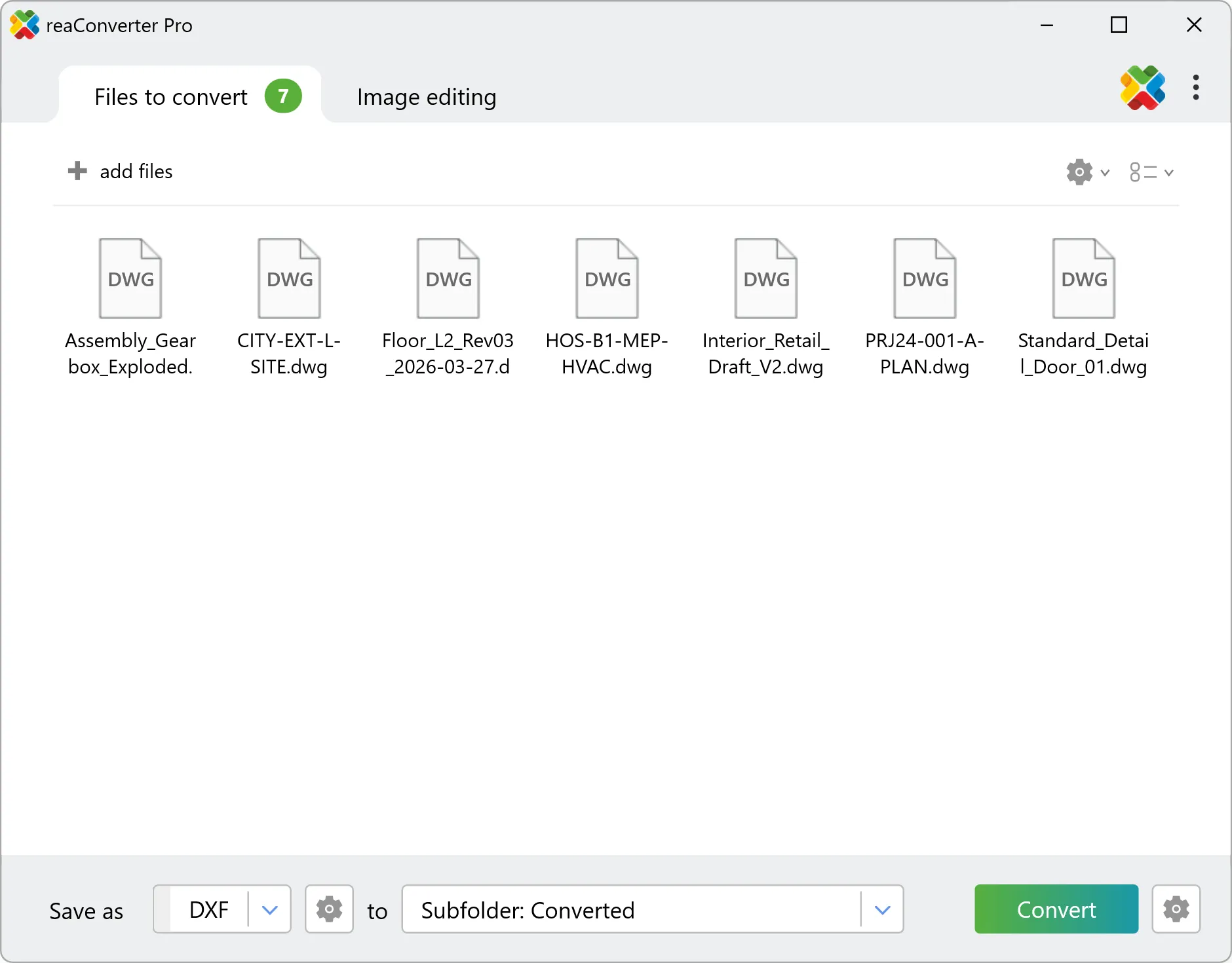
reaConverter reads DWG natively, no CAD software needed. The file list shows previews, page count, and size for every drawing.
Step 2. (Optional) Configure DWG loading settings
Before converting, you can fine-tune how drawings are read:
- Layout selection: convert Model Space only, all Paper Spaces, or all layouts. Look for the DXF/DWG/DGN loading settings in the Settings panel on the left side of the main window.
- Grayscale: render the drawing in grayscale if color is not needed downstream.
- Layer extraction: split each layer into a separate output file.
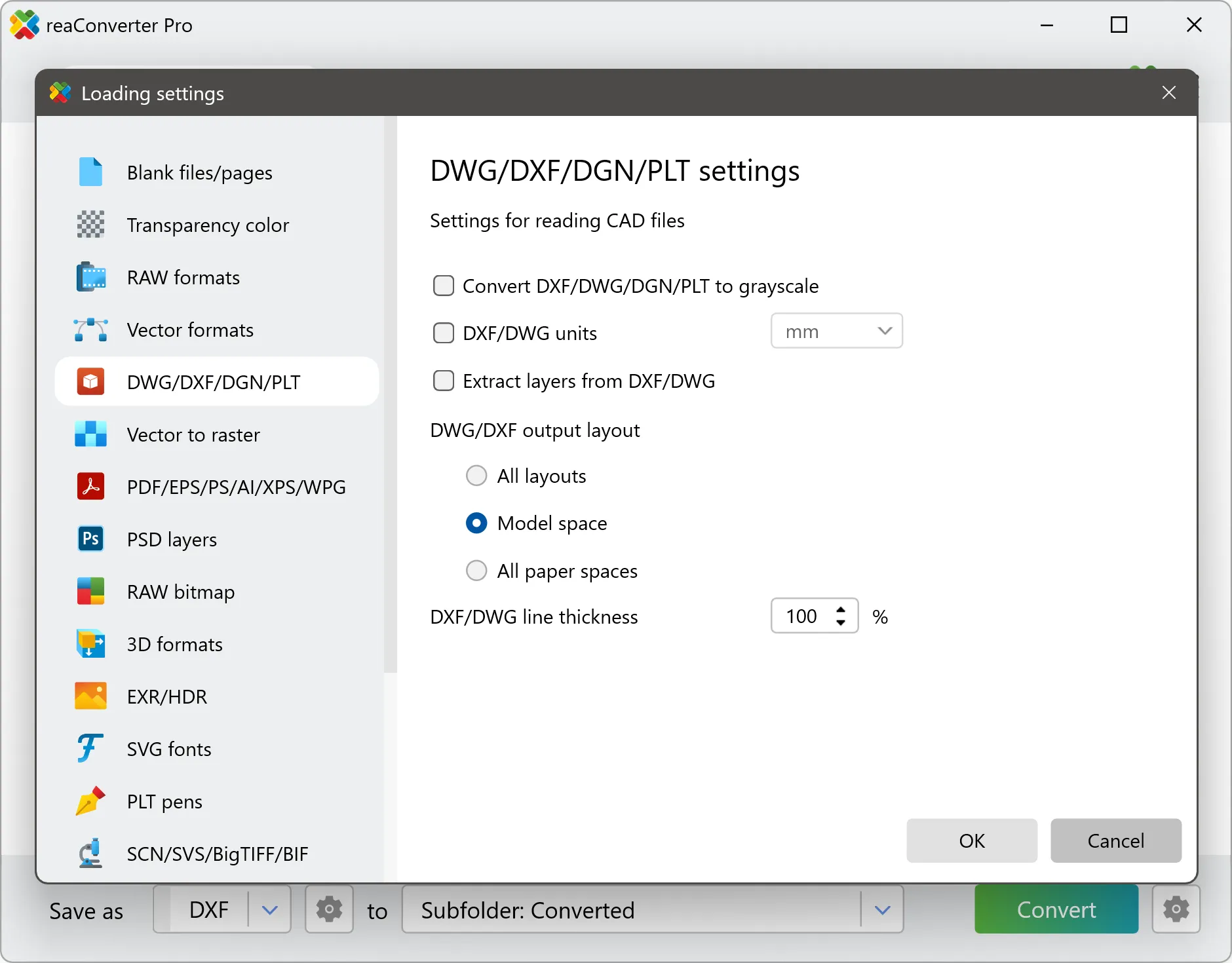
These settings are especially useful when your DWG files contain multiple layouts and you only need the Model Space geometry.
Step 3. Choose DXF as the output format
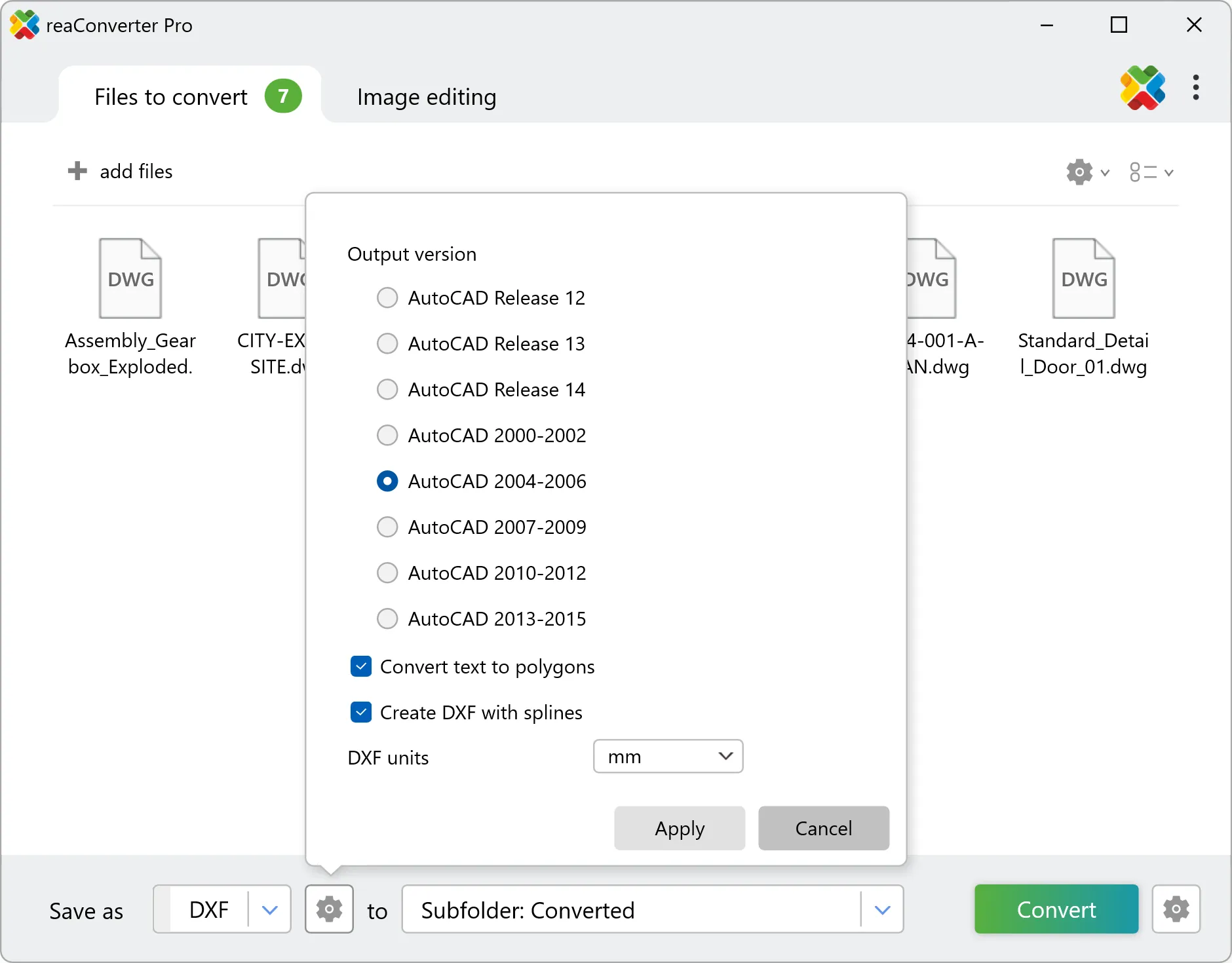
In the bottom panel, set Save as → DXF. Click the gear icon next to DXF to open format-specific settings:
- DXF version: choose from AutoCAD 12, 13, 14, 2000, 2004, 2007, 2010, or 2013. If unsure, AutoCAD 2000 offers the best balance of compatibility and feature support.
- Units: millimeters or inches.
- Text handling: save as text or convert to polygons (useful when downstream tools have font substitution problems).
- Splines: enable or disable spline output.
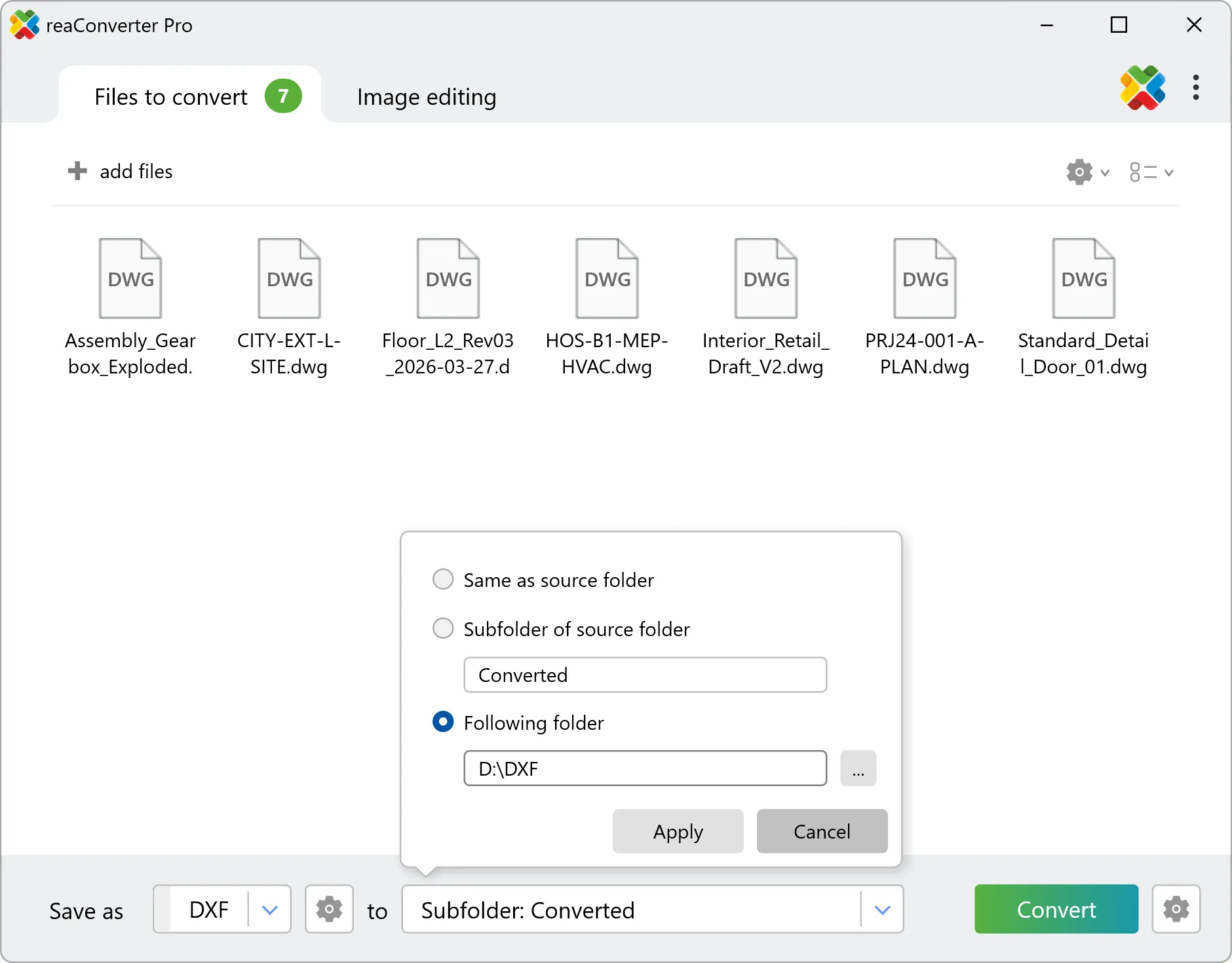
Step 4. Set the destination folder
Choose where converted DXF files should be saved. You can keep the same folder structure as the source, save everything to a flat folder, or use reaConverter’s subfolder naming options.
Step 5. Click Convert
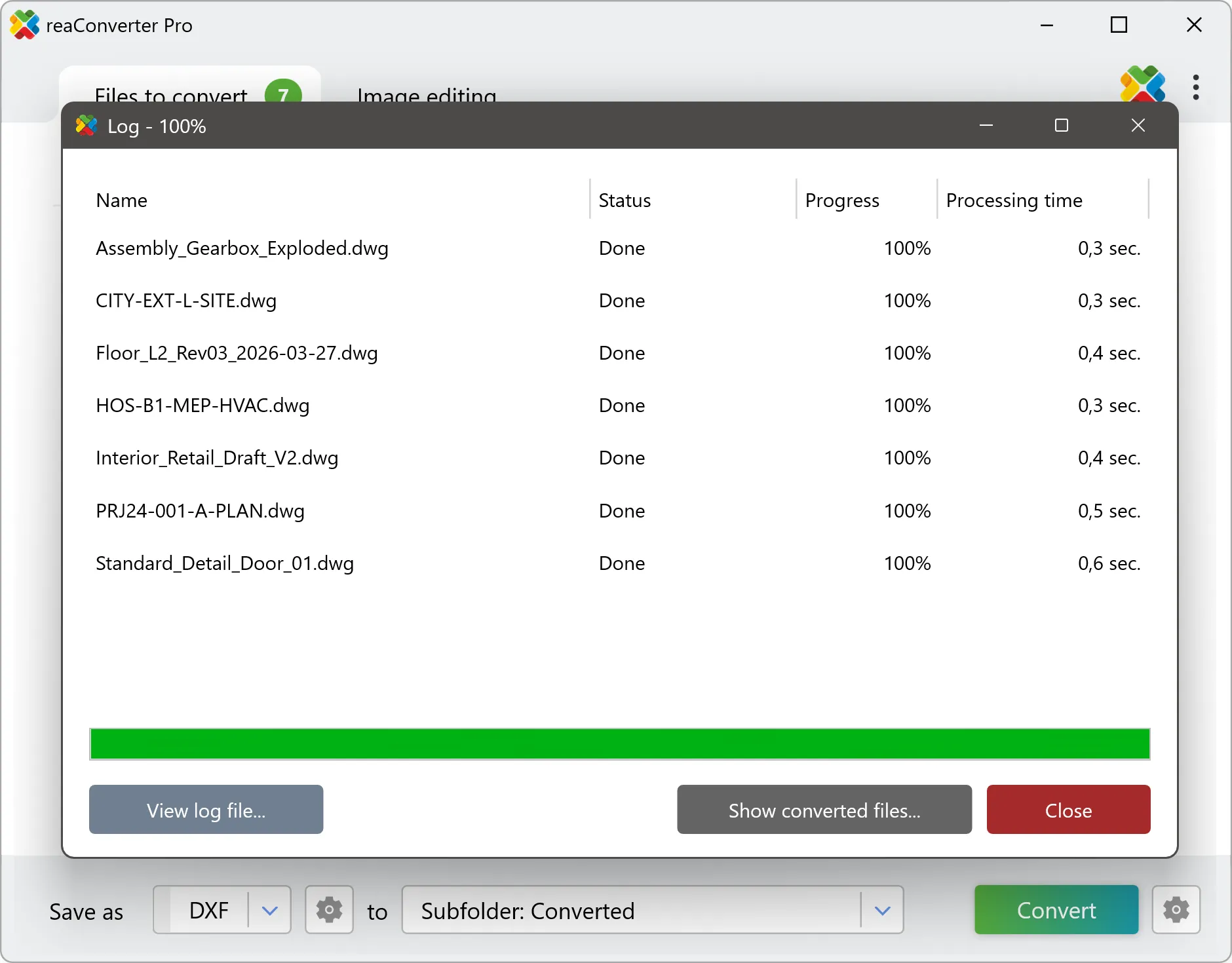
Hit Convert and reaConverter processes every file in the queue. The conversion log shows the status of each drawing. When done, click Show converted files to jump straight to the output folder.
Method 2 — Watch Folders (fully automated, zero clicks)
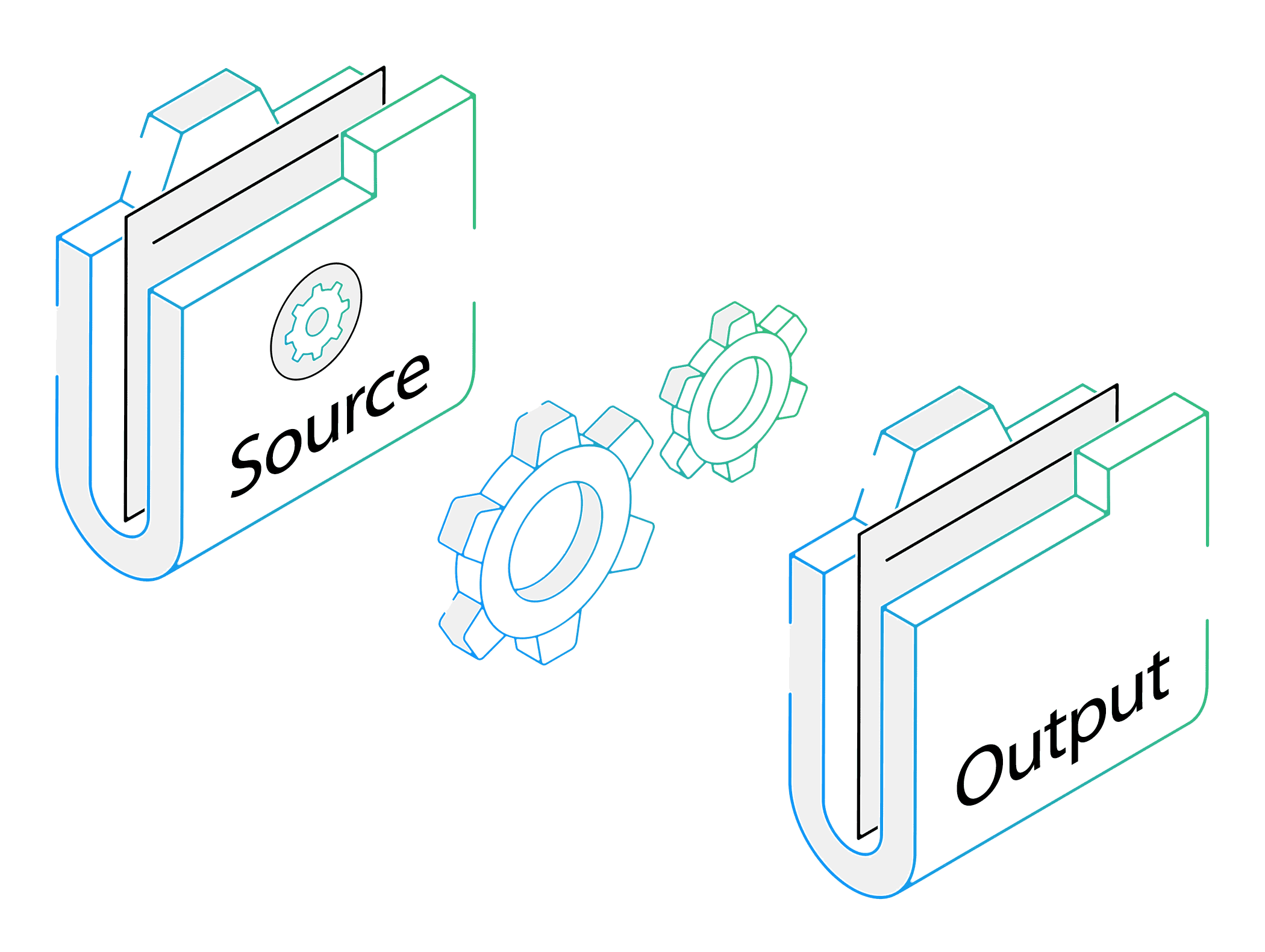
Watch Folders turn any Windows directory into a self-converting hot folder. Drop a DWG file in → a DXF file appears in the output directory. No interaction needed.
This is the ideal setup for:
- Engineering offices where designers save DWG files to a shared network folder and downstream teams need DXF.
- CNC / fabrication pipelines where an operator drops files for cutting.
- Any recurring workflow where manual conversion is a bottleneck.
How to set it up
- Open reaConverter and go to Menu → Watch Folders → Add new folder…
- Set the Source folder — this is the directory reaConverter will monitor, for example
C:\CAD\DWG_inbox\. - Set the Output folder — for example
C:\CAD\DXF_ready\. - Choose DXF as the output format and configure version, units, and other settings as described in Method 1.
- Click Start Watching.
From now on, every DWG file that lands in the source folder will be automatically converted to DXF and placed in the output folder. It doesn’t matter how the file got there: copied manually, saved by a CAD tool, or synced from the network.
reaConverter keeps running in the background and can monitor multiple folder pairs simultaneously.
Tip: Use “Subfolder of source folder” output option combined with “Read subfolders” to maintain your directory structure while keeping originals separate from converted files.
For a detailed walkthrough, see the dedicated guide: A Beginner-Friendly Guide to reaConverter’s Watch Folders.
Method 3 — Command-line conversion
reaConverter Pro includes cons_rcp.exe, a full-featured command-line tool. It accepts the same parameters as the GUI and can be called from batch scripts, CI/CD pipelines, PowerShell, or Task Scheduler.
Basic single-file conversion
cons_rcp.exe -s "C:\Drawings\floorplan.dwg" -o "C:\Output\floorplan.dxf"Batch convert an entire folder
cons_rcp.exe -source_folder "C:\Drawings\" -source_ext dwg -dest_path "C:\Output\" -dest_ext dxfThis converts every .dwg file in the source folder and saves each one as .dxf in the output folder.
With subfolders
cons_rcp.exe -source_folder "C:\Drawings\" -source_ext dwg -dest_path "C:\Output\" -dest_ext dxf -read_subfolders 1Set the output DXF version
Use -dxf_version to target a specific AutoCAD version:
| Value | AutoCAD version |
|---|---|
| 1 | AutoCAD 12 |
| 2 | AutoCAD 13 |
| 3 | AutoCAD 14 |
| 4 | AutoCAD 2000 |
| 5 | AutoCAD 2004 |
| 6 | AutoCAD 2007 |
| 7 | AutoCAD 2010 |
| 8 | AutoCAD 2013 |
Convert to AutoCAD 2000 DXF format:
cons_rcp.exe -source_folder "C:\Drawings\" -source_ext dwg -dest_path "C:\Output\" -dest_ext dxf -dxf_version 4Control layout output
Use -dxf_dwg_layout to specify which layout to convert:
| Value | Layout |
|---|---|
| 0 | All layouts |
| 1 | Model Space only |
| 2 | All Paper Spaces |
Export only Model Space:
cons_rcp.exe -source_folder "C:\Drawings\" -source_ext dwg -dest_path "C:\Output\" -dest_ext dxf -dxf_dwg_layout 1Additional useful parameters
-dxf_text 1— preserve text as editable text (use0to convert text to polygons).-dxf_spline 1— include splines in the output DXF.-dxf_units 1— set output DXF units to millimeters (2for inches).-dxf_dwg_gray 1— convert the drawing to grayscale.-dxf_dwg_extract_layers 1— extract each layer as a separate DXF file.-overwrite 1— overwrite existing files instead of skipping them./hide— run silently (no console window), ideal for scheduled tasks.
Full production example
Convert all DWG files (including subfolders) to AutoCAD 2000 DXF, Model Space only, with splines, millimeters as units, and overwrite existing output:
cons_rcp.exe -source_folder "D:\Projects26\CAD\" -source_ext dwg -dest_path "D:\Projects26\DXF\" -dest_ext dxf -read_subfolders 1 -dxf_version 4 -dxf_dwg_layout 1 -dxf_spline 1 -dxf_units 1 -dxf_text 1 -overwrite 1Automate with Windows Task Scheduler
Save the command above as a .bat file and schedule it to run nightly, weekly, or at any interval. Add /hide to suppress the console window. Use > log.txt to capture the conversion log:
cons_rcp.exe -source_folder "D:\Projects26\CAD\" -source_ext dwg -dest_path "D:\Projects26\DXF\" -dest_ext dxf -dxf_version 4 /hide > "D:\Logs\dwg_to_dxf_log.txt"For the full CLI reference, see: Command-line Interface for Developers.
Troubleshooting
Layers missing after conversion? Check the layout setting. If you’re exporting only Model Space (-dxf_dwg_layout 1) but your geometry lives in a Paper Space layout, switch to All Layouts (0) or All Paper Spaces (2).
Text looks wrong or is replaced by boxes? The target system may not have the fonts used in the DWG. Two options: set -dxf_text 0 to convert text to polygons (preserves appearance but loses editability), or install matching SHX / TTF fonts on the receiving machine.
File size significantly larger than original? This is expected. DXF (especially ASCII DXF) is less compact than binary DWG. If size matters, check whether your downstream tool accepts binary DXF. reaConverter outputs ASCII DXF by default for maximum compatibility.
Which reaConverter edition do I need?
| Feature | Standard | Pro |
|---|---|---|
| DWG → DXF batch conversion | ✓ | ✓ |
| DXF version & settings control | ✓ | ✓ |
| Context menu integration | ✓ | ✓ |
| Watch Folders | — | ✓ |
Command-line (cons_rcp.exe) | — | ✓ |
Conclusion
Converting DWG files to DXF doesn’t require AutoCAD, doesn’t require uploading your proprietary drawings to the cloud, and doesn’t have to be a manual file-by-file task. reaConverter handles the job in three ways: GUI batch, Watch Folders, and command line. Whether you need a one-off conversion or a fully automated 24/7 pipeline, you’re covered.
For engineering firms, architecture studios, fabrication shops, and anyone working with CAD drawings at scale, this is the workflow that eliminates the bottleneck. Already know what you need? Head straight to the DWG to DXF converter page to download or try online.
Download reaConverter
Ready to automate your DWG → DXF workflow? Grab the free trial and convert your first batch in under a minute.