
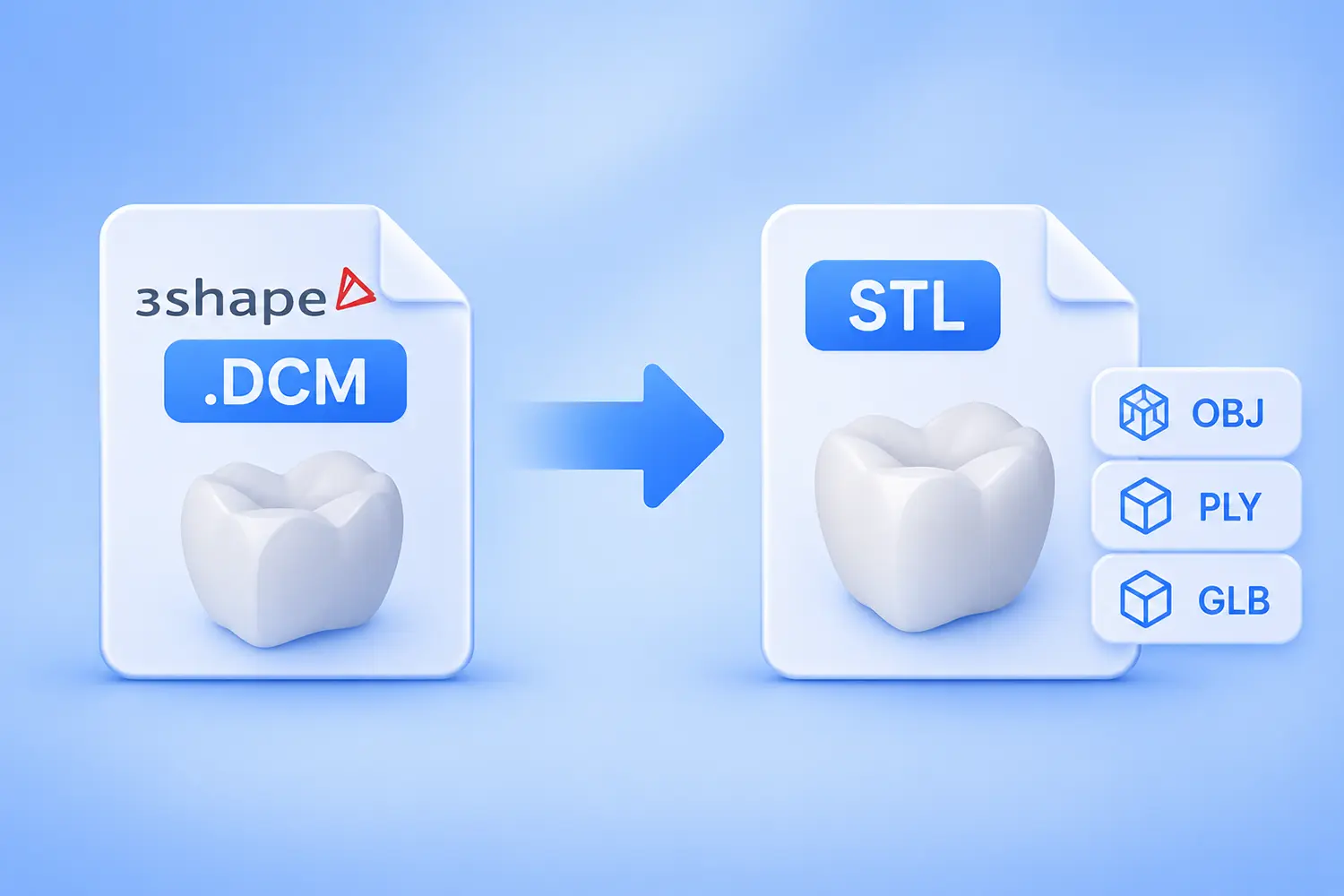
Export 3Shape DCM dental scans and restorations into 3D models for printing, viewing, and archiving
Dental scans and crown designs are the working documents of every clinic and lab. A scanner records the patient’s teeth, design software turns the scan into a crown, a bridge, or an abutment, and the files travel between clinics, labs, and milling centers. Many of them are saved as .dcm.
The problem starts when one of those files lands on a computer without the program that made it. A clinic changes its scanner, a lab receives a case from a client who works in different software, an old workstation is retired, and years of work are left in a format that nothing else opens. Requests like this reach us regularly. The one that started this article, retold in a few words:
Hello! I have a huge archive of .dcm files, and I need to convert all of them to STL. Is it possible?
The .dcm extension makes this harder than it sounds. It is also the extension of DICOM, the standard format for CT and MRI images, and viewers built for medical images cannot read these files. They are not images at all. They are 3D models. When we went through our own archive, we found hundreds of them.
reaConverter 8.0.261 and later reads 3Shape DCM files and converts them to STL, OBJ, PLY, and GLB. Color and textures are kept in the formats that support them. It works in batch, so a whole archive is processed in one run.
What Is Inside a 3Shape DCM File
A 3Shape DCM file is not a picture. It is a 3D model of a dental case: a surface made of triangles, and sometimes color and textures on top of it. In our sample files we found two kinds of content:
- A scan. A raw scan of a jaw or a preparation. Our sample is about 69 × 49 mm and has roughly 275,000 triangles. Its edges are open, which is normal for a raw scan.
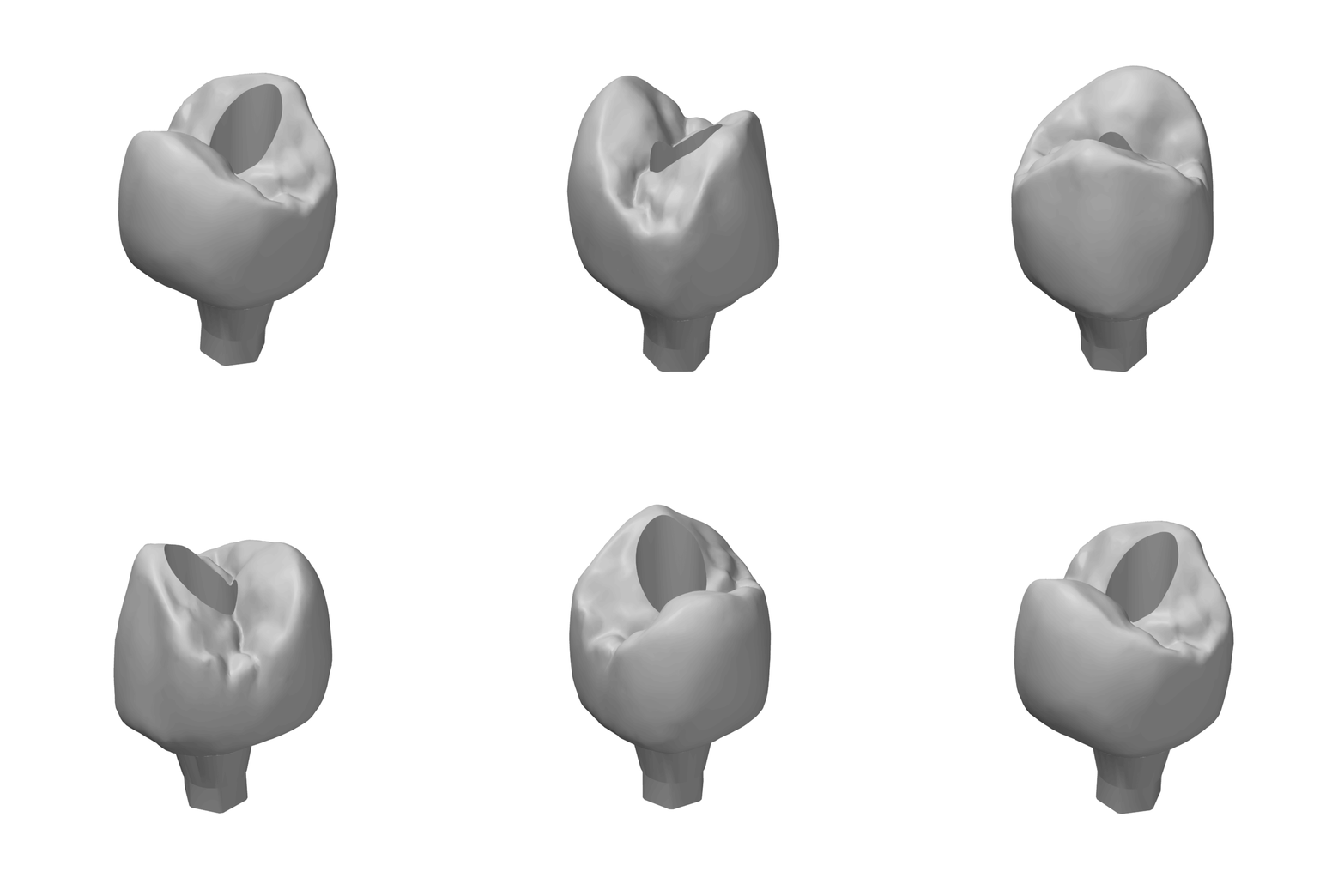
- A restoration. A finished design. Our sample is a crown for a screw-retained implant, 8 × 12 × 7.5 mm, with 15,856 triangles. The screw channel and the hexagonal seat are clearly visible, and the mesh is closed.
- Color and textures. Some files carry color or a full texture, not just the shape. Whether a converted model keeps them depends on the output format, as the next section explains.
Both kinds convert in the same way.
One Extension, Two Formats
The same .dcm extension is used by DICOM, the standard for CT, MRI, and other medical images. A DICOM file is a stack of 2D slices. A 3Shape DCM file is a 3D mesh. You do not need to tell reaConverter which one you have: it identifies the type from the content of the file, and the steps are the same for both. For the medical kind, see our DICOM conversion guides.
Choose the Format That Fits the Job
The output format decides what you keep:
| Save as | What it keeps | Typical use |
|---|---|---|
| STL | Shape only. No color, no textures | 3D printing, milling, slicers, most CAD software |
| PLY | Shape and color (stored per vertex). No textures | Software that reads only PLY |
| OBJ | Shape, color, and textures | Viewing, editing, rendering |
| GLB and glTF | Shape, color, and textures | Web viewers, presentations, AR |
STL for printing and milling
STL is accepted by almost every printer, slicer, and milling program. It stores only the shape, so a model saved as STL is plain gray, whatever the original looked like. A finished restoration, like our sample crown, is a closed mesh and can go straight to printing or milling.
OBJ, GLB, and glTF for color and textures
If you want the scan to look the way it did in the original program, save to OBJ, GLB, or glTF. reaConverter carries color and textures over to all three. OBJ opens in Blender and most other 3D editors. GLB is a single file, which makes it a convenient choice for the web: it can be shown in an interactive 3D viewer on a website.
PLY for programs that need it
PLY keeps color, but it stores the color on the vertices of the mesh and not as a texture. How much detail survives depends on how dense the mesh is. Choose PLY when the program you work in reads nothing else. For color in general, OBJ and GLB are the better choice.
Need a rotating animation? Convert the file to STL first, then turn the model into a rotating GIF, WebP, or AVIF. It is a clean way to show a finished crown on a lab’s website or in a case presentation. See How to Make a Rotating GIF from a 3D Model (STEP, STL, OBJ) for the steps.
How to Convert 3Shape DCM Files
The steps are the same for one file and for a whole archive.
- Download and install reaConverter. Version 8.0.261 or later is required. It runs on Windows and works fully offline, so scan files never leave your computer.
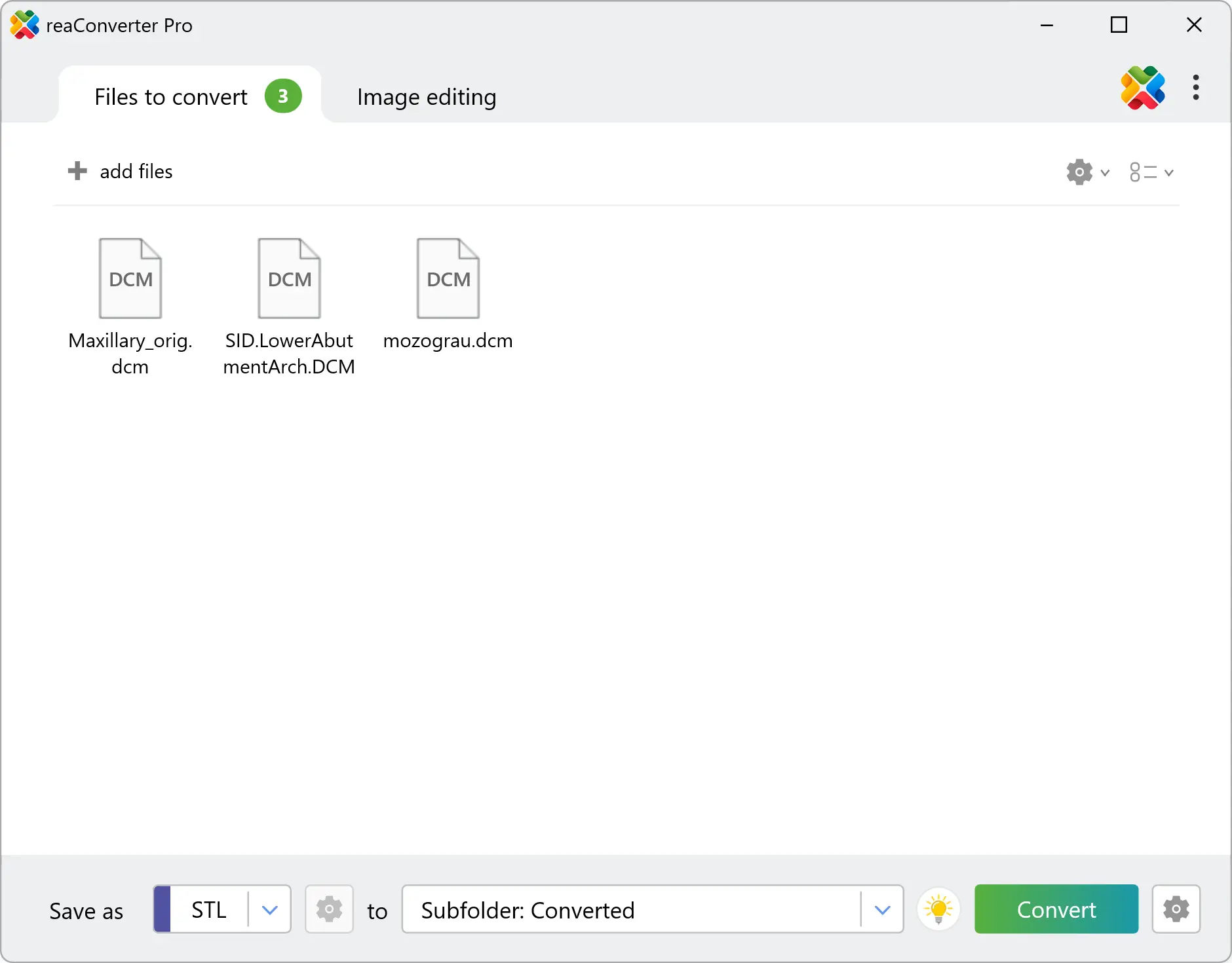
- Load the files. Click Add Files and select your .dcm files, or drag them into the window. To process a whole archive, click Add Folder and include subfolders.
- Choose where to save. In Saving options, pick an output folder. You can also save next to the source files.
- Choose the output format. Pick STL for printing and milling, or OBJ, GLB, glTF, or PLY to keep color.
- Click Convert.
Each file produces its own 3D model. Need a printable version and a colored one? Run the same files again with a different output format.
Automate Archive Processing
Clinics and labs end up with years of cases in folders. reaConverter can process them without anyone clicking through the interface.
Watch Folders
A Watch Folder converts every new file that appears in a chosen folder. Set it up once, and each case copied into the folder turns into a 3D model automatically.
- In the main window, choose STL (or another 3D format) as the output format and set the output folder.
- Open Menu → Watch folders → Add new folder…
- In the wizard, load the current settings with the button in the lower left corner.
- Select the folder to watch. Use the file mask
*.dcmto skip other files. - Click Create Watch folder.
Watch Folders works with local folders. To process files on a network share, use the command line with Windows Task Scheduler instead. For details, see A Beginner-Friendly Guide to reaConverter’s Watch Folders.
Command line
reaConverter Pro includes cons_rcp.exe, a command-line tool for scripts and scheduled jobs.
Convert one file to STL:
cons_rcp.exe -s "C:\Cases\case_001.dcm" -o "C:\Models\case_001.stl"Convert every .dcm file in a folder to STL:
cons_rcp.exe -source_folder "C:\Archive\" -source_ext dcm -dest_path "C:\Models\" -dest_ext stlConvert the same folder to GLB, with color and textures:
cons_rcp.exe -source_folder "C:\Archive\" -source_ext dcm -dest_path "C:\Models\" -dest_ext glbThe .dcm extension also matches medical DICOM files. reaConverter recognizes the type of each file from its content.
What reaConverter Does Not Do
reaConverter reads 3Shape DCM files and converts what they contain. It is not dental design software, and it does not replace it:
- No design or editing. It does not design crowns, mark margins, or edit scans.
- Raw scans are not print-ready. A raw scan has open edges, as scans do. Close it in your mesh or CAD software before printing. Finished restorations, like our sample crown, are closed.
- Color depends on the format. STL has no color or textures. Use OBJ, GLB, or glTF for both, or PLY for color only.
- Reading only. reaConverter opens 3Shape DCM files but does not write them. Your original files stay unchanged.
- If a file does not open, contact us, and we will look at it.
FAQ
How do I convert a 3Shape DCM file to STL? Add the file in reaConverter, choose STL as the output format, and click Convert. 3Shape DCM support starts with version 8.0.261.
Is a .dcm file always a medical image? No. The extension is shared by DICOM medical images and by 3Shape dental models. reaConverter reads both and tells them apart from the content of the file.
Will my scan keep its color? It depends on the format. OBJ, GLB, and glTF keep color and textures. PLY keeps color only. STL keeps neither.
Which format should I use for 3D printing? STL. Printers, slicers, and milling programs accept it almost everywhere.
Can I convert hundreds of files at once? Yes. Add a whole folder in the main window, set up a Watch Folder, or use the command line. Each file gets its own 3D model.
Are my files uploaded anywhere? No. reaConverter is a desktop application for Windows, and all processing happens on your computer.
Convert Your Dental Archive Today
A .dcm file no longer has to stay tied to one program. With reaConverter, an archive of 3Shape DCM scans and restorations turns into STL models for printing and OBJ, PLY, or GLB models with color, in one run.