
Turn an entire Outlook PST archive into searchable PDFs, with every email and its original attachments preserved inside, using the GUI, Watch Folders, or the command line. No Outlook install, no cloud upload, everything stays on your machine.
Convert a whole Outlook PST mailbox to PDF, attachments and all
A .pst file is a sealed box. It holds years of email, often with the important material buried in attachments, and it only opens cleanly in Microsoft Outlook. The moment someone outside that world needs the data, the problems start. A lawyer asks for a custodian’s mailbox for review. Compliance needs a five-year retention copy in a format auditors can actually read. An employee leaves and IT has to archive their inbox before the license is reclaimed. In every one of these cases, “here is a PST file” is not a useful answer.
The standard workaround is painful. You open Outlook, print each message to PDF one at a time, then chase down every attachment by hand and save it next to the email so nothing gets lost. For a mailbox with a few thousand messages, that is days of work, and it is exactly the kind of manual process where attachments quietly go missing.
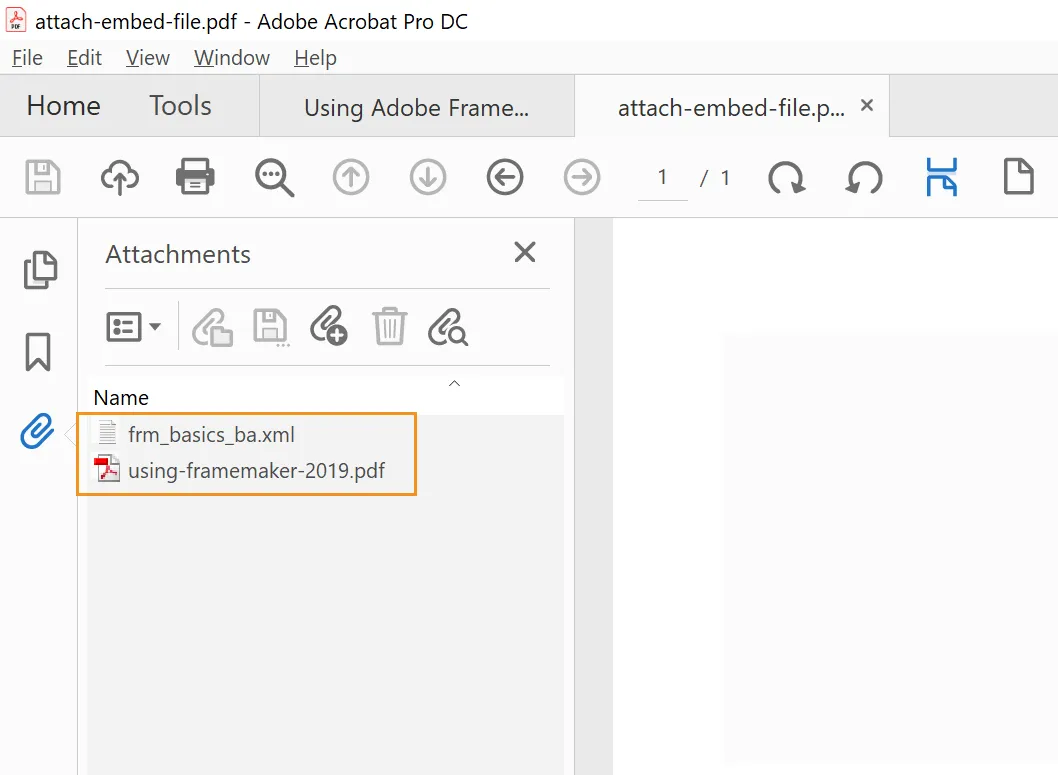
reaConverter 8 now converts PST to PDF directly, with no Outlook required. More importantly, it does something most PST converters cannot: it keeps the original attachments as real, openable files embedded inside the PDF. Convert a mailbox with hundreds of emails into a single PDF, open it in Acrobat Reader, and the Attachments panel appears on the side. Every original file is right there to open or save.

Short answer: Install reaConverter 8, add your .pst files, choose PDF as the output format, enable the option to embed attachments, and click Convert. reaConverter reads the PST without Outlook, writes the email text into the PDF, and stores each attachment as an embedded file you can open from the PDF’s Attachments panel. It runs as a batch, so an entire mailbox becomes one searchable document in a single pass.
Why convert PST to PDF?
PST (Personal Storage Table) is Microsoft Outlook’s local data format. It stores messages, folders, and attachments in one proprietary container. That design is fine while you live inside Outlook, and a real obstacle the moment you need to share, archive, or review that mail anywhere else.
PDF solves the parts PST gets in the way of:
- Universal access. Anyone can open a PDF, on any device, with no Outlook license and no special viewer.
- Long-term archival. PDF, and PDF/A in particular, is a recognized preservation format. PST is tied to a specific application and its versions.
- Search and review. The email text becomes selectable, searchable text inside the document.
- A fixed, shareable record. A PDF looks the same to everyone who opens it, which matters when the document is evidence or a formal record.
Common situations where teams need PST to PDF:
- E-discovery and litigation. Counsel needs custodian mailboxes in a reviewable, productionable format, with attachments intact.
- Compliance and retention. Regulators and internal policy require email kept in a stable, readable format for a set number of years.
- Offboarding and mailbox archiving. A departing employee’s inbox has to be preserved before the account is decommissioned.
- Email migration. Moving off Exchange or consolidating accounts, where legacy mail needs a portable archive.
- Public records and FOIA responses. Email has to be handed to people who do not run Outlook.
- Personal backup. Keeping a clean, openable copy of your own mail outside the application that created it.
The recurring failure point in all of these is the attachment. A contract PDF, a signed agreement, a spreadsheet of numbers: that is often the actual evidence, not the email body. Many PST converters either drop attachments, flatten them into flat images you can no longer use, or scatter them into a separate folder that loses its link to the message. reaConverter keeps each attachment as the original file, embedded in the same PDF as the email it arrived with.
PST vs PDF, quick reference
| Feature | PST | |
|---|---|---|
| Developer | Microsoft (proprietary) | Adobe / ISO (open standard) |
| Opens in | Microsoft Outlook | Any PDF reader, any platform |
| Contents | Emails, folders, attachments | Email text plus embedded attachments |
| Searchable | Only inside Outlook | Yes, as selectable text |
| Best for | Live mailbox use in Outlook | Sharing, review, archival, evidence |
| Archival | Application and version dependent | Stable, with PDF/A for preservation |
| Attachments | Stored inside the container | Preserved as openable embedded files |
What makes reaConverter’s PST to PDF different
Two things set this conversion apart from the usual “print each email” approach.
Many emails become one PDF. Point reaConverter at a PST and it can walk every message and write the whole mailbox into a single, paginated PDF. The email text goes in as real text, so the document is searchable end to end.
Attachments stay as files, not pictures. This is the part that matters for legal and compliance work. Instead of rasterizing a spreadsheet into a screenshot, reaConverter embeds the original file inside the PDF. Open the result in Adobe Acrobat Reader and the Attachments panel (the paperclip icon) opens automatically. Each attachment can be opened in its native application or saved back out, exactly as it was sent. You get one self-contained document that still carries the original evidence inside it, which keeps your record intact rather than degraded.
Why not just use Outlook’s Print to PDF?
If you only need to save one or two emails, Outlook’s built-in Microsoft Print to PDF does the job. The trouble starts past that. Outlook prints the message body and nothing else, so attachments are dropped. There is no batch option, so a mailbox of a few thousand messages means a few thousand manual prints. And it only works while Outlook is installed and the mailbox is loaded, which rules out reading an archived .pst on a machine that has no Outlook on it at all.
reaConverter approaches the same task from the file rather than the application. It opens the .pst directly, converts the whole mailbox in one pass, and keeps every attachment as an openable file inside the PDF.
| Capability | Outlook “Print to PDF” | reaConverter |
|---|---|---|
| Works without Outlook installed | No | Yes |
Reads a .pst file directly | No | Yes |
| Batch-convert a whole mailbox | No, one email at a time | Yes |
| Attachments kept as openable files in PDF | No, body only | Yes |
| Merge a mailbox into a single PDF | No | Yes |
| PDF/A for long-term archival | No | Yes |
| Automation (Watch Folders, command line) | No | Yes |
| Searchable text in the output | Yes | Yes |
For a handful of messages, Outlook is enough. For a mailbox you need to archive, hand to a lawyer, or keep for compliance, reaConverter turns a multi-day manual task into a single batch job.
What you’ll need
- reaConverter 8. The Standard edition is enough for GUI batch conversion. Watch Folders and command-line automation require Pro. See the PST to PDF conversion page for an overview of what is supported.
- Your
.pstfiles. reaConverter reads PST directly, both the older ANSI and the modern Unicode variants. - No Microsoft Outlook, Exchange, or internet connection. Conversion runs entirely offline on your own hardware, which is what you want when the mail is sensitive.
Method 1 — Convert PST to PDF in the GUI
This is the fastest way to convert one or several PST files interactively.
Step 1. Add your PST files
Launch reaConverter and load your mailboxes. You can:
- Drag and drop
.pstfiles or whole folders from Windows Explorer. - Use the Add Files or Add Folder buttons on the toolbar.
- Right-click a PST file in Explorer and choose Convert from the context menu.
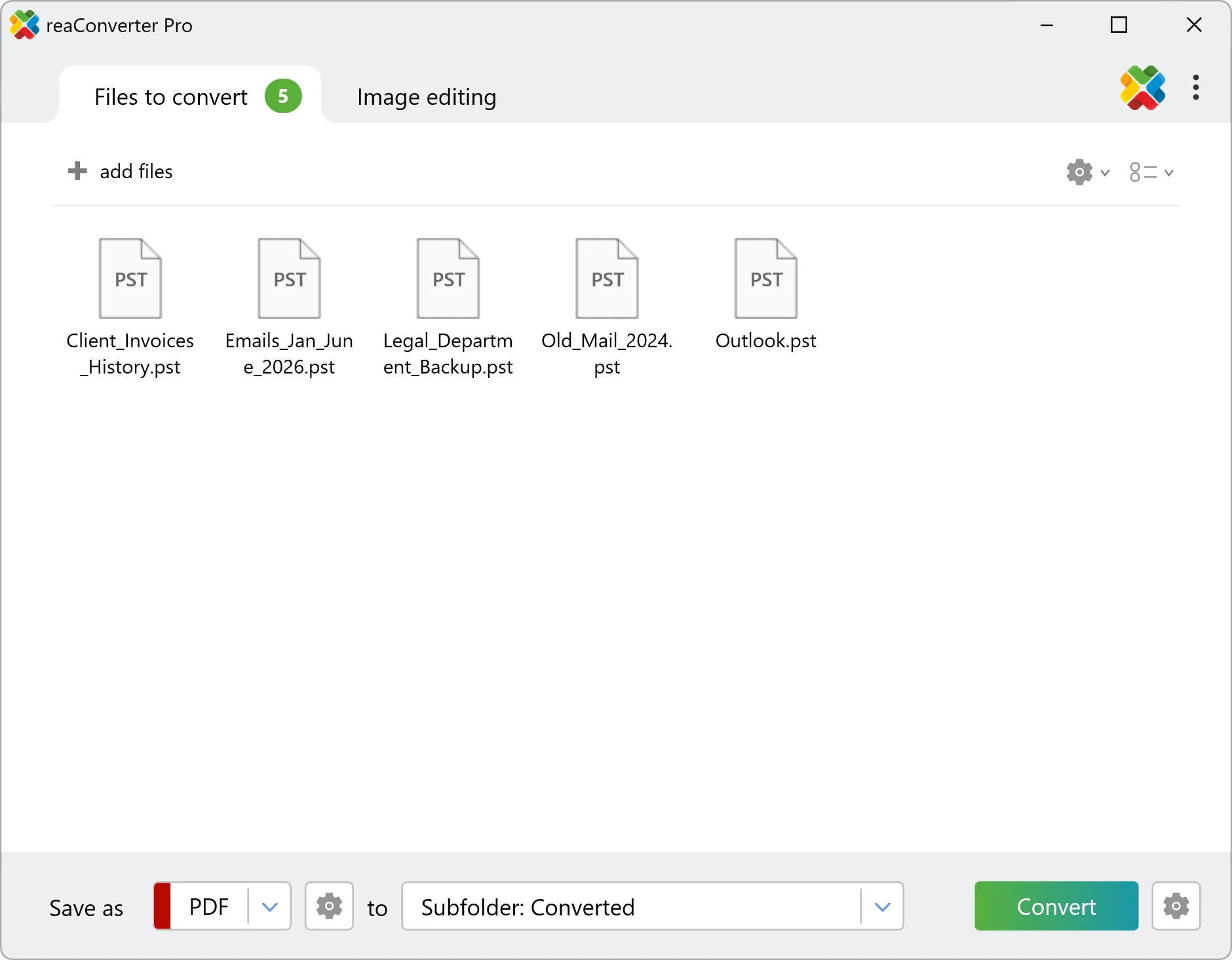
reaConverter opens the PST and reads its messages directly. No Outlook process is launched at any point.
Step 2. Choose PDF as the output format
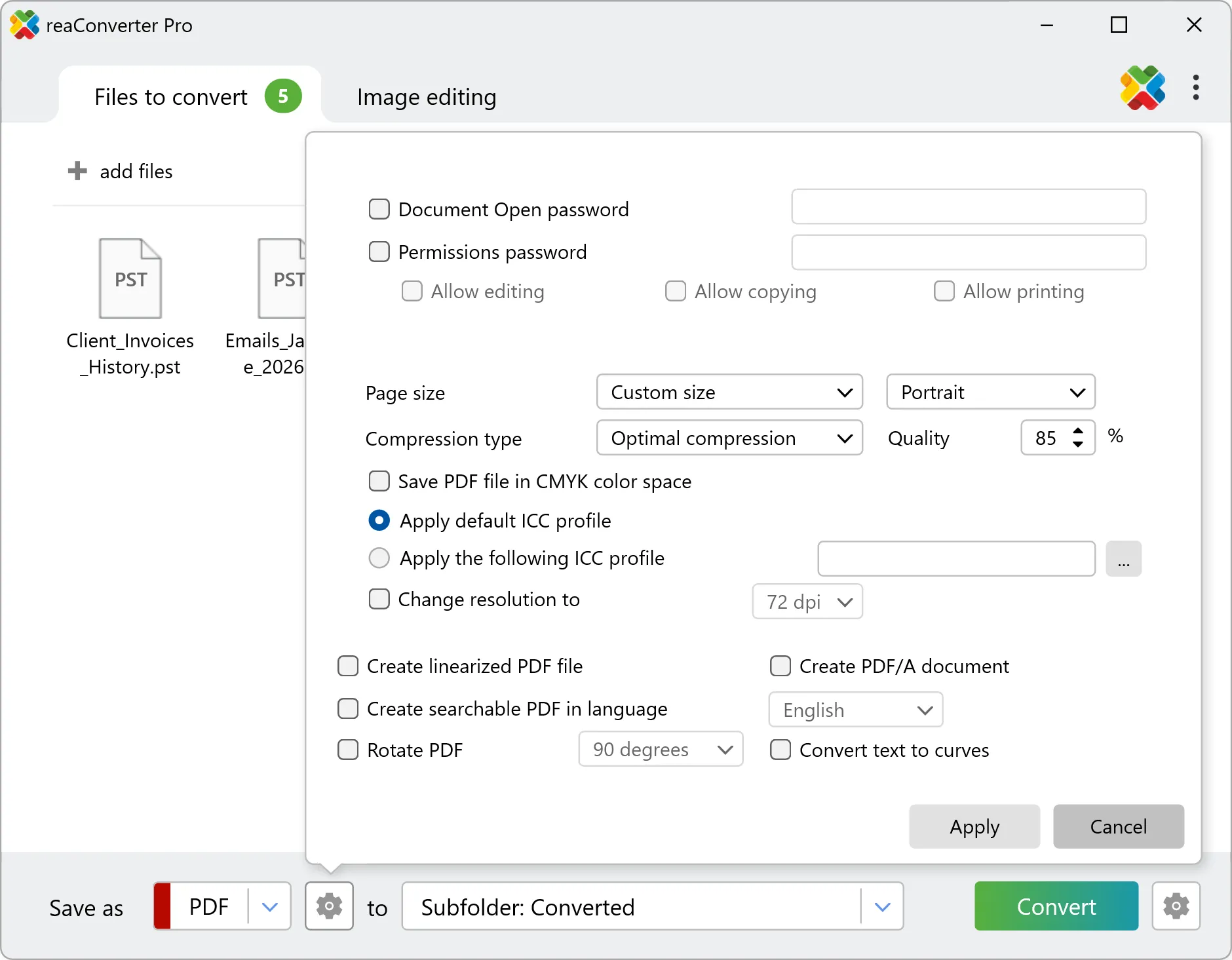
In the bottom panel, set Save as → PDF. You do not need to configure anything for the attachments: reaConverter embeds each email’s original attachments into the PDF automatically. That default behavior is what populates the Attachments panel when you open the file in Acrobat.
The gear icon next to PDF opens the PDF format settings. There are no email-specific options here, but a couple are worth knowing for an email archive. Create PDF/A document produces a preservation-grade file for long-term or compliance storage, and the Document Open password and permissions options let you lock down a mailbox that holds sensitive material.
To combine an entire PST into one continuous PDF instead of a separate file per message, open Saving settings (the gear on the far right, next to Convert) and go to the Multipage files tab. By default reaConverter keeps each item separate (“Convert each multipage file to another”). Switch to Save all processed files to one file to merge the whole mailbox into a single document.
Step 3. Set the destination folder
Choose where the converted PDF should be saved. You can keep the source folder structure, save everything to one flat folder, or use reaConverter’s subfolder naming options.
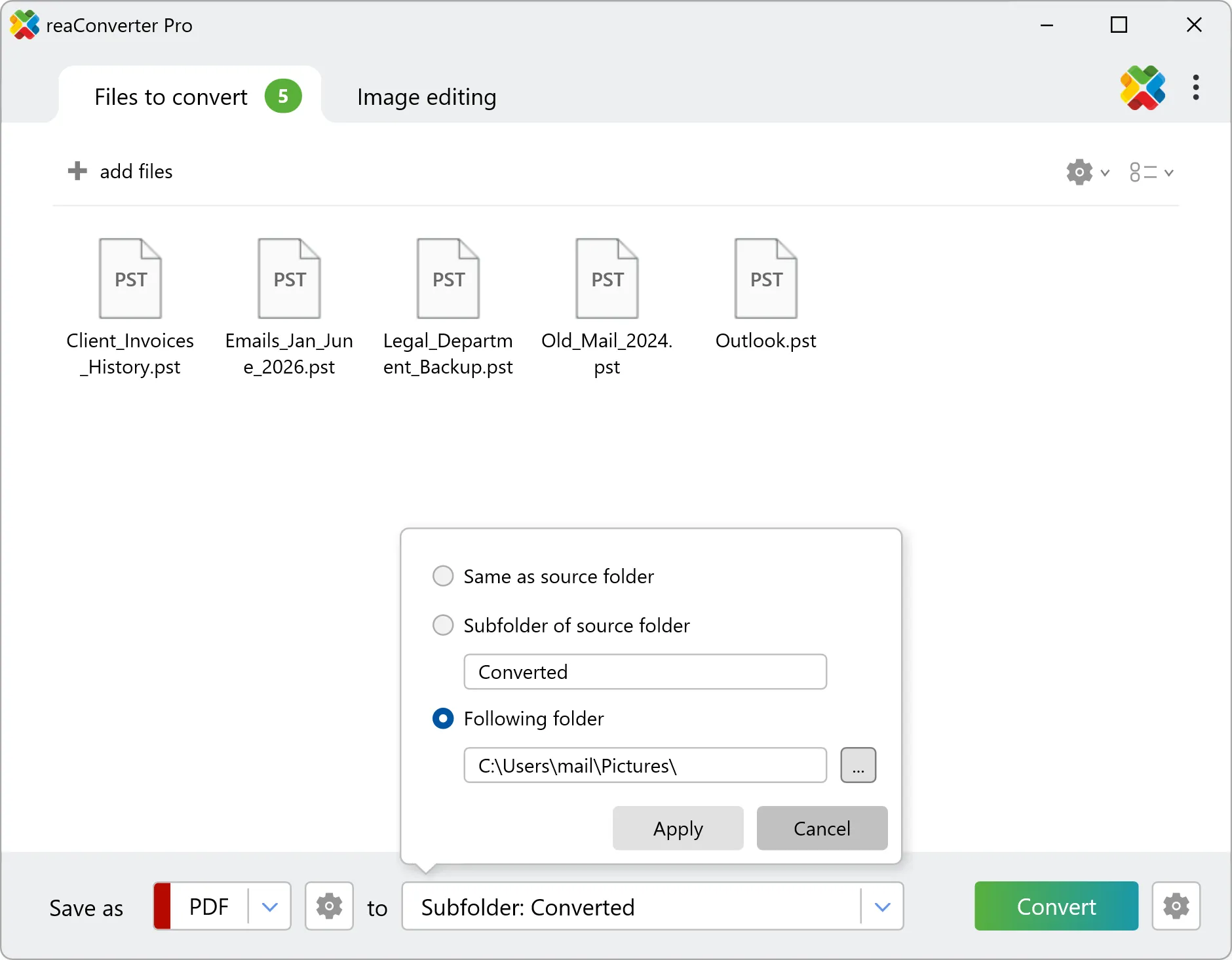
Step 4. Click Convert
Hit Convert and reaConverter processes the mailbox. The conversion log shows progress message by message. When it finishes, click Show converted files to jump straight to the output folder.
Step 5. Open the result and check the attachments
Open the PDF in Adobe Acrobat Reader. The email text is laid out as searchable text, and the Attachments panel opens on the left. Click the paperclip icon if it is collapsed. From there you can open any original attachment or save it back to disk.
Other formats you can convert PST to
PST to PDF is the headline, but the same engine handles the rest of reaConverter’s catalog. Once a PST is loaded, you can convert its content to other formats too, for example rendering messages to JPG, PNG, or TIFF when you need image output instead of a document. All of it runs as a batch, so whole folders of mailboxes go through in one pass.
Method 2 — Watch Folders (fully automated)
Watch Folders turn any Windows directory into a self-converting hot folder. Drop a PST in, and a PDF appears in the output directory with no clicks. This suits recurring archival jobs: an offboarding folder where IT drops departed-employee exports, or a compliance inbox that needs a PDF copy of every PST that lands in it.
How to set it up
- Open reaConverter and go to Menu → Watch Folders → Add new folder…
- Set the Source folder, the directory reaConverter will monitor, for example
C:\Mail\PST_inbox\. - Set the Output folder, for example
C:\Mail\PDF_archive\. - Choose PDF as the output format and enable embed attachments and merge-to-single-PDF as in Method 1.
- Click Start Watching.
From then on, every PST that lands in the source folder is converted automatically and the PDF is written to the output folder. reaConverter keeps running in the background and can watch several folder pairs at once.
Tip: Combine the “Subfolder of source folder” output option with “Read subfolders” to mirror your directory structure while keeping originals separate from the converted PDFs.
For a full walkthrough, see the dedicated guide: A Beginner-Friendly Guide to reaConverter’s Watch Folders.
Method 3 — Command-line conversion
reaConverter Pro includes cons_rcp.exe, a full command-line tool that accepts the same settings as the GUI. It can be driven from batch scripts, PowerShell, Task Scheduler, or any automated pipeline.
Convert a single PST to one PDF with attachments
cons_rcp.exe -s "C:\Mail\custodian.pst" -o "C:\Output\custodian.pdf"
Batch convert a folder of PST files
cons_rcp.exe -source_folder "C:\Mail\" -source_ext pst -dest_path "C:\Output\" -dest_ext pdf
This converts every .pst file in the source folder, merges each mailbox into its own PDF, and embeds the attachments.
Include subfolders and run silently
cons_rcp.exe -source_folder "C:\Mail\" -source_ext pst -dest_path "C:\Output\" -dest_ext pdf -read_subfolders 1 /hide
Add /hide to suppress the console window for scheduled tasks, and append > "C:\Logs\pst_to_pdf.txt" to capture the conversion log. Saved as a .bat file and pointed at Task Scheduler, this becomes a nightly, hands-off PST archival job.
For the full reference, see Command-line Interface for Developers.
Troubleshooting
I don’t see the attachments in the PDF. Make sure you opened the file in a reader that supports embedded files, such as Adobe Acrobat Reader, and that the Attachments panel (the paperclip icon) is expanded. Some lightweight or in-browser PDF viewers do not display embedded files even when they are present. The data is in the PDF either way, so reopening it in Acrobat will show it.
The PST is very large. Mailboxes that run to many gigabytes take longer and use more memory. Convert during off-hours, or split the work across folders and let Watch Folders or a scheduled command-line job process them in sequence.
The PST is password protected. Remove the password in Outlook before converting, or supply the credentials if your workflow allows it. A protected container cannot be read without its password.
Old ANSI PST from a legacy system. reaConverter handles both ANSI and Unicode PST, so older Outlook archives are supported alongside modern ones.
Which reaConverter edition do I need?
| Feature | Standard | Pro |
|---|---|---|
| PST → PDF batch conversion | ✓ | ✓ |
| Embed attachments in PDF | ✓ | ✓ |
| Merge a mailbox into one PDF | ✓ | ✓ |
| Context menu integration | ✓ | ✓ |
| Watch Folders | — | ✓ |
Command line (cons_rcp.exe) | — | ✓ |
Frequently asked questions
Do I need Microsoft Outlook to convert PST to PDF? No. reaConverter reads the PST format directly and does not launch or require Outlook, Exchange, or any internet connection. Everything runs offline on your machine.
Are email attachments preserved in the PDF? Yes. When you enable the embed-attachments option, each email’s original attachments are stored inside the PDF as openable files. In Adobe Acrobat Reader they appear in the Attachments panel, ready to open or save in their native format.
Can I convert a whole mailbox into a single PDF? Yes. The merge option combines every message in a PST into one continuous, searchable PDF, rather than producing a separate file per email.
Is this suitable for e-discovery and legal review? PST to PDF with embedded attachments produces a self-contained, searchable record that keeps the original files intact, which is what review and production workflows need. It runs offline, so sensitive mail never leaves your hardware.
Can I convert many PST files at once? Yes. reaConverter is a batch converter. Load a folder of PST files and it processes all of them in one pass. With Pro you can also automate the job through Watch Folders or the command line.
Can PST be converted to formats other than PDF? Yes. Besides PDF, you can render PST content to image formats such as JPG, PNG, and TIFF, all in batch.
Does the converted PDF keep the email text as searchable text? Yes. The message body is written as selectable, searchable text, so you can search across the whole archive inside any PDF reader.
Background — why we built this
This feature came from our support inbox, not a roadmap meeting. Over time we kept seeing the same request in different words: people sitting on a PST file that someone else needed, with no clean way to hand it over.
One message summed it up well:
“We have to send a former employee’s mailbox to our lawyers. They don’t use Outlook, and when we print the emails to PDF the attachments get lost. We need one file that has the emails and the actual attachments in it.”
That is the exact gap we set out to close. PST fit naturally into reaConverter’s existing pipeline, so we taught it to read mailboxes, write the message text as real PDF text, and, the part that took the most care, embed each attachment as an openable file inside the same document rather than flattening or dropping it. The result is a single PDF that anyone can open, search, and pull the original files out of, with no Outlook anywhere in the chain.
Conclusion
Converting PST to PDF used to mean opening Outlook and grinding through a mailbox one message at a time, hoping no attachment slipped through. reaConverter replaces that with a batch job: load your PST files, convert to PDF, and get back a searchable document with every original attachment embedded and openable. It works through the GUI for one-off jobs, through Watch Folders for automated archival, and through the command line for scheduled pipelines. No Outlook, no cloud, no lost attachments.
For legal teams, compliance and records staff, IT admins archiving mailboxes, and anyone who needs Outlook mail in a format the rest of the world can actually read, this is the workflow that removes the bottleneck.
Get reaConverter and convert your first PST to PDF in minutes.