
How Small Engineering and Architectural Firms Build Searchable CAD Archives Without an IT Department.
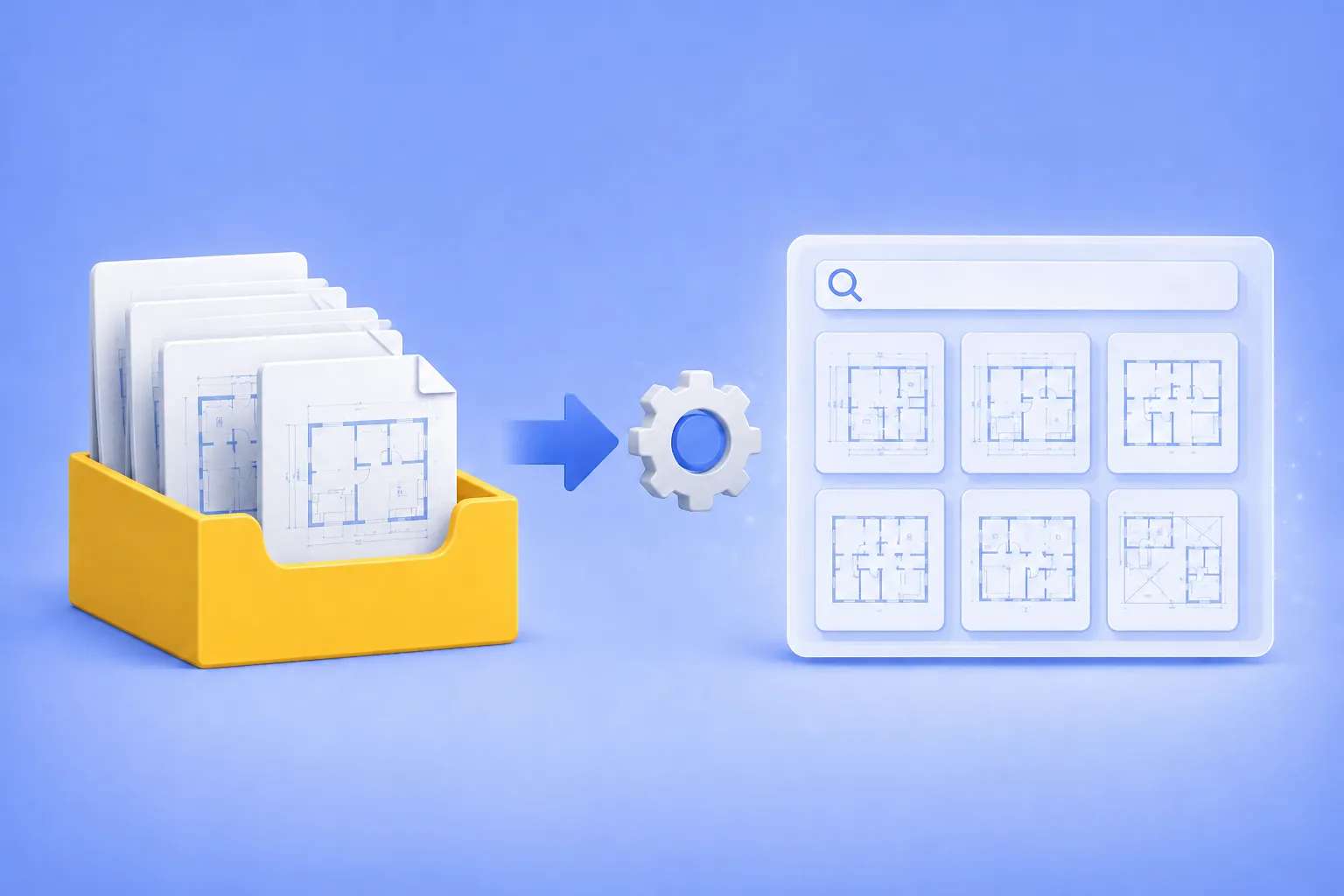
If you run a small engineering or architectural firm, you probably have a folder somewhere on a network drive that everyone calls “the archive.” It holds ten, twenty, sometimes thirty years of DWG and DXF files. And every few weeks, the same thing happens: someone needs to find a specific drawing from 2014, no one remembers the exact filename, and an hour disappears while a designer opens files one by one in AutoCAD trying to recognize them.
The cost of this shows up as billable hours lost to file-by-file searches, wrong revisions attached to client proposals, and tribal knowledge that walks out the door with departing employees. The drawings themselves are valuable assets — years of paid work and reusable detail libraries. Treating them as an opaque pile of files wastes that value every day.
The solution is conceptually simple. Generate a preview image for every CAD file in the archive. Display those previews in Windows Explorer, on an intranet page, or inside a document management system. Suddenly the archive is searchable by eye, and finding old work takes seconds instead of an hour. The hard part is doing it in batch, without buying an AutoCAD license for every employee who might need to look at a drawing.
Why generating DWG previews is harder than it looks
If preview generation is so useful, why doesn’t every firm already have it? Because the obvious solutions all have problems that only become visible after you try them.
The AutoCAD licensing problem
AutoCAD itself can generate thumbnails and previews. So can AutoCAD LT. But an AutoCAD LT subscription runs around 500 USD per seat per year, and that’s only for viewing and basic editing. If only your designers need to actually edit drawings, but five other people in the office occasionally need to look at them, you’re either buying licenses you don’t really need, or those five people keep interrupting the designers.
Autodesk does offer DWG TrueView as a free viewer, and it does add Windows Explorer thumbnails on machines where it’s installed. For a single user this is fine. For automated batch processing across a 40,000-file archive, building previews for a web portal or DMS, or generating previews on a server with no GUI session, it’s the wrong tool.
Why online viewers are off the table for most firms
Cloud CAD viewers such as Autodesk Viewer or DWG FastView are useful for collaboration and file sharing, but they are less practical for large legacy archives.
Many engineering firms cannot freely upload client drawings due to NDAs, internal policies, or industry regulations. In addition, most cloud viewers are designed for opening individual files rather than batch-processing tens of thousands of drawings into a searchable preview library.
For archive management, local batch preview generation is often simpler and easier to maintain.
The “just write a script” trap
The third path most firms consider is writing a script using the AutoCAD .NET API, ODA libraries, or a Python toolchain. This works if you have a developer. Most small firms don’t, and custom scripts tend to break silently when DWG versions change or when someone upgrades the server. Six months later no one remembers how the script works, and the preview pipeline quietly stops producing anything for new files.
What you actually need from a CAD preview workflow
Before picking a tool, it helps to make the requirements explicit. A workable batch CAD preview system for a small firm needs to:
- Process files in batch, ideally thousands at a time, without manual clicking
- Run on a standard Windows machine without requiring AutoCAD installation
- Support DWG, DXF, and ideally older or related formats like DWF, HPGL, and PLT for legacy archives
- Output common image formats (PNG, JPG) for thumbnails, plus PDF for sharing and SVG for high-quality web previews that scale on screen
- Automate itself — watch a folder, process new files as they arrive, no scheduled human intervention
- Handle errors gracefully so one bad file doesn’t stop the whole batch
- Stay on premises, with files never leaving the company network
This list also functions as a buying checklist. Any tool that can’t tick most of these boxes isn’t really solving the problem; it’s just shifting work around.
How reaConverter handles batch CAD preview generation
reaConverter is a Windows batch file conversion tool that has been developed for over twenty years. It supports more than 800 input and output formats, including the CAD formats that matter for archive work: DWG, DXF, DWF, HPGL, PLT, and several others. For the use case described here, the Pro edition is what you need, because batch automation and watched folders are Pro features.
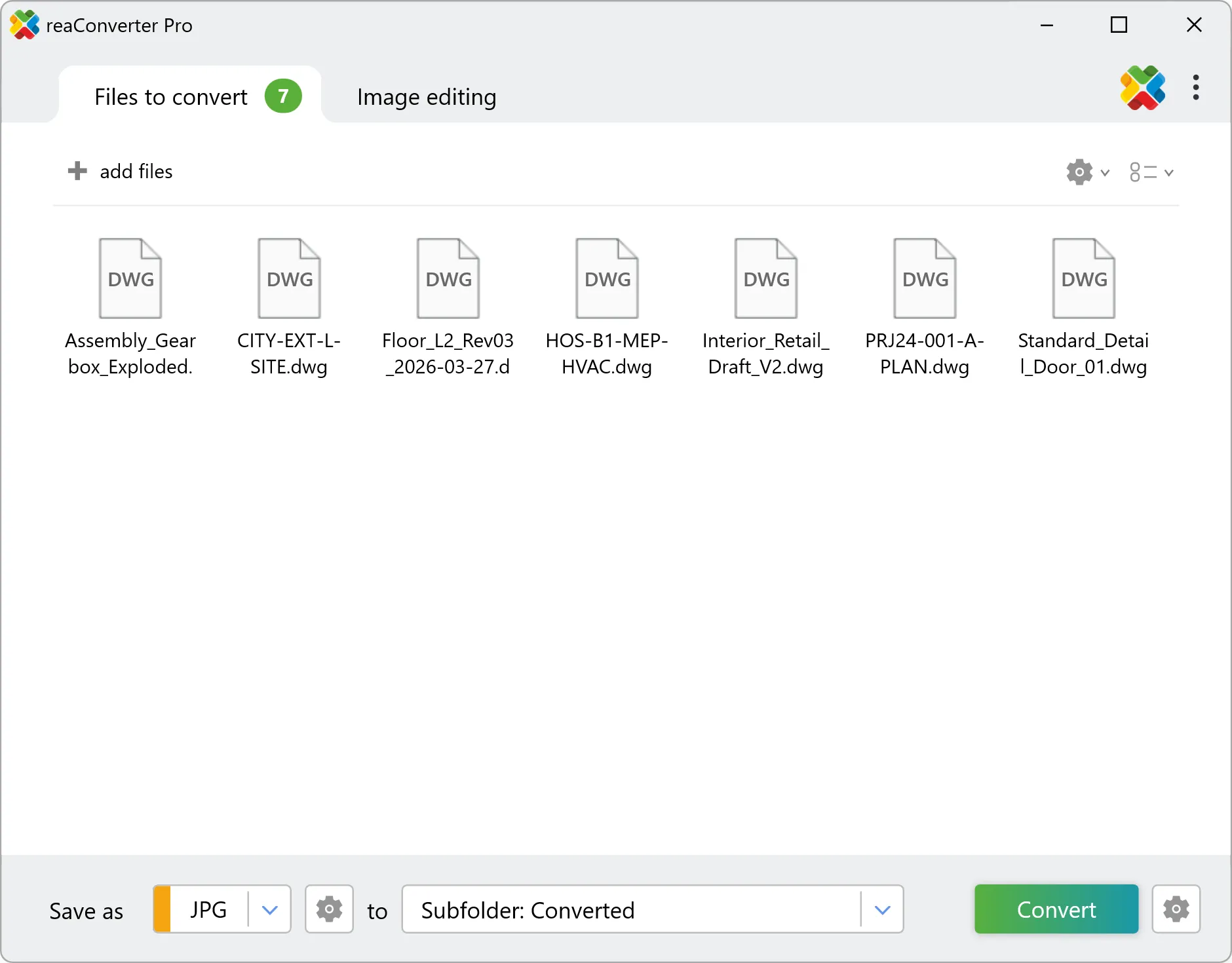
Supported input and output formats
On the input side, reaConverter reads DWG and DXF files from AutoCAD versions going back to early releases, plus DWF, HPGL/2, PLT, and other 2D CAD formats commonly found in legacy archives. This matters more than it sounds. Most archives accumulate files from different CAD tools over the years, and a preview system that only handles current AutoCAD versions leaves a chunk of the archive invisible.
On the output side, you can generate previews in any image format reaConverter supports. For a typical preview workflow, three outputs cover almost everything:
- PNG or JPG thumbnails for Windows Explorer, file managers, and most document management systems
- SVG for web-based preview interfaces where users may want to zoom into the drawing
- PDF for archival and sharing with clients who don’t have CAD software
You can output more than one format from a single conversion job. A common setup generates a small JPG thumbnail and a larger PDF for every DWG, both saved alongside the original.
Automating the workflow
This is where reaConverter Pro earns its keep. There are two automation modes that matter for archive work.
Watched folders monitor a directory continuously. When a new DWG file lands in the folder, reaConverter processes it automatically using a saved conversion profile and writes the output wherever you’ve configured. For an active project archive where designers save new drawings throughout the day, a watched folder means previews appear within seconds of a file being saved, with no scheduled jobs and no human involvement.
Command-line operation runs reaConverter as a CLI tool. This is what you want for the initial bulk conversion of an existing archive, and for any workflow that fits better into Windows Task Scheduler or a server-side script. A nightly job that processes the day’s additions, or a one-off command that converts the entire historical archive over a weekend, both work cleanly from the command line.
Together these two modes cover the realistic shape of an archive: a large historical backlog that needs a one-time bulk conversion, plus a continuous stream of new files that need previews generated as they arrive.
Adding OCR for scanned legacy drawings
There’s a bonus use case worth mentioning, because almost every firm older than fifteen years has it. Somewhere in the archive there are scanned PDFs and TIFFs of paper drawings from the pre-CAD era, or from acquired companies, or from projects where the originals were lost. These files are technically in the archive, but they’re functionally invisible — you can’t search their contents, and visual thumbnails of scanned blueprints often look identical to each other.
reaConverter includes OCR. You can batch-process scanned drawings to extract the text — title blocks, revision tables, notes — and either embed it back into a searchable PDF or output it as a text file alongside the original. Combined with preview generation, this turns a pile of opaque scans into searchable, browsable assets. It’s the same workflow as the DWG preview pipeline, just with a different input type.
Where this approach fits, and where it doesn’t
Honest limitations matter here. A preview system that promises to handle everything will disappoint at the worst possible moment.
reaConverter works well for:
- 2D architectural and engineering drawings (the bulk of most firms’ archives)
- Standard mechanical part drawings and assembly views
- Civil, structural, and electrical drawings
- Mixed archives with multiple CAD formats and legacy scanned documents
- Throughput in the thousands to tens of thousands of files
reaConverter is not the right tool for:
- Very large 3D assemblies — full automotive models, complex aerospace assemblies, large BIM coordination models with millions of polygons. These need a dedicated CAD or visualization platform.
- Drawings that depend heavily on custom AutoCAD object enablers (AutoCAD Architecture, Civil 3D, Plant 3D specialty objects may render in simplified form)
- Drawings with broken or missing xrefs — these will preview, but the preview will be missing the xref content, same as in any non-AutoCAD tool
If your archive is mostly 2D drawings with the occasional 3D model, reaConverter handles the realistic 90% case. If your work is large 3D assemblies, this isn’t the right tool, and that’s worth knowing before you invest setup time.
A practical setup for a 50,000-file CAD archive
Here’s a concrete recipe for a small firm with a multi-year archive that needs preview generation set up in an afternoon.
Step 1: Install reaConverter Pro on a single machine. This can be an existing workstation that’s left on overnight, or a small server. No special hardware is needed for 2D CAD work.
Step 2: Create a conversion profile. Open reaConverter, add a sample DWG file from your archive, and configure the output: typically a 1024×768 JPG thumbnail and a PDF. Save this as a named profile (for example, archive_preview). The profile captures every setting, so subsequent runs are reproducible.
Step 3: Run the initial bulk conversion. Point reaConverter at the root of your archive and let it process everything once. For a 50,000-file archive of typical 2D drawings, plan for this to run overnight or across a weekend depending on the machine. Use the command-line mode if you want to script it or run it on a server.
Typical performance on a mid-range Intel i7 workstation:
- ~3–5 standard 2D DWG previews per second
- ~8–10 hours for a 50,000-file archive
- Typical PNG preview size: ~100–150 KB per drawing
Step 4: Set up a watched folder for ongoing files. Once the historical archive is converted, configure a watched folder on the directory where new drawings are saved. From this point forward, every new DWG that designers save gets a preview generated automatically.
Step 5: Make the previews discoverable. This is where preview output meets your existing infrastructure. The simplest setup just stores PNG thumbnails in a parallel folder structure mirroring the archive, which Windows Explorer can browse directly. More ambitious setups feed the previews into a document management system, an intranet page built on a simple file index, or a tool like Daminion that’s designed for visual file libraries.
The result, after one afternoon of setup and one weekend of bulk processing, is that the whole archive becomes browsable by eye, and stays that way without further intervention.
Frequently asked questions
Does reaConverter require AutoCAD to be installed?
No. reaConverter reads DWG and DXF files natively and does not require AutoCAD, DWG TrueView, or any other Autodesk software to be present.
What CAD formats can reaConverter generate previews from?
The main supported inputs for CAD preview work are DWG, DXF, DWF, HPGL/2, and PLT. The full format list is broader, but those are the ones that matter for typical engineering and architectural archives.
Can reaConverter generate SVG previews of DWG files?
Yes. SVG is among the supported output formats, which makes it useful for web-based preview interfaces where users may want to zoom into the drawing without losing quality.
How does Watch Folder automation actually work?
You configure a folder for reaConverter Pro to monitor. When a file matching your filter appears in that folder, reaConverter applies the conversion profile you’ve assigned and writes the output to the configured destination. The whole process runs in the background and does not require a user to be logged in interactively, depending on how it’s set up to run.
Is there a licensing limit on how many files can be processed?
No. A reaConverter Pro license is a one-time purchase that allows unlimited file processing on the licensed machine. There are no per-file or per-batch fees.

reaConverter Pro is available as a one-time purchase Windows license. For firms maintaining large legacy archives, the time savings are usually immediate.