
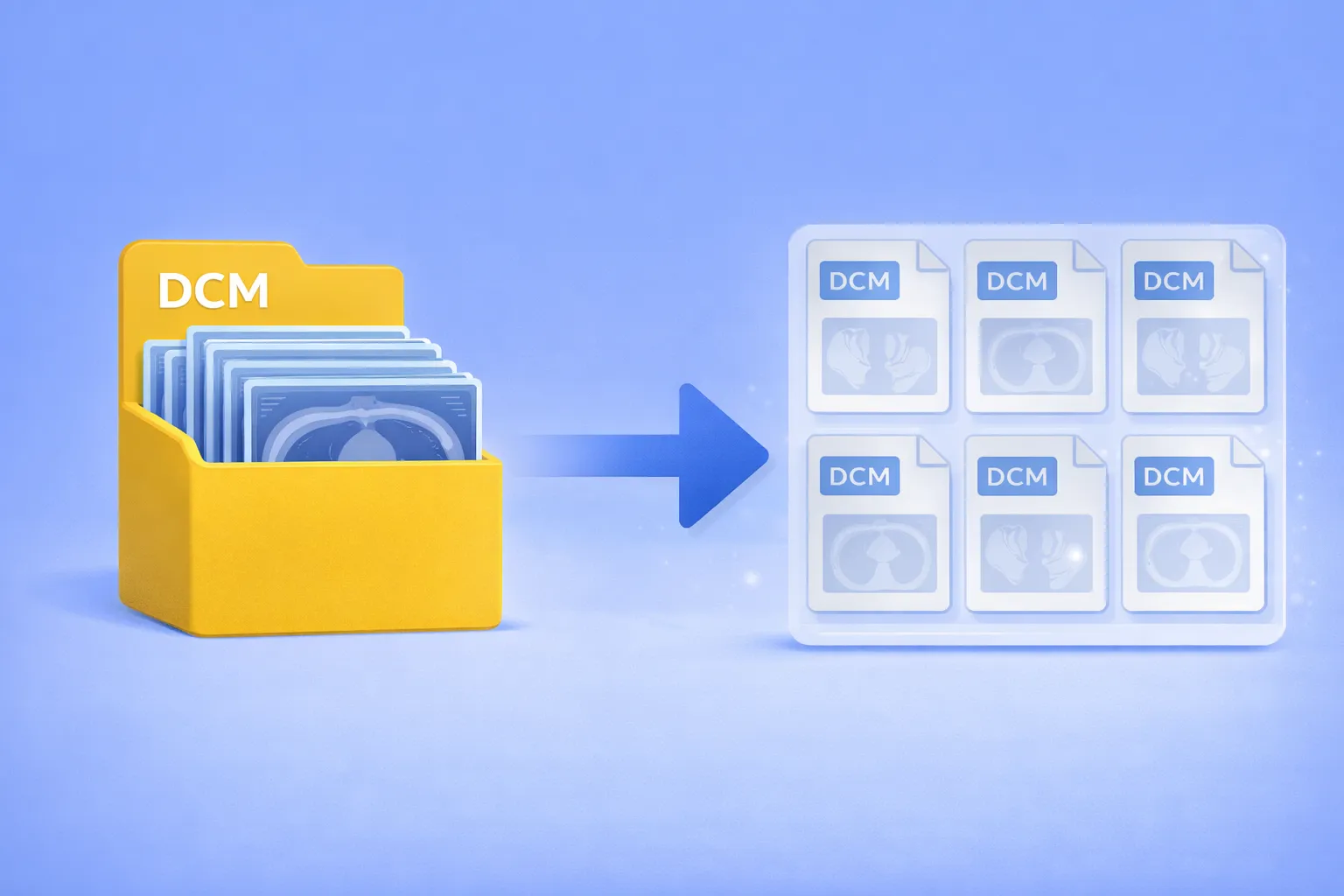
Extract individual frames from embedded multiframe DICOM — no scripting, no manual splitting
Multiframe DICOM files pack dozens or even hundreds of image frames into a single container. CT volumes, MRI sequences, ultrasound cine loops, and nuclear medicine studies are commonly stored this way. When a downstream system, analysis pipeline, or colleague expects one-image-per-file DICOM, you’re stuck — most conversion tools either ignore the extra frames or don’t offer DICOM as an output format at all. The usual alternatives are writing Python scripts with pydicom, wrestling with dcmtk command-line utilities, or paying for specialized medical imaging software.
A recent customer request summed up the problem:
“My goal was converting from an embedded DICOM multiframe file to multiple single-frame files, but there was no such option.”
Starting with version 8.0.200, reaConverter supports direct DICOM to DICOM conversion, including full extraction of frames from both classic and Enhanced multiframe DICOM files.
Classic vs. Enhanced Multiframe DICOM
Multiframe DICOM comes in two flavors. Classic (Simple) Multiframe is the older format where all frames share one set of metadata(common in legacy archives and ultrasound systems). Enhanced Multiframe is the modern standard for CT and MRI, where each frame carries its own metadata through Functional Group sequences — more capable, but significantly harder for third-party software to parse. Most DICOM tools either don’t support Enhanced multiframe at all, or only extract the first frame. If your file contains multiple images and you need to separate each frame into its own DCM file, reaConverter handles both types.
Who This Is For
Radiologists and imaging departments — Separate multiframe CT, MRI, or ultrasound studies into individual slices for viewers that require single-frame input. Prepare data for second opinions or external consultations where the receiving system doesn’t support multiframe.
Medical researchers and AI developers — Convert multiframe studies into single-frame datasets for machine learning training and image analysis pipelines. Most ML frameworks expect one image per file; multiframe DICOM breaks that assumption.
PACS engineers and healthcare IT — Migrate imaging data between systems with different multiframe support. Normalize mixed archives. Handle extensionless DICOM files exported from older equipment without manual preprocessing.
Step-by-Step: Multiframe DICOM to Single-Frame DCM
Follow these steps:
1. Install or Update reaConverter 8
Download the latest version from reaConverter.com. DICOM-to-DICOM conversion requires version 8.0.200 or later.

2. Add Your Multiframe DICOM Files
Drag files into the main window, or use Add Folder to load an entire study directory.
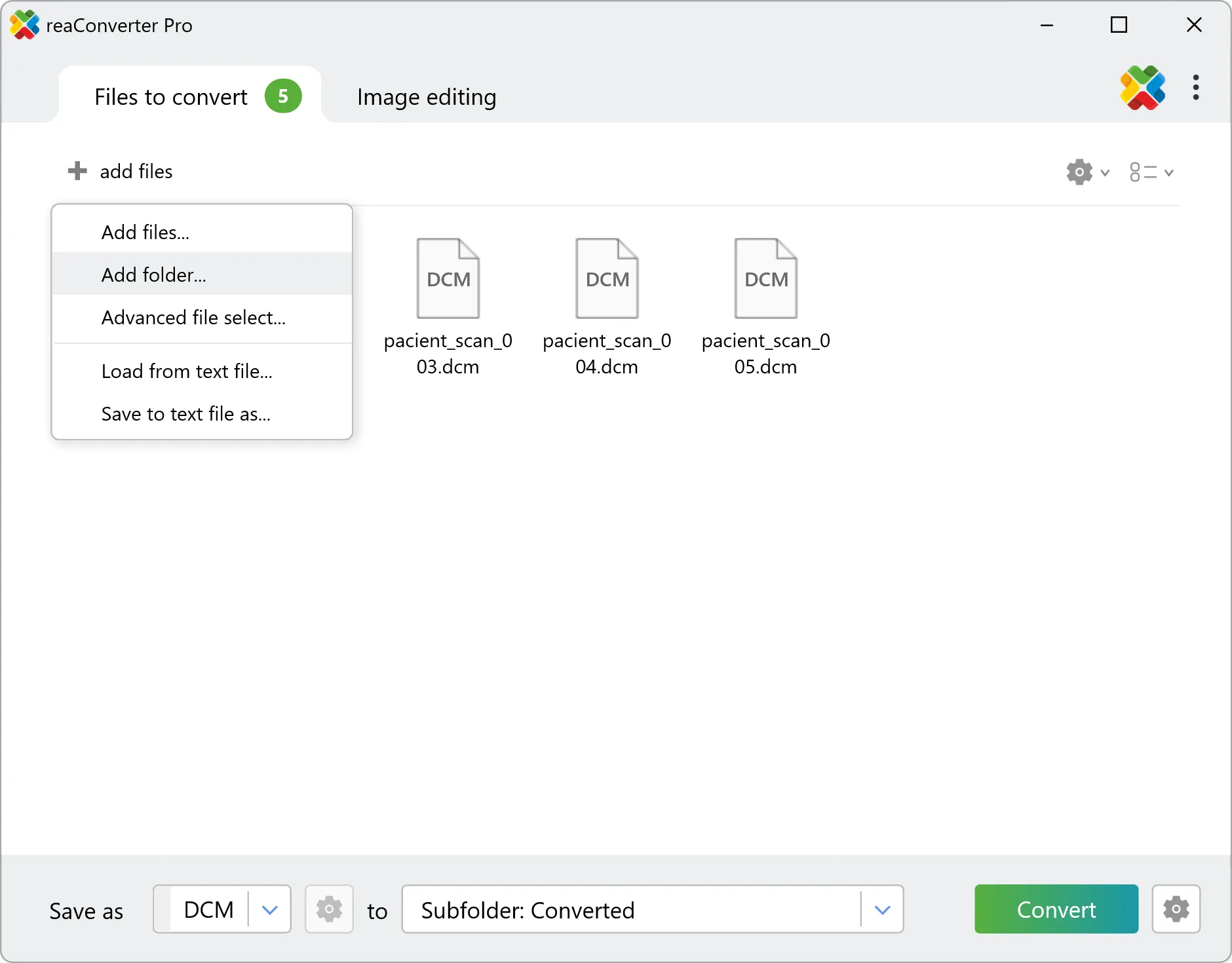
reaConverter detects DICOM files automatically — with standard extensions (.dcm, .dic, .dicom) or without any extension at all, based on the DICOM header. Extensionless DICOM is extremely common in PACS exports and scanner-generated archives. No renaming needed.
3. Select DCM as the Output Format (DICOM to DCM Conversion)
In the output format panel, choose DCM. This is a DICOM-to-DICOM conversion: the input is your multiframe file, the output is a set of individual single-frame DICOM files.
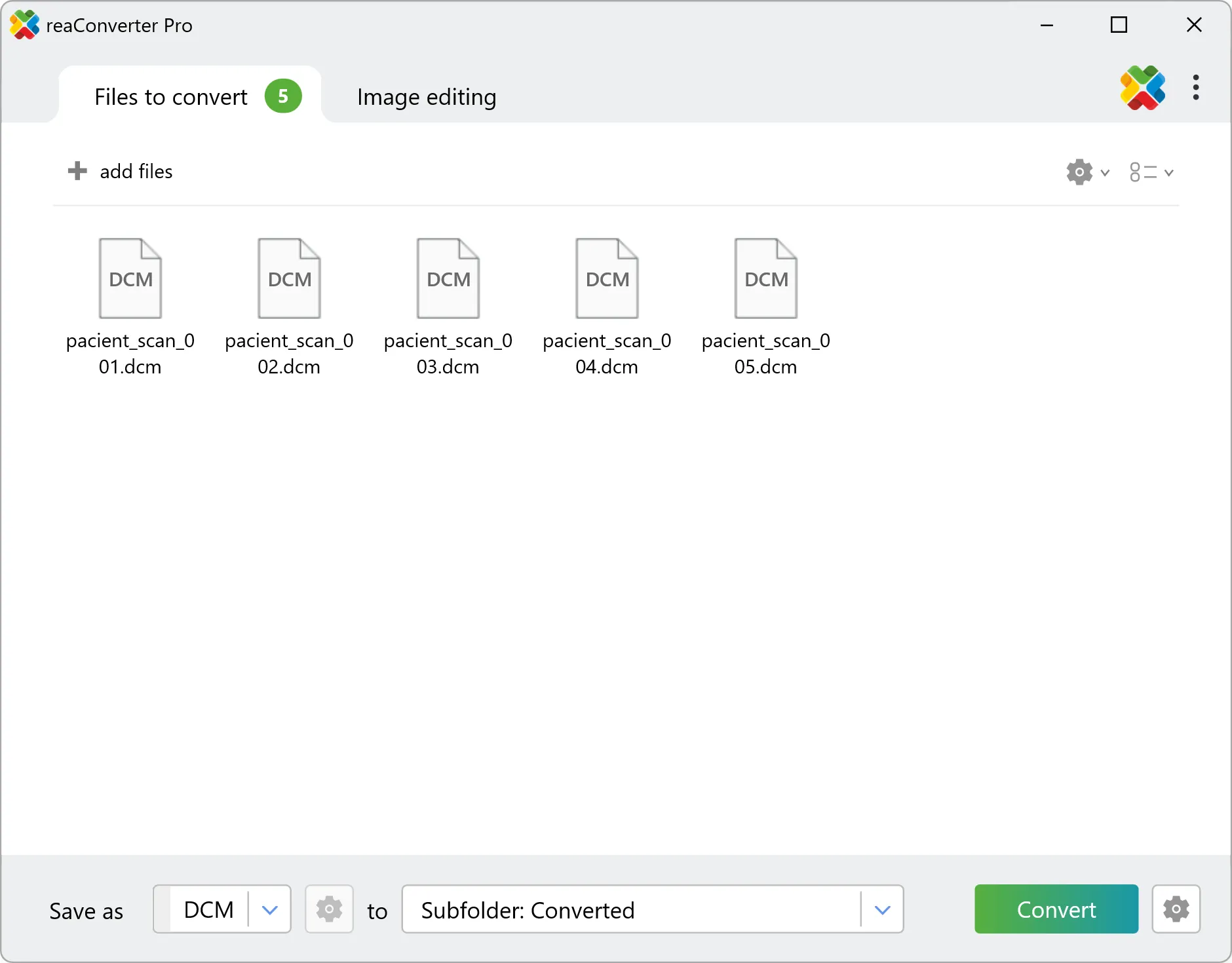
4. Start Conversion
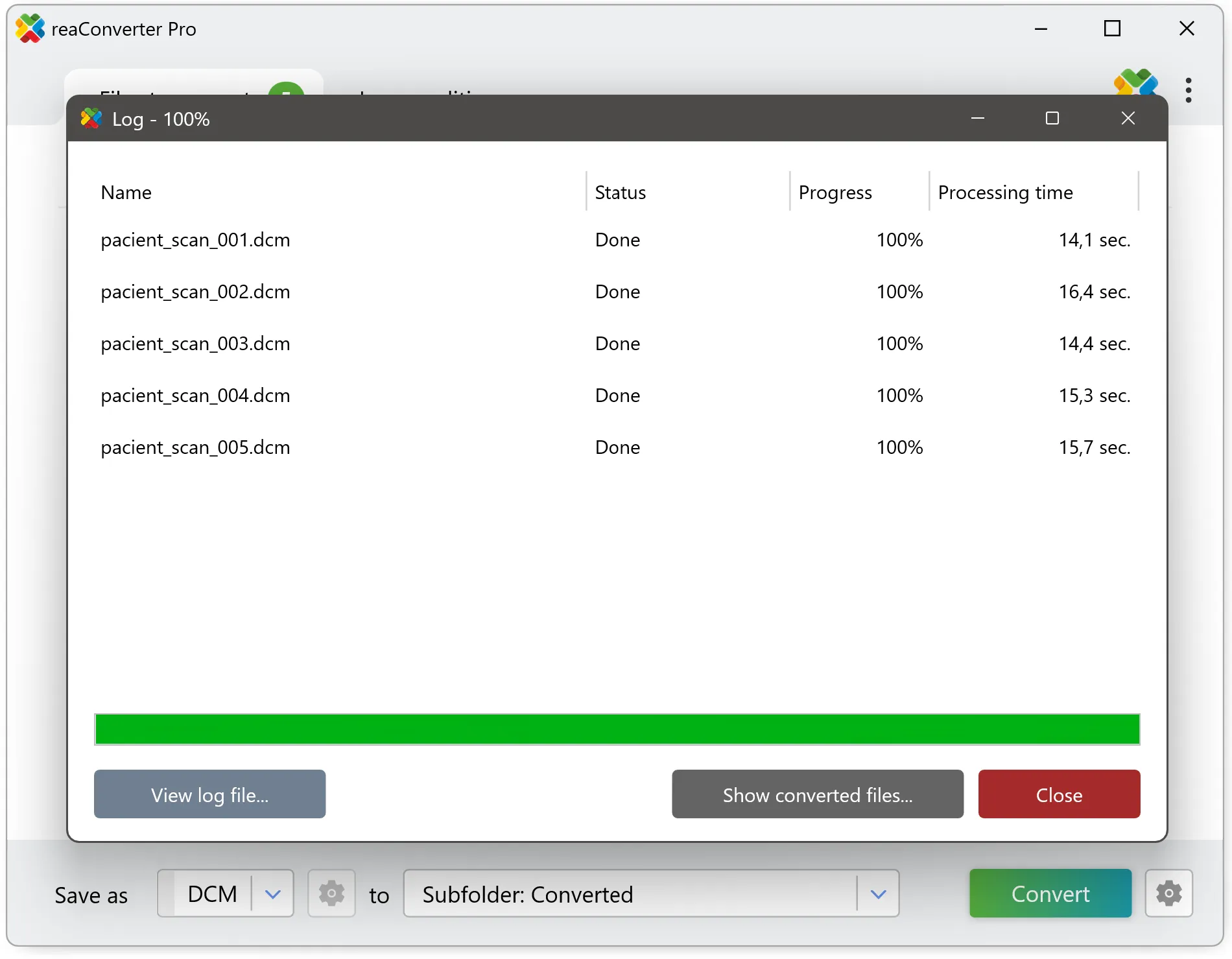
Click Start. reaConverter will:
- Detect the multiframe structure inside each input file
- Extract every frame
- Save each frame as a separate single-frame DCM file
Output files are named sequentially:
pacient_scan_001_frame_001.dcm
pacient_scan_001_frame_002.dcm
pacient_scan_001_frame_003.dcm
...
No additional settings, filters, or scripting required.
Beyond Multiframe Extraction
reaConverter doesn’t only split multiframe DICOM into single-frame DCM. You can also:
- Convert multiframe DICOM to JPEG, PNG, TIFF or PDF for visualization, presentations, or reporting
- Batch-process large imaging archives with hundreds of studies
- Convert other medical and non-medical formats to DCM
Save Hours with Automatic Conversion
The four steps above work when you need to convert a batch of files once. But in a busy radiology department or research lab, multiframe DICOM files keep arriving — from scanners, PACS exports, external referrals. Converting them manually every time means someone has to stop what they’re doing, and that someone usually has patients waiting.
Watch Folders eliminate that step entirely. You pick a folder on your computer, tell reaConverter what format you want, and that’s it. From that point on, any file that lands in that folder gets converted automatically. No clicks, no application window, nothing to remember.
Here’s what that looks like in practice: your MRI scanner exports a multiframe Enhanced DICOM study into a shared network folder. Within seconds, reaConverter detects the new file, splits it into single-frame DCMs, and places the results in your output folder — ready for your PACS, your analysis pipeline, or your colleague down the hall. Nobody had to open anything or press any buttons.
Setting it up takes about two minutes:
- In reaConverter Pro, go to Menu → Watch Folders → Add New Folder
- Point it at your input directory
- Choose DCM as the output format
- Set a destination folder
That’s the entire configuration. It runs quietly in the background from that point forward.
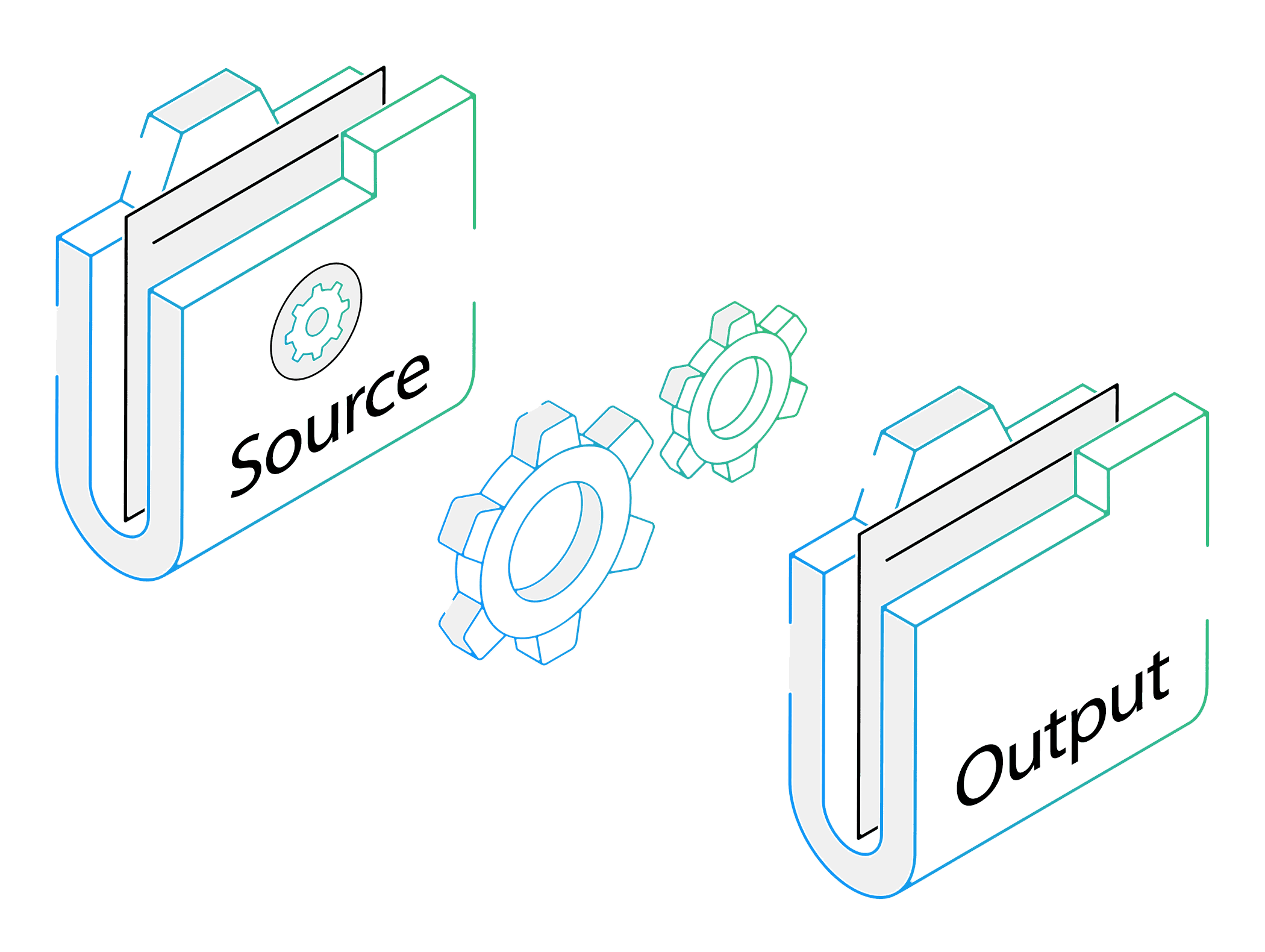
For a radiologist reviewing 20–30 studies a day, or a research team processing imaging data from multiple sites, this turns a recurring manual task into something that simply doesn’t exist anymore. That’s one less thing standing between a scan and a diagnosis.
Command-line support is also available for IT teams who want to integrate DICOM conversion into scripts, scheduled tasks, or PACS migration workflows. Both options are available in reaConverter Pro.
Background
This feature was built in response to a direct customer request. A user reached out explaining that they needed to extract individual frames from embedded multiframe DICOM files, and couldn’t find a way to do it in reaConverter or anywhere else without resorting to scripting.
We obtained sample files covering both classic and Enhanced multiframe DICOM, including extensionless files from PACS exports, and built extraction logic that handles all of these cases reliably. DICOM-to-DICOM conversion shipped in reaConverter 8.0.200.
Full support for Enhanced multiframe DICOM extraction is still uncommon, even in professional medical imaging software. Many tools handle classic multiframe but fail on Enhanced, or extract only the first frame, or simply don’t offer DICOM as an output format. reaConverter fills that gap: no DICOM dictionary edits, no Python scripts, no per-frame configuration. Load the file, pick DCM, click Start.
If your imaging workflow involves multiframe DICOM files and you need them split into individual frames, reliably, in batch, with no manual intervention, reaConverter handles it.
Get reaConverter and split your first multiframe DICOM in seconds.